Hand off a chat to a human
Add the Talk to a human power-up so that when a visitor asks for a person, your bot takes their email address and emails your team the full conversation.
Who can do this: team owners and admins.
Want to reply live in the chat?
This power-up hands off by email. To have a team member take over the conversation in the web widget, also turn on human takeover (Standard plan and above). The power-up then escalates the chat so your team can claim it.
Video walkthrough; the first part covers Talk to a human. Recorded in 2024, so some screens have changed since.
Steps
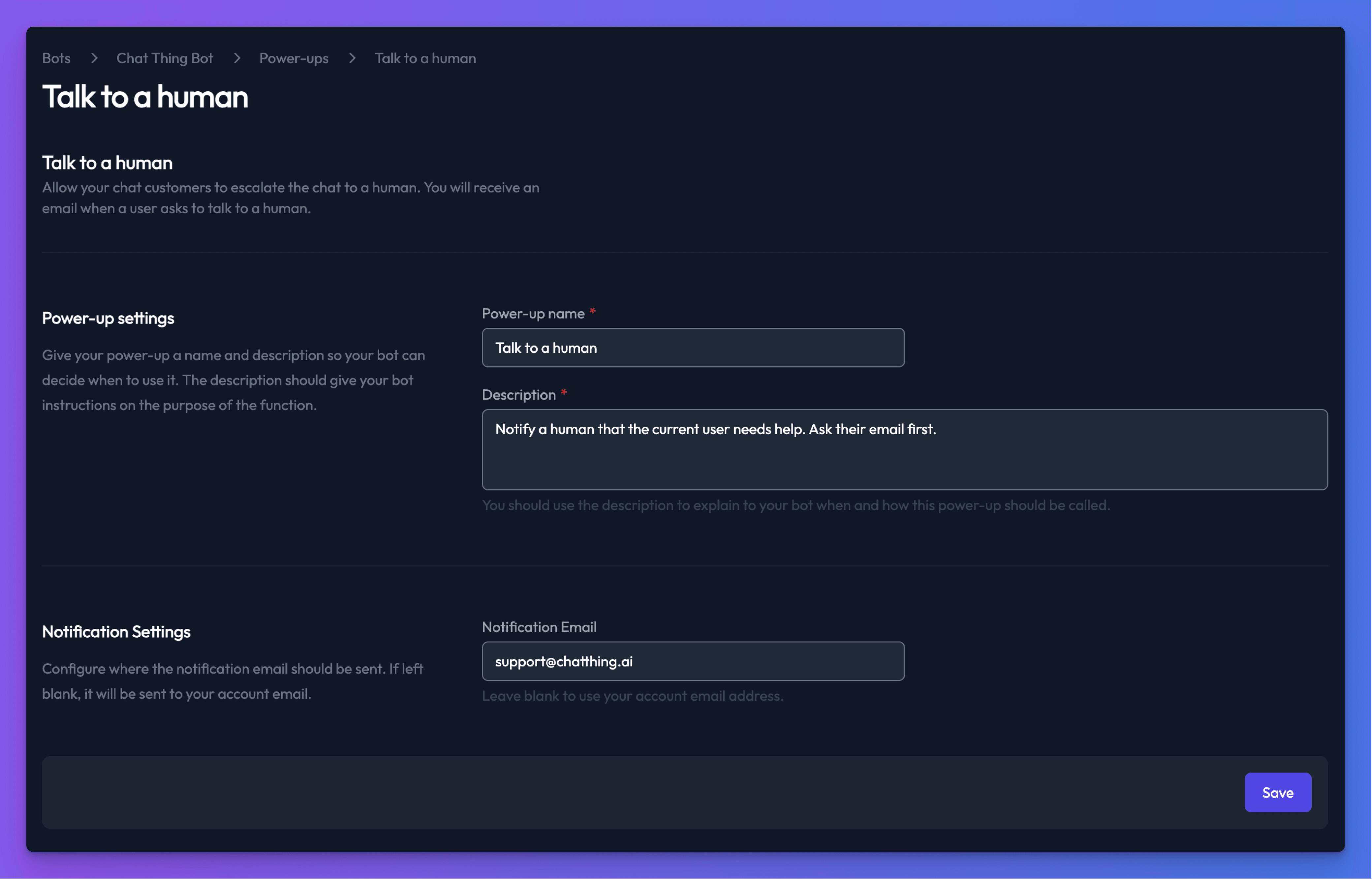
- Open your bot, go to the Power-ups tab and click New power-up.
- Choose Talk to a human and click Create power-up.
- Optionally change the Power-up name. Visitors see it in the chat while it runs.
- Edit the Description to say when the bot should hand off. The default is "Notify a human that the current user needs help. Ask their email first." You might add: "Use this when the user asks for a person, or when you can't answer after two attempts."
- In Notification Email, enter the address that should receive handoffs, such as a shared support inbox. Leave it blank to send them to the team owner's account email.
- Click Save.
What happens during a handoff
- The bot asks the visitor for their email address. It only continues with a real, valid address. Placeholder addresses such as
name@example.comare rejected. - Chat Thing emails your notification address. The subject is "visitor's email has requested to speak - Chat Thing" and the email contains the whole conversation so far and a Reply? button that starts an email to the visitor.
- The conversation's state changes to Escalated on every channel. You can find escalated conversations in Conversations.
- If you use webhooks, Chat Thing sends a conversation escalated event, so you can also create a ticket or alert in another tool.
- The bot tells the visitor their request was sent and that they'll be contacted as soon as possible.
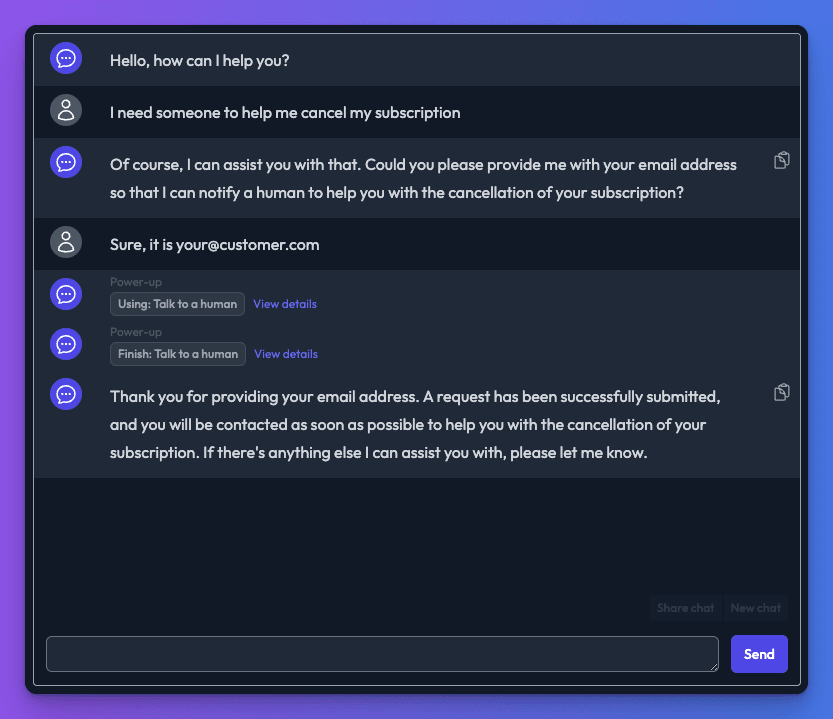
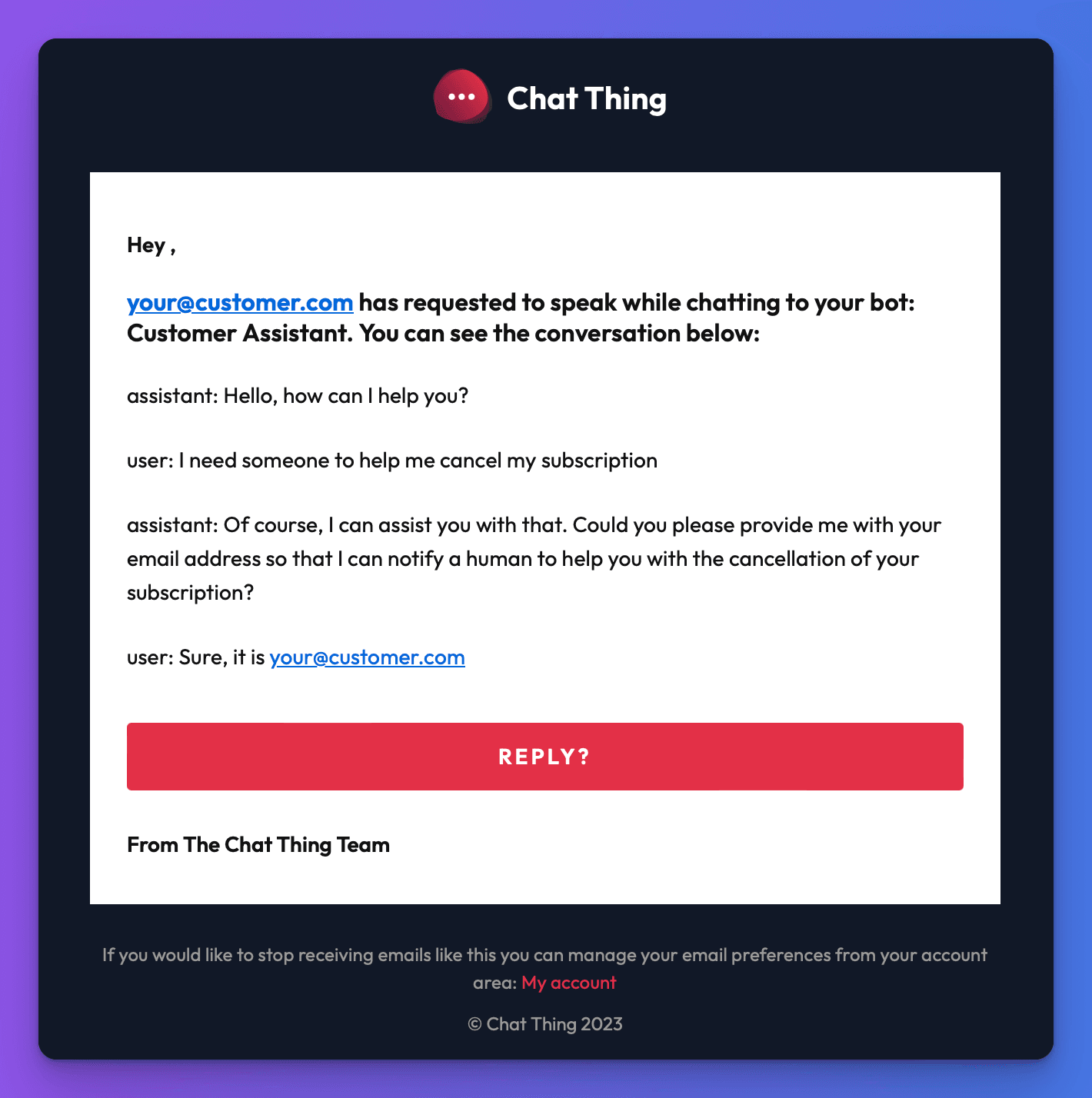
If your bot has human takeover turned on and the visitor is using the web widget, your team is also notified in real time and can claim the conversation and reply in the chat.
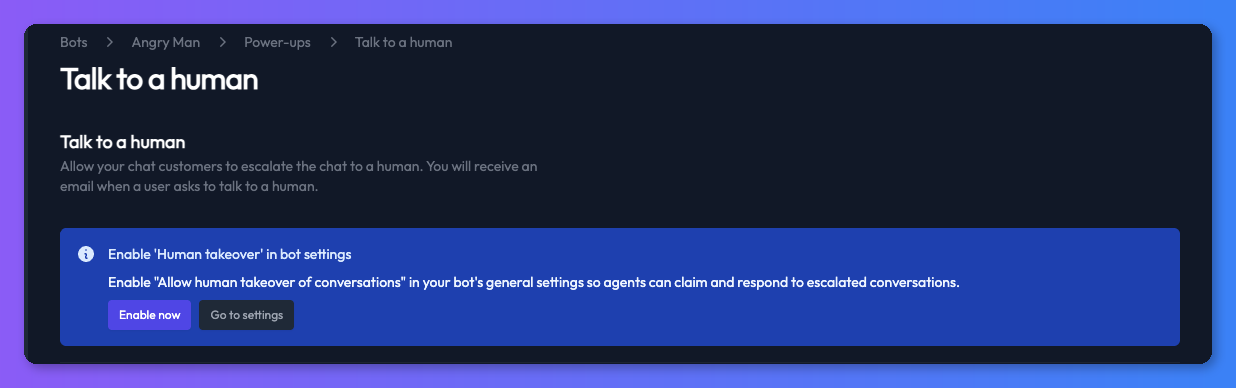
Turn on human takeover from the power-up
If human takeover is off, the power-up's settings page shows Enable 'Human takeover' in bot settings. Click Enable now to turn it on, or Go to settings to open your bot settings. The setting is called Allow human takeover of conversations.
Check it works
- Chat with your bot and ask to speak to a person.
- Give a real email address when the bot asks.
- Check that the email arrives at your notification address and that the conversation shows as Escalated in Conversations.
Troubleshooting
The bot answers but never offers a person
Make the Description more explicit, and add a rule to your bot's prompt, for example: "If the user asks for a human, or is frustrated, offer to pass them to the team."
The bot keeps asking for an email address
The power-up needs a valid email address and rejects example.com addresses. If the visitor gave one in a different format, the bot asks again.
No email arrived
Check the Notification Email address, then your spam folder. If the field is blank, the email goes to the team owner's account email, not to the person who created the power-up.
Related
- Take over a live chat from your bot
Let your team step into a live website chat, reply to the customer directly while the bot pauses, then hand the conversation back to the bot.
- Send an email notification from your bot
Let your bot email up to three fixed addresses with a visitor's details and message, for lead capture or contact requests. No inbox connection needed.
- Webhooks
Send Chat Thing events such as new conversations, escalations and syncs to your own systems, Slack or Discord, and trigger data source syncs from a URL.
Last updated