Connect Notion
Add pages and databases from Notion so your bot can answer from your wiki, help centre, HR handbook or any other workspace content.
Before you start
Who can do this: team owners and admins. You also need access in Notion to the pages you want to add.
Steps
- Open your bot, go to the Data sources tab and click New data source.
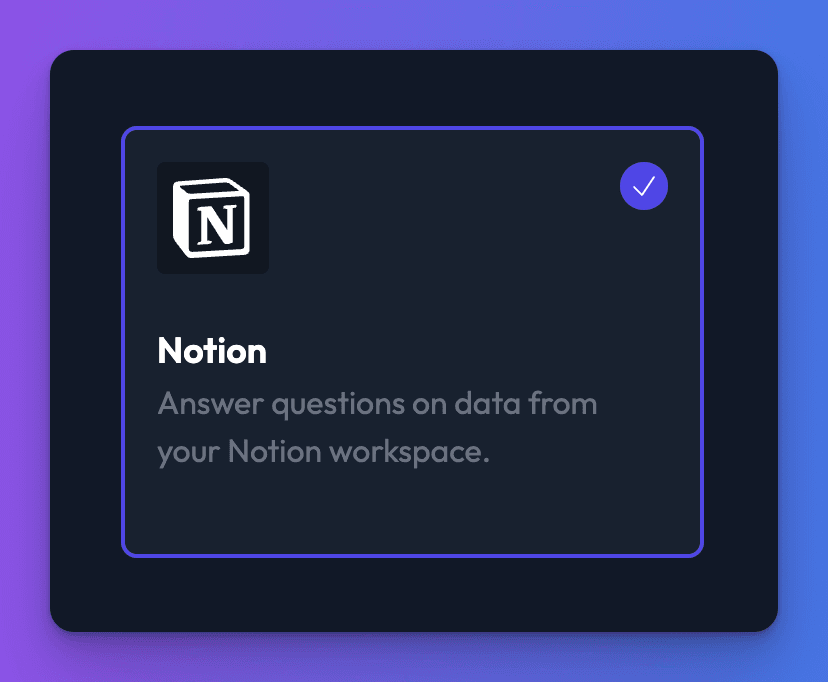
- Choose Notion and click Create data source.
- If your team hasn't connected Notion yet, click Connect with Notion on the Content tab and sign in to Notion.
- In Notion's permission screen, select every page you want Chat Thing to be able to use. Pages you don't select can't be added to any bot later. You can change this afterwards (see change which pages Chat Thing can access).
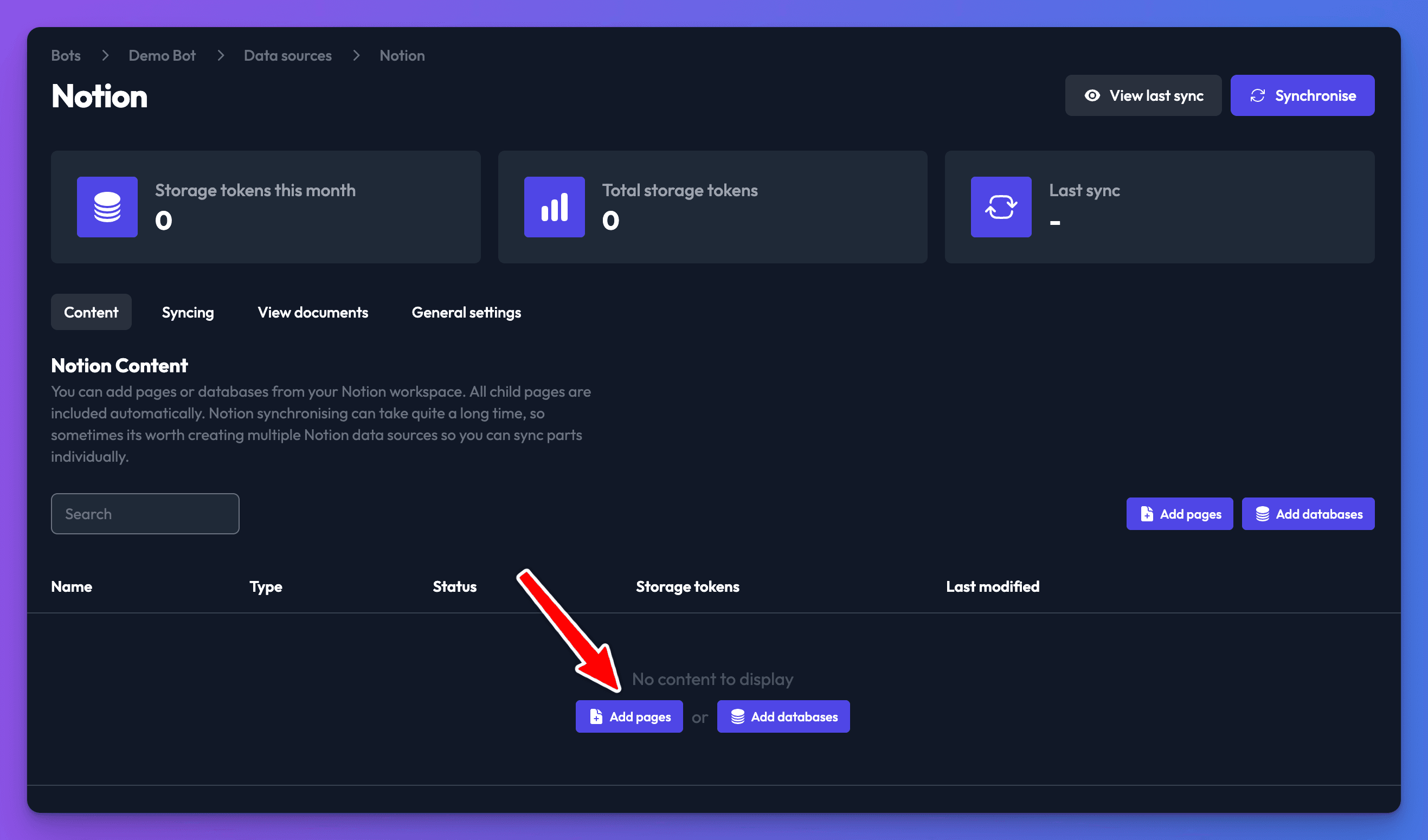
- Back on the Content tab, click Add pages or Add databases (on a small screen, Add > Add pages or Add databases).
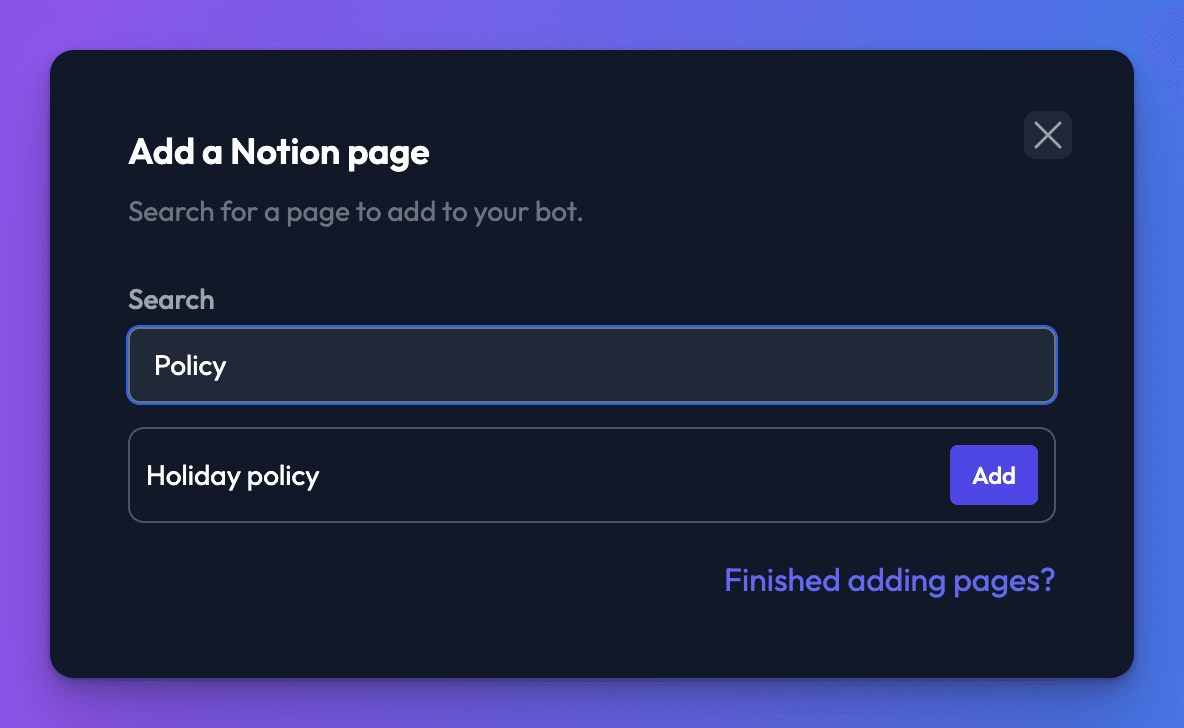
- Search for a page or database by title and click Add next to it. Add as many as you need, then close the dialog.
- Click Synchronise.
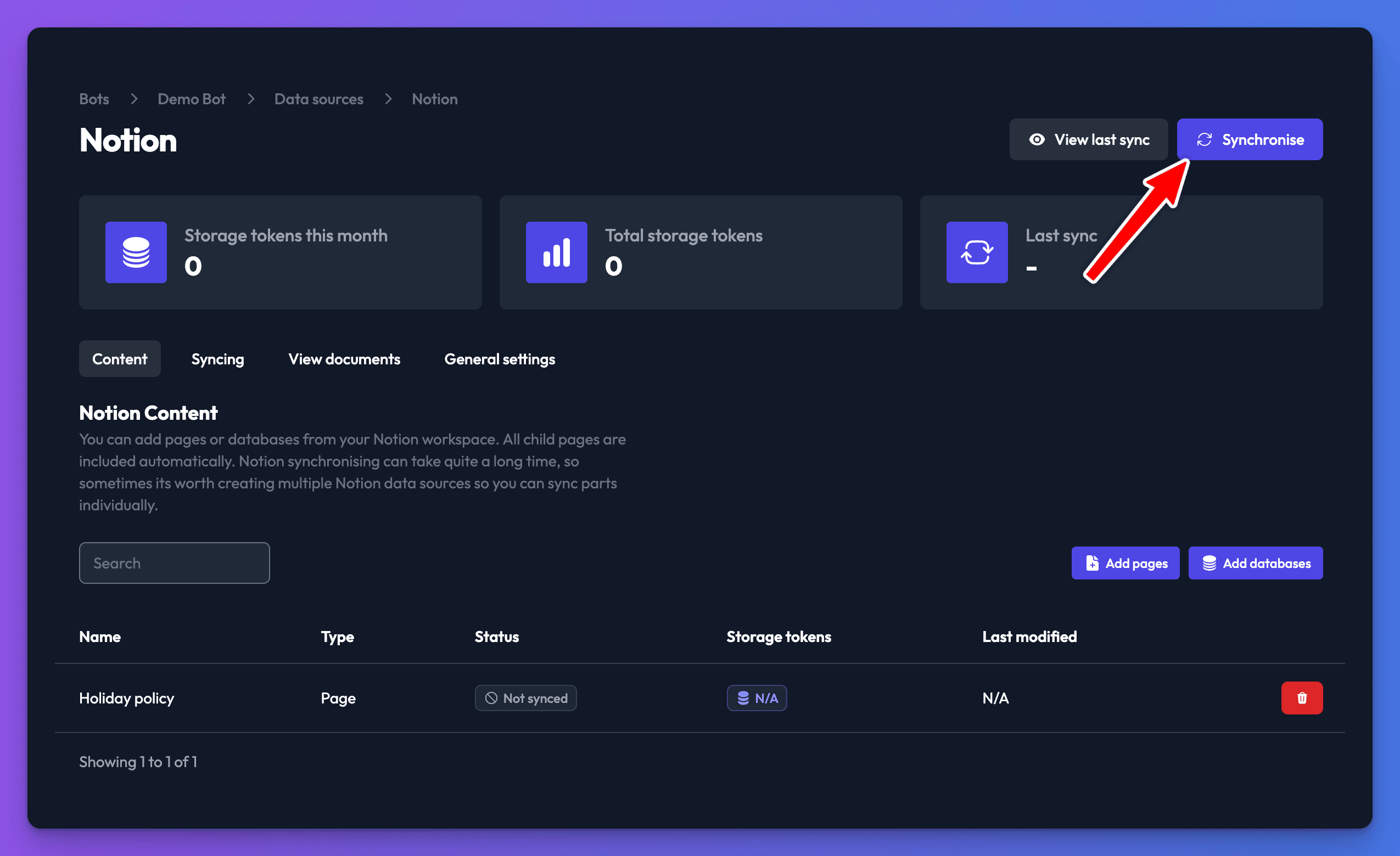
All child pages of a page you add are included automatically, and so are the entries of any database you add. Add only top-level pages: adding a child page as well creates duplicates.
How long syncing takes
Notion syncs are slower than other types because every page is fetched separately. A large page tree or database can take over an hour. To sync parts of a large workspace separately, split it across several Notion data sources, one per section. Each counts towards your data source limit.
Change which pages Chat Thing can access
- Go to your Account page.
- Under Connected services, find Notion and click Reconfigure.
- Sign in to Notion again and select the pages Chat Thing should have access to.
To remove the connection completely, click Disconnect instead. Data sources that used it show Disconnected and stop syncing until you reconnect with Re-authenticate in the data source's menu. Content already synced stays in your bot until you delete the data source.
Check it works
- After the sync, each page or database shows Finished in the Status column.
- Ask your bot a question that one of the pages answers.
Troubleshooting
I can't find a page in the search
Chat Thing can only see pages you selected when you connected Notion. Use Reconfigure (above) to give it access, then search again.
Images from Notion don't appear in answers
Images aren't included when Notion content is synced. Describe anything important in text.
The sync is taking a very long time
This is normal for large workspaces. Use View sync progress in the data source's menu to follow it, and consider splitting the content across several data sources.
Related
- Add, sync and delete data sources
Add a data source to your bot, sync it, re-sync after changes and delete it, plus how many data sources each plan allows and per-type limits.
- Keep your bot's knowledge up to date
Re-sync data sources by hand, on a daily, weekly or monthly schedule, or automatically when you publish in your CMS, and see what each sync changes.
- Connect your bot to Notion
Let your bot save items to a Notion database, query databases with filters, and search, read and write Notion pages live during a chat.
Last updated