Connect bots together
Add the Bot-to-bot power-up so your bot can ask another of your bots for help: delegate a task, ask a question or look something up in that bot's knowledge.
Who can do this: team owners and admins.
When to use it
A common set-up is one front-line bot that talks to visitors and passes specialist questions to other bots, for example:
- a billing bot with your pricing and invoicing docs,
- a technical support bot with your product documentation and an API power-up for your ticketing system,
- a marketing bot with a prompt tuned to write in your brand's voice.
Splitting work this way lets each bot have its own focused prompt, knowledge, power-ups and model, and lets several bots share one specialist's knowledge without copying its data sources.
Steps
- Create or choose the bot you want to delegate to, and check it answers well on its own.
- Open the bot that will do the asking, go to the Power-ups tab and click New power-up.
- Choose Bot-to-bot and click Create power-up.
- Under Bot settings, choose the bot to talk to in Bot.
- Edit the Power-up name and Description so the bot knows what to send, for example "Ask the Billing bot any question about invoices, refunds or plan pricing."
- Click Save.
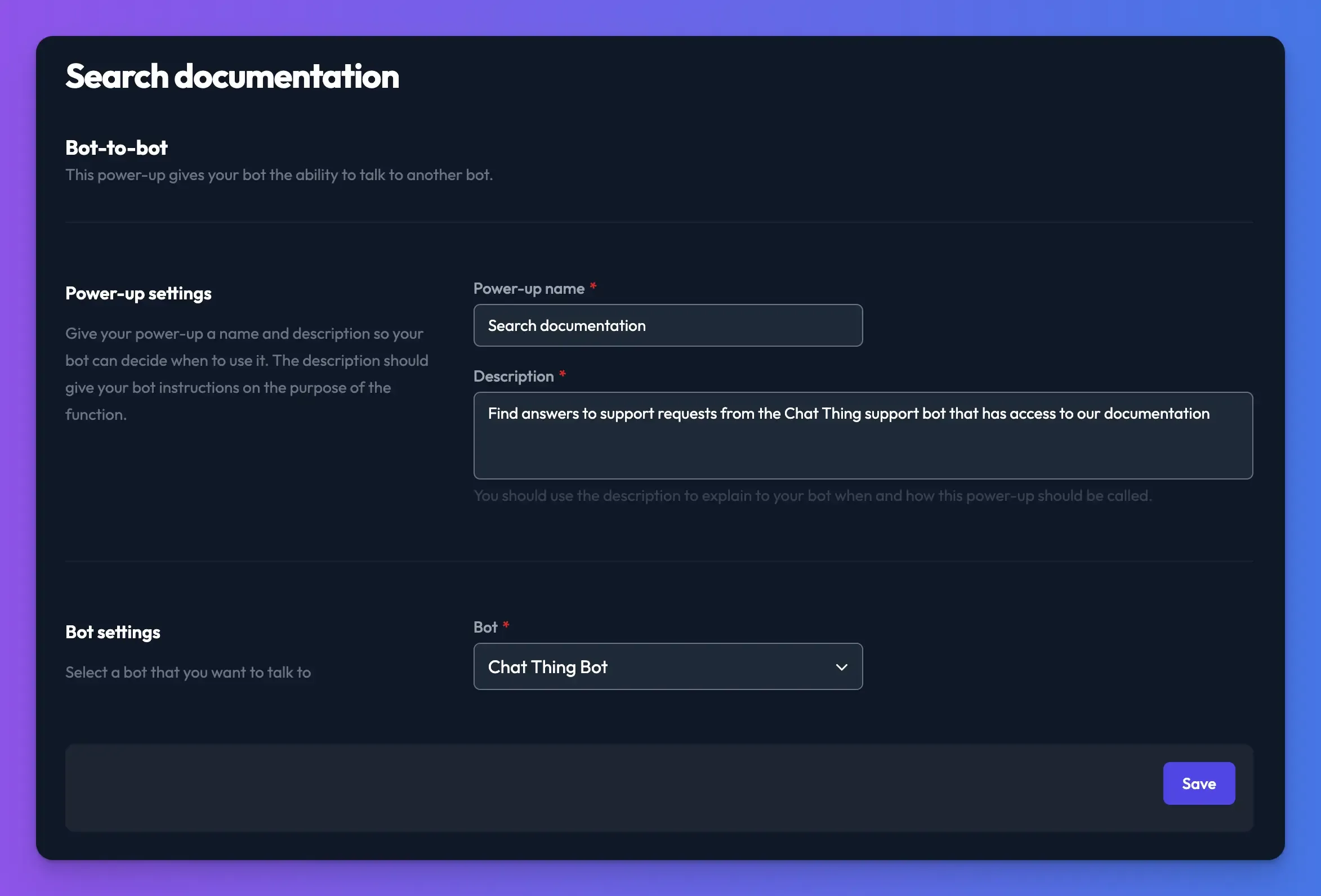
Add one Bot-to-bot power-up for each bot you want to connect.
How it works
When your bot uses the power-up, it writes a question or task and sends it to the connected bot. The connected bot answers using its own prompt, knowledge, power-ups and model, and your bot uses that answer in its reply.
- Each request starts a new conversation with the connected bot, which doesn't see the rest of the chat. Tell your bot in the Description to include all the context the other bot needs.
- The connected bot replies in text only. Its cards, charts and other displays aren't shown.
- Requests appear as conversations on the connected bot, so you can review them there.
- Both bots use message tokens from your team's allowance.
Loops aren't allowed
To stop bots talking to each other forever, the Bot list only shows bots from the same team that don't already connect back to this bot, directly or through other bots.
Check it works
- Chat with the asking bot while signed in and ask something only the connected bot knows.
- Open View details on the power-up call to see the question your bot sent and the answer it got back.
Troubleshooting
The bot I want isn't in the list
It either belongs to a different team, or connecting to it would create a loop because it already connects back to this bot.
The connected bot's answers miss the point
The connected bot only sees the question it was sent. Tell the asking bot in the Description to include the visitor's full question and any details they've given.
Related
- How power-ups work
What power-ups are, how to add, edit, turn off and delete them, how your bot decides to use one, and what visitors see in the chat.
- Duplicate a bot
Make a copy of a bot with its settings, and choose whether to include its data sources, channels, tasks, power-ups, webhooks and test cases.
Last updated