Send an email notification from your bot
Add the Send email power-up so your bot can email you, or up to three addresses you choose, when a visitor wants to get in touch or leaves their details.
Who can do this: team owners and admins.
Need a real inbox?
This power-up only sends notifications to the fixed addresses you set. To let your bot read, send and organise email in a connected Gmail, Outlook or other account, see Connect an email inbox.
Video walkthrough; the second part covers Send email. Recorded in 2024, so some screens have changed since.
Steps
- Open your bot, go to the Power-ups tab and click New power-up.
- Choose Send email and click Create power-up.
- Enter a Power-up name and a Description that says when to send an email, for example "Use this when the user wants to contact us or asks for a quote. Collect their name, email address and what they need first."
- Under Email Settings, add between one and three addresses in Receiving Email Address.
- Optionally enter an Email Subject. Leave it blank to let the bot write a subject based on the conversation.
- Click Save.
What happens when the bot sends an email
- The bot asks the visitor for their email address. It only continues with a real, valid address. Placeholder addresses such as
name@example.comare rejected. - The bot writes the message from the conversation.
- Chat Thing sends it to your receiving addresses. The email says which visitor sent it and from which bot, includes the bot's message, and has a Reply? button that starts an email to the visitor.
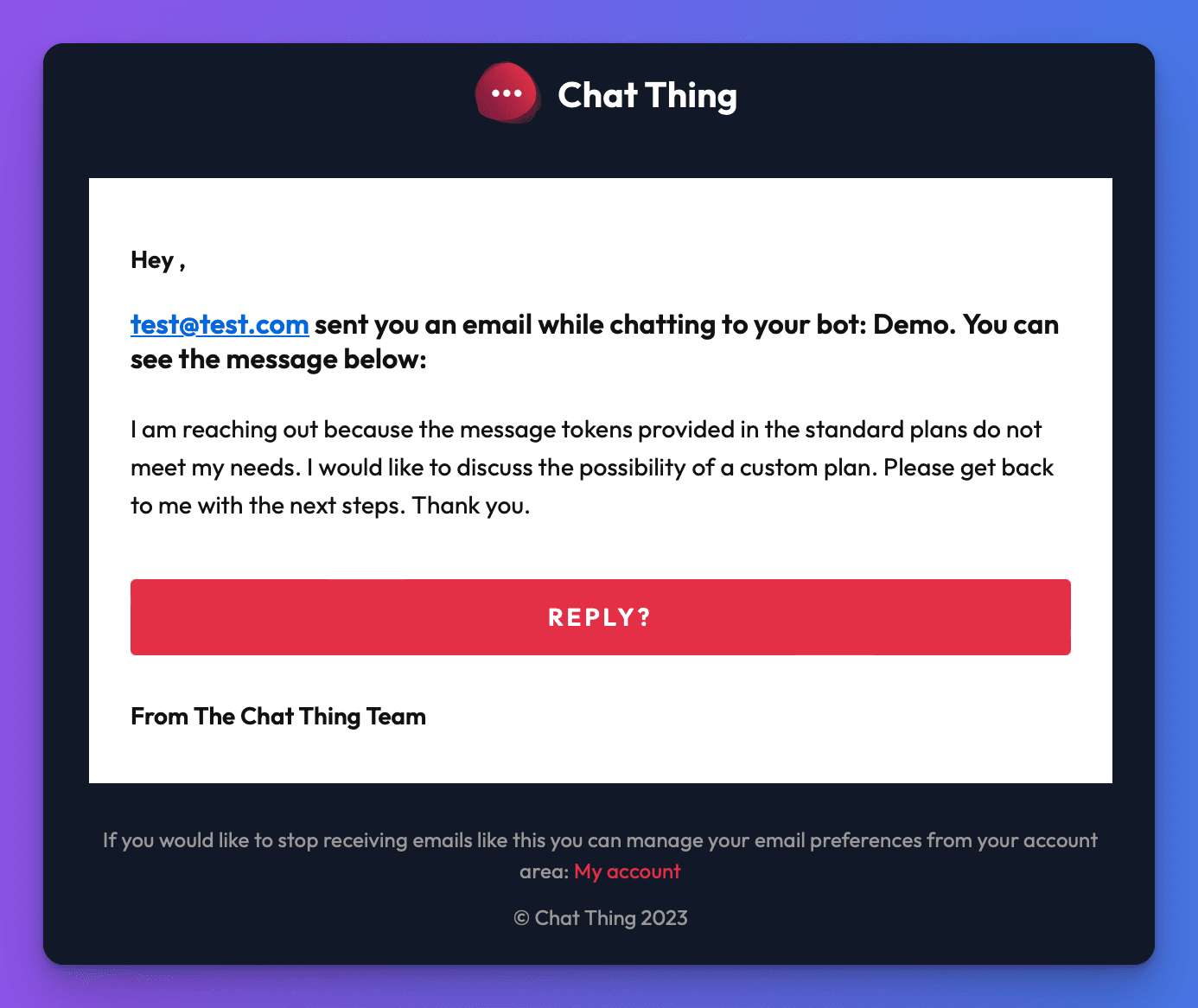
The visitor's address is the one they gave in the chat. The email isn't sent from their mailbox and they don't receive a copy.
Capture every lead up front
By default the bot only sends an email when the conversation calls for it, for example when a visitor asks to get in touch. To collect details at the start of every chat, add a rule to your bot's prompt:
"Before answering any questions, ask the user for their name, email address and the reason they're getting in touch, then send them to us with the subject 'New conversation started'."
For a structured form instead of a conversation, see the website widget's lead form.
Send email or Connect an email inbox?
| Send email (this page) | Email inbox power-ups | |
|---|---|---|
| Setup | Add recipient addresses | Connect an email account |
| Recipients | Up to 3 fixed addresses | Any address the bot chooses |
| What it can do | Send notifications only | Read, send, reply to and organise email |
| Cost | Included in paid plans | Paid add-on per connected account |
| Best for | Lead capture, contact requests, simple alerts | A bot that works as an email assistant |
Check it works
- Chat with your bot and ask to get in touch.
- Give a real email address and a message.
- Check that the email arrives at each receiving address.
Troubleshooting
The bot keeps asking for an email address
The power-up needs a valid email address and rejects example.com addresses. If the visitor gave one in a different format, the bot asks again.
No email arrived
Check the receiving addresses for typos, then your spam folder.
Related
- Connect an email inbox to your bot
Connect Gmail, Outlook or another email account so your bot can search, read, send, reply to and organise email with four power-ups.
- Hand off a chat to a human
Let your bot email your team with the visitor's email and the conversation when someone asks for a person, and mark the chat as escalated.
- Turn website visitors into leads with your bot
Set up a bot that answers buying questions, works out what visitors need, collects their details and sends each lead to your inbox, CRM or calendar.
Last updated