Connect your bot to Notion
The Notion power-ups let your bot work with your Notion workspace during a conversation: save leads or feature requests to a database, answer questions by filtering a database, and find, read and write pages.
Who can do this: team owners and admins.
The Notion power-ups
| Power-up | What the bot can do |
|---|---|
| Save to Notion Database | Create new items in a database you choose, or update existing ones. |
| Query a Notion Database | Find items in a database using filters on its properties, for example "all tasks in progress assigned to Alex". |
| Read Notion Page | Read the content of a page. |
| Write to Notion Page | Create a new page, or add to or replace the content of an existing page. |
| Search for Notion Page | Find pages by title. |
| Search for Notion Database | Find databases by title. |
They're often used together. For example, Query a Notion Database lists matching tasks, then Read Notion Page opens the one the visitor asks about. Search for Notion Page finds a page by name so Read Notion Page or Write to Notion Page can use it.
Example uses:
- Feature request bot: visitors suggest features and the bot saves each one to a feature requests database.
- Project assistant: ask "How many tasks does Alex have in progress?" or "Mark Alex's tasks as done".
- Meeting notes: ask the bot to write up a summary as a new page under your "Meeting notes" page.
Power-up or data source?
You can also add Notion as a data source, which makes its content part of your bot's knowledge. Use a data source for answering questions from documentation. Use the power-ups when you need the bot to change things in Notion, to filter a database precisely, or to always see the very latest content. A data source is only as up to date as its last sync.
Video walkthrough, recorded in 2024. Some screens have changed since.
Connect Notion
The first time you set up a Notion power-up, you're asked to connect your Notion account. A pop-up opens where you choose which pages and databases Chat Thing can access. If no pop-up appears, check that your browser isn't blocking pop-ups.
Your bot can only see pages and databases you've shared with the Chat Thing connection. To change them later, open Notion's connection settings, find Chat Thing and update which pages it can access.
Save to a Notion database
- Open your bot, go to the Power-ups tab and click New power-up.
- Choose Save to Notion Database and click Create power-up.
- Connect Notion if you're asked to.
- Under Notion database, click Select and choose your database.
- Leave Update power-up name and description on change? on. Chat Thing uses AI to write a name and description from the database and its properties. Check them and edit if needed.
- Review the Database properties table (see below).
- Click Save.
Database properties
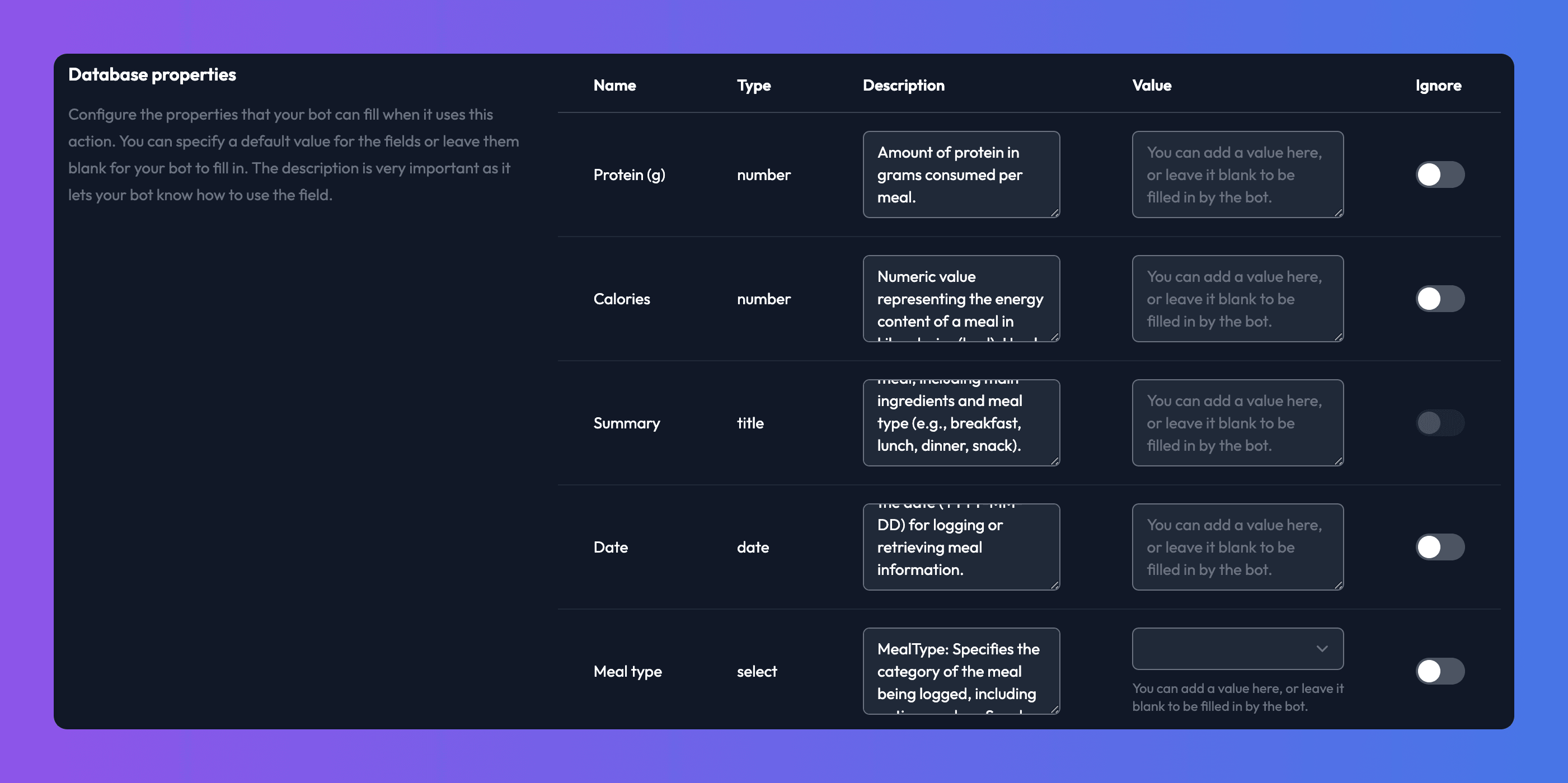
When you choose a database, its properties are listed in a table:
| Column | What it's for |
|---|---|
| Name and Type | The property's name and type in Notion. |
| Description | Tells the bot what the property is for and what values are valid. Chat Thing writes these with AI. Check them carefully: this is how the bot learns to fill the property in. |
| Value | Optional fixed value. The bot always uses it for this property, for example always setting Status to "New". Leave blank to let the bot decide. |
| Ignore | The bot never sets this property. |
| Required | The bot must provide a value for this property. |
Ignore every property the bot doesn't need. Fewer properties means fewer decisions for the bot and more reliable results.
Query a Notion database
- Add a Query a Notion Database power-up, connect Notion if asked, and click Select under Notion database to choose the database.
- Check the AI-generated name and description.
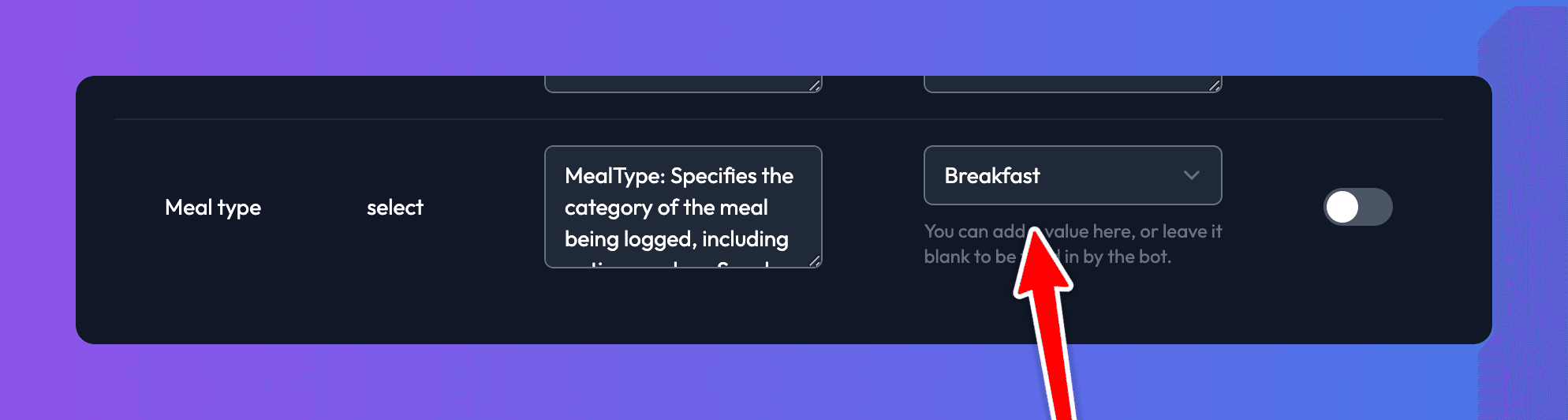
- Review the Database properties table. Here the properties are the ones the bot can filter by. Use Value to fix a filter (for example, only ever return items where Type is "Breakfast") and Ignore to stop the bot filtering on a property.
- Click Save.
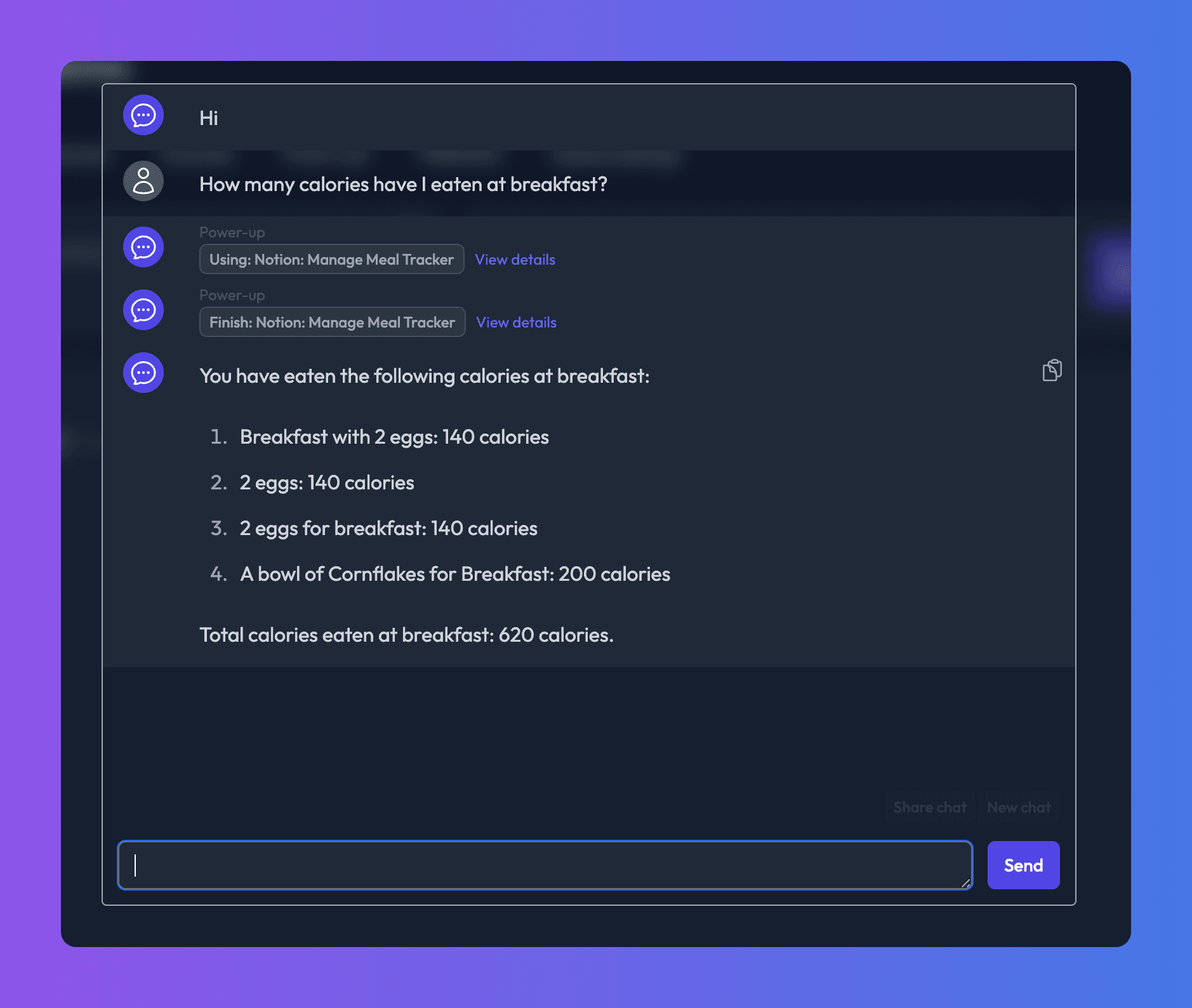
You can also show the results as cards or a table. See Show a power-up's results visually.
Read, write and search pages
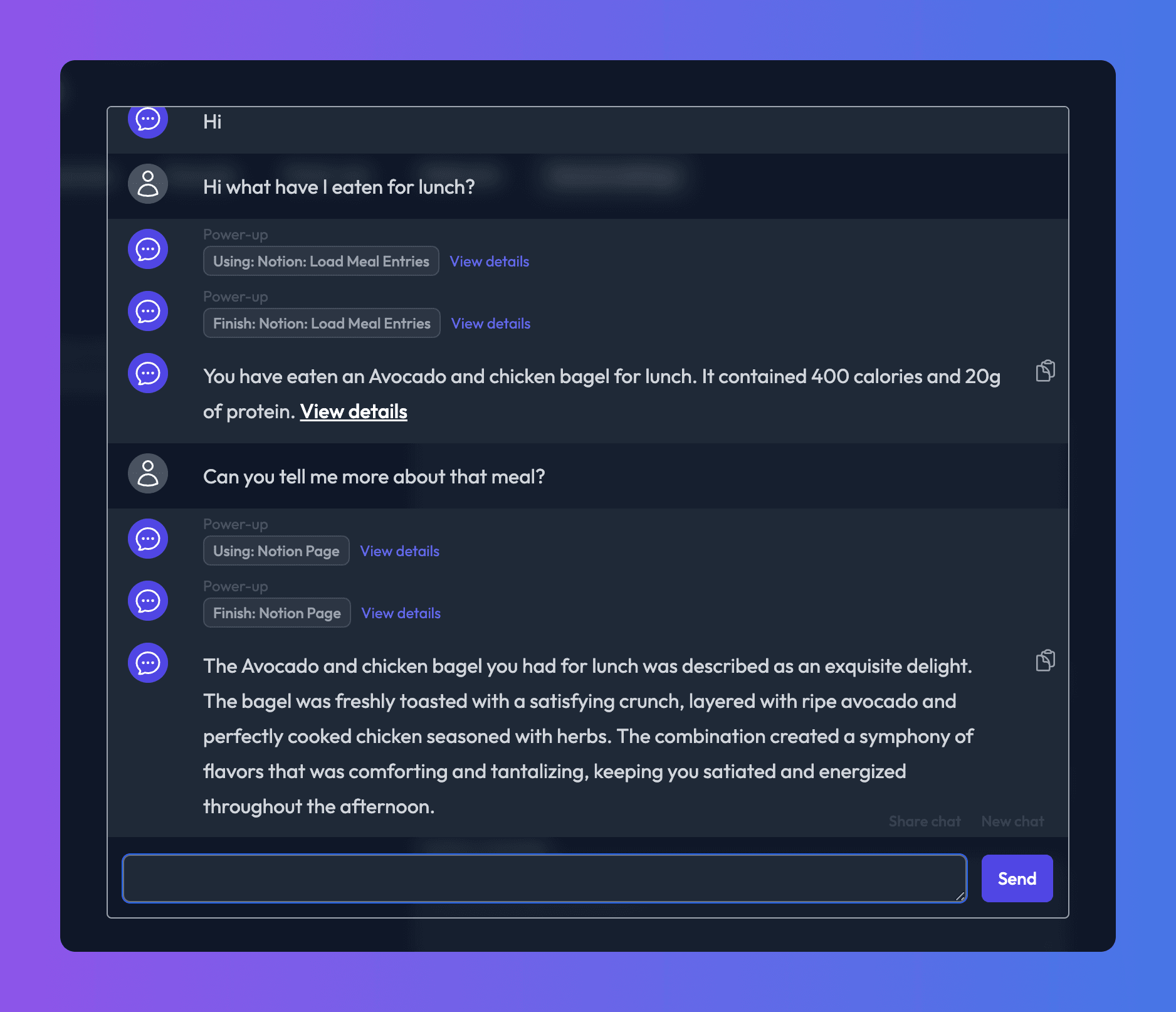
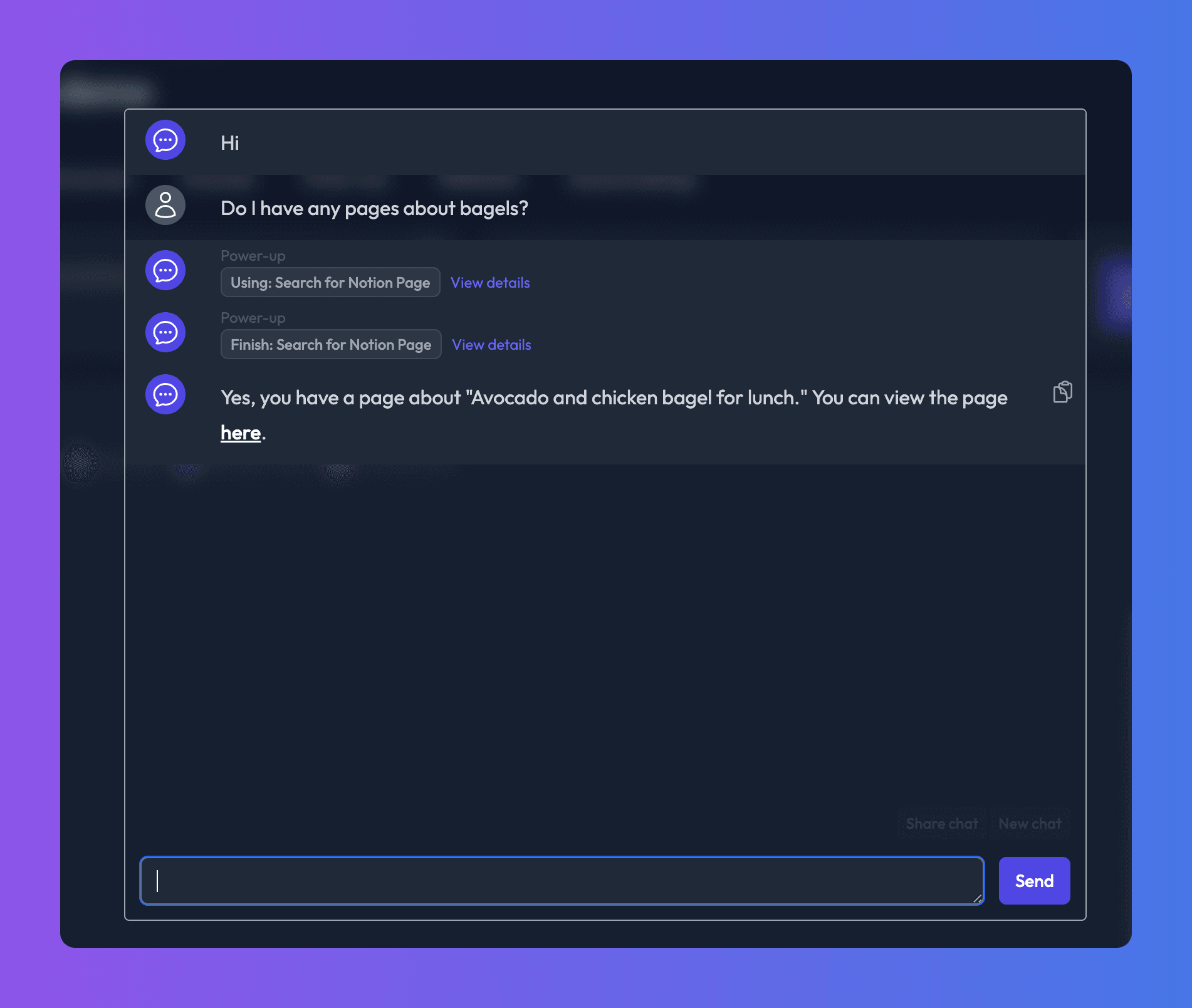
- Read Notion Page: optionally choose a page under Notion page. If you do, the bot can only read that page. Leave it blank to let the bot read any page it has the ID of, and add Search for Notion Page too so it can find pages by title.
- Write to Notion Page: the bot writes a title and markdown content. It can create a new page or update an existing one, either adding to the end or replacing everything. Optionally choose a Parent page (optional) where new pages are always created. Leave it blank to let the bot choose.
- Search for Notion Page and Search for Notion Database: there's nothing to configure beyond the name and description.
Check it works
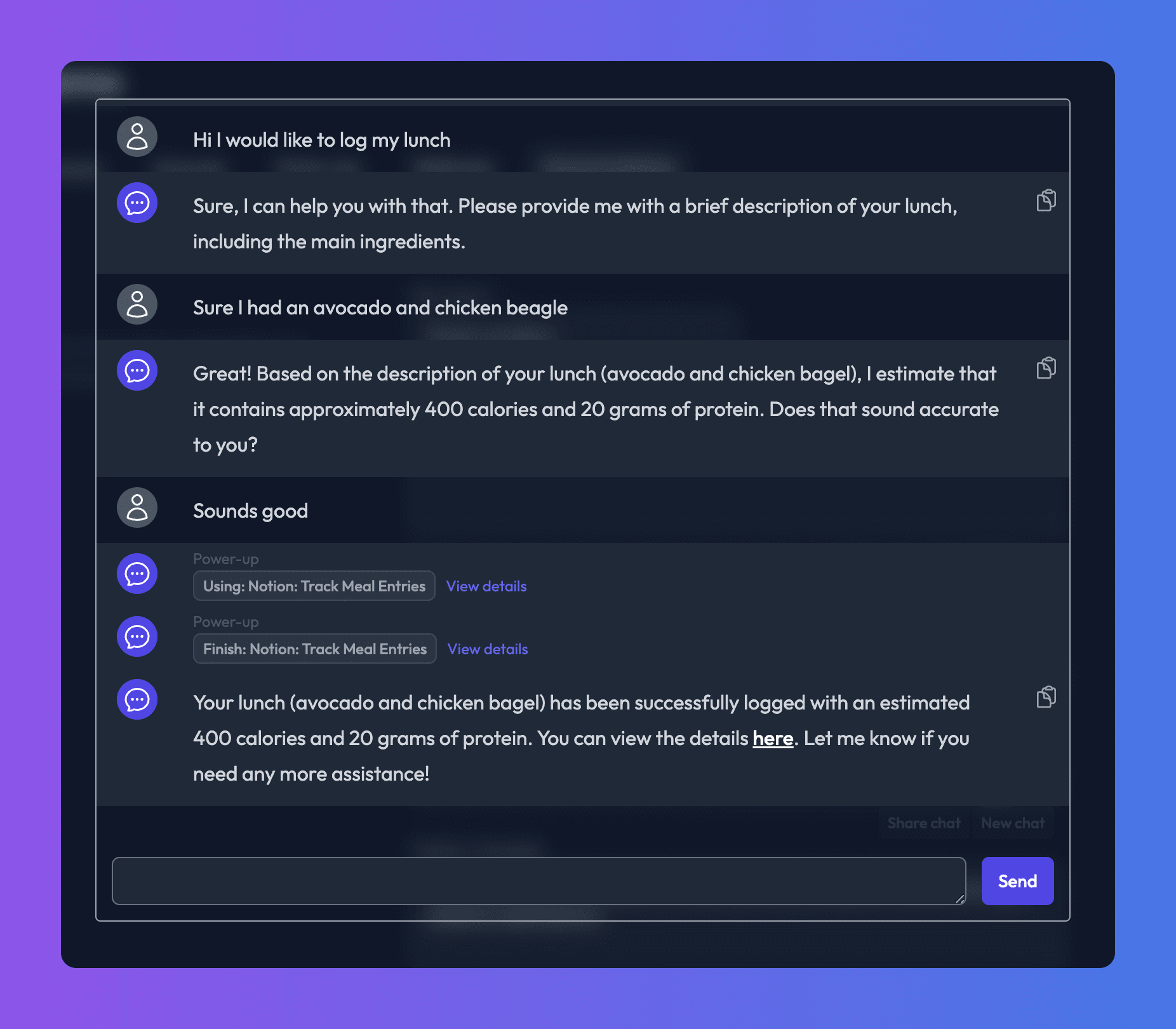
- Chat with your bot while signed in and ask it to do something with Notion, for example "Add a feature request: dark mode for the mobile app".
- Open View details on the power-up call to see what was sent and what Notion returned.
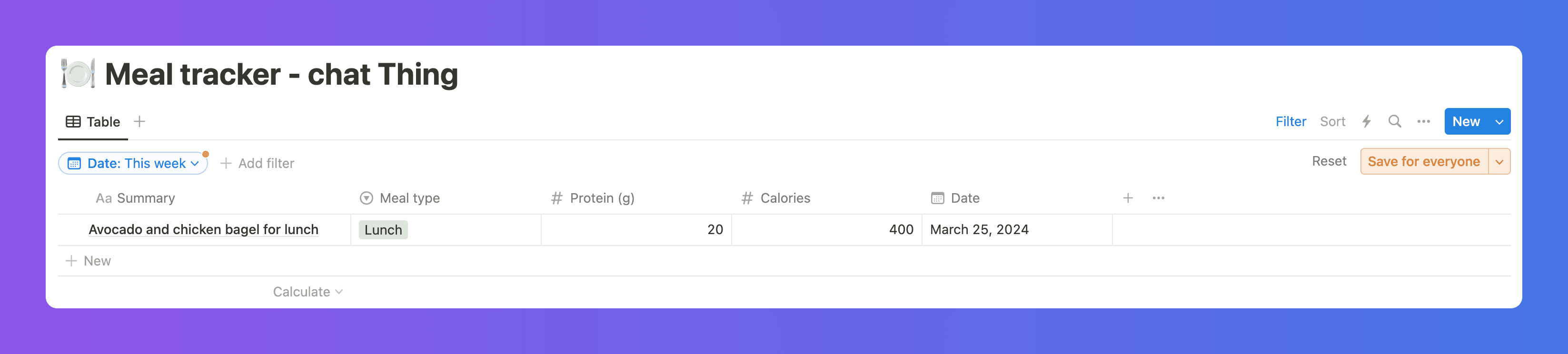
- Check the item or page in Notion.
Troubleshooting
I can't find my page or database, or the bot says it can't see it
The page or database isn't shared with the Chat Thing connection. Open Notion's connection settings, find Chat Thing and give it access to the page or database (or a parent page that contains it).
The bot fills in the wrong properties
Improve the property Descriptions, set fixed Values where the answer never changes, and Ignore properties the bot doesn't need.
Writing to a page replaced content I wanted to keep
The bot can replace a page's content. Tell it in the power-up's Description to always add to the end of existing pages, or choose a dedicated Parent page (optional) so it only creates new pages there.
Related
- Connect Notion
Connect your Notion workspace and add pages or databases so your bot can answer from your wiki, handbook or knowledge base.
- How power-ups work
What power-ups are, how to add, edit, turn off and delete them, how your bot decides to use one, and what visitors see in the chat.
Last updated