Duplicate a bot
Copy an existing bot to try changes without affecting the live one, or to start a similar bot from a working setup.
Before you start
Who can do this: team owners and admins.
The copy counts towards your plan's bot limit, so you need space for one more bot. See plans.
Steps
- Go to Bots.
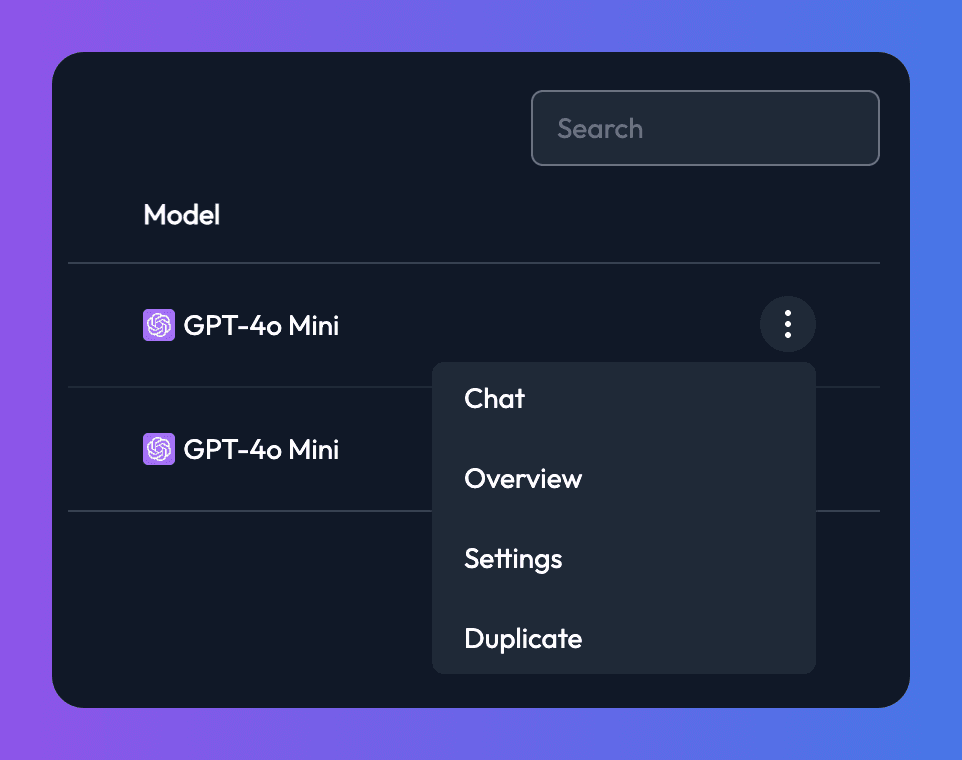
- On the bot's row, click the three-dot menu and choose Duplicate.
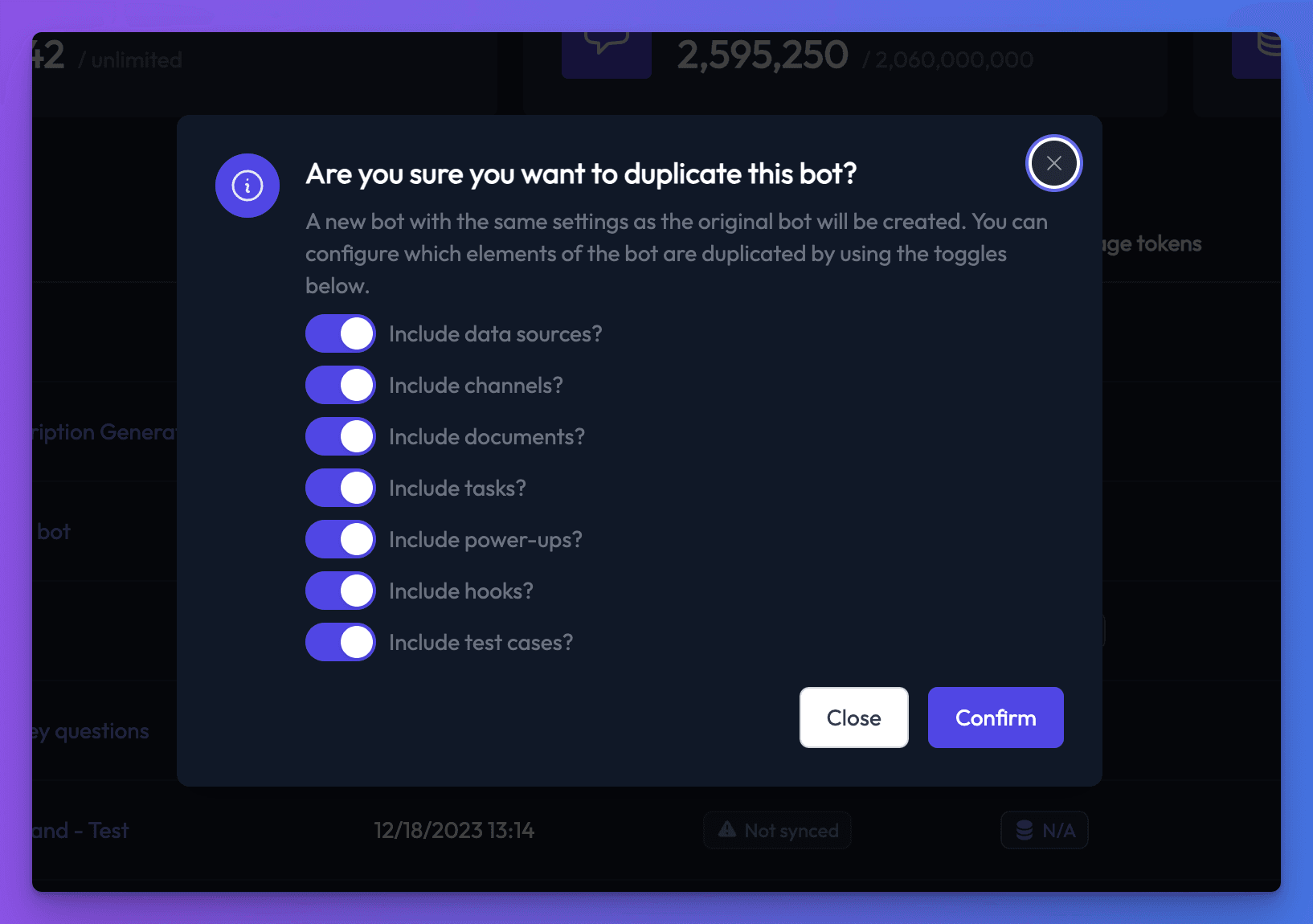
- Choose what to copy. Everything is included by default:
- Include data sources?: the bot's data sources, with their pages, files and entries.
- Include channels?: its channels, such as the website widget.
- Include documents?: the synced content of those data sources, so the copy can answer straight away. If you turn this off, sync the copy's data sources before using it.
- Include tasks?: its scheduled tasks.
- Include power-ups?: its power-ups.
- Include hooks?: its webhooks.
- Include test cases?: its test cases.
- Click Confirm. Small bots copy in seconds; bots with a lot of content can take a few minutes.
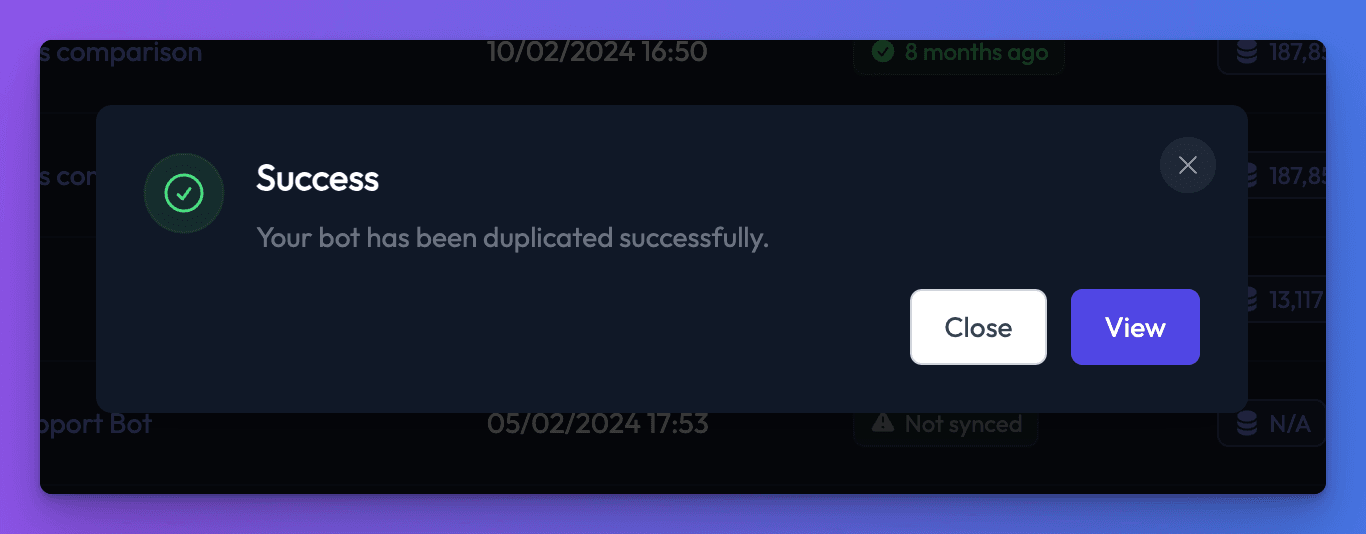
- When you see Success, click View to open the new bot.
The new bot has the same settings as the original, and the same name followed by a short code in brackets, such as "Support bot (3f9a1c2e)". Rename it on its General settings tab. It starts with no conversations or usage history.
Check it works
Open the new bot and check its Data sources, Channels and Power-ups tabs contain what you chose to copy. Send it a test message.
Troubleshooting
"Bot limit reached. Please upgrade plan to create new bots"
Your team has as many bots as its plan allows. Delete a bot you no longer need, upgrade, or add an extra bot with add-ons.
"Failed to duplicate bot"
Try again. If it keeps failing, email support@chatthing.ai.
Related
- Bot settings reference
Every setting on your bot's General settings tab - what it does, its default and range, and which plans include it.
- Compare plans
What each Chat Thing plan costs and includes - monthly and yearly prices, bots, data sources, tokens, channels, power-ups and team members.
Last updated