Add content manually
Write content directly in Chat Thing when the information isn't published anywhere else, or to quickly fix an answer your bot keeps getting wrong. Content is written in Markdown, so you can include headings, lists, links and images.
Who can do this: team owners and admins.
Steps
- Open your bot, go to the Data sources tab and click New data source.
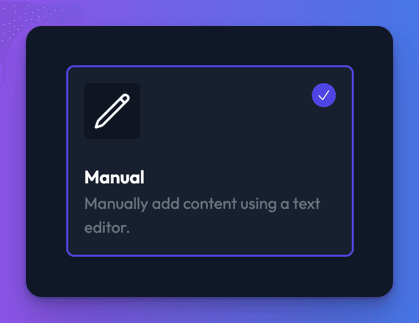
- Choose Manual and click Create data source.
- On the Content tab, click Add content.
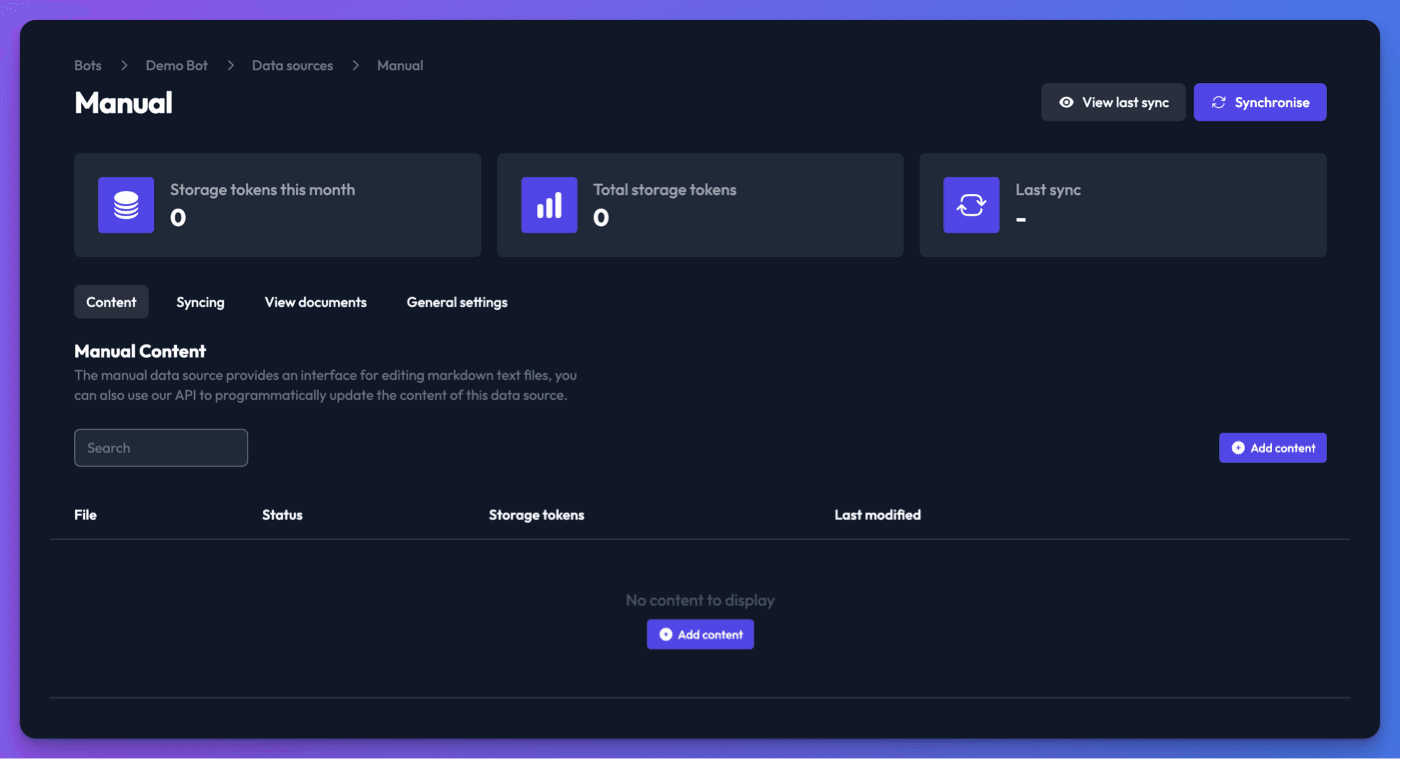
- Give the entry a name that describes it, such as "Refund policy".
- Write or paste the content. Click Preview to see how it will look and Editor to go back. The Markdown formatting guide link explains the syntax.
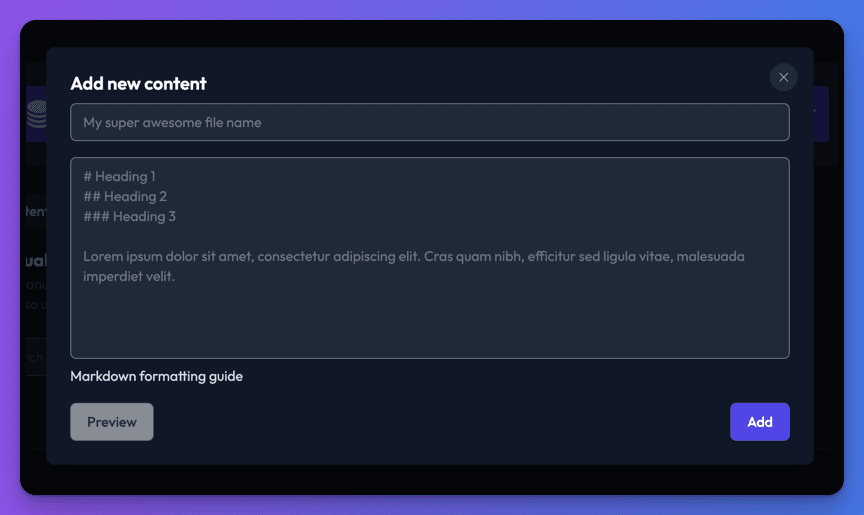
- Click Add. Repeat for each entry.
- Click Synchronise.
Keep each entry to one topic: several short, focused entries are easier for your bot to find than one long one.
Edit an entry
- On the Content tab, click Edit next to the entry.
- Make your changes and click Update.
- Click Synchronise so the bot uses the new version.
Manage manual content from code or an AI assistant
- The Data sources API can create, update, delete and sync manual data sources and their entries, which is useful for content held in another system.
- The
add_data_sourceMCP tool can create a manual data source with entries from Claude, ChatGPT or another AI assistant.
Check it works
Ask your bot a question that one of your entries answers.
Related
- Add, sync and delete data sources
Add a data source to your bot, sync it, re-sync after changes and delete it, plus how many data sources each plan allows and per-type limits.
- Data sources API
Create, update, sync and delete a bot's manual data sources and their entries with the Chat Thing REST API, to keep its knowledge in step with your system.
- Structure your content for better answers
Split data sources sensibly, pick the right CSS selectors for your CMS, and write content your bot can find and quote accurately.
Last updated