Send and read Slack messages from your bot
The Slack power-ups let your bot do more in your Slack workspace than reply to messages. It can post to channels and threads, and read what's been said in them.
| Power-up | What the bot can do |
|---|---|
| Slack Send Message | Post a message to a channel, or reply in a thread. |
| Slack Get History | Read recent messages from a channel or thread, optionally between two dates. |
Example uses: post a summary of each escalated chat to your #support channel, or answer "What did the team decide in #product this week?"
Connect the Slack channel first
The Slack power-ups use your bot's Slack connection. Set up the Slack channel before adding them. Until you do, the power-up's settings page shows Slack channel not setup.
Before you start
- Who can do this: team owners and admins.
- Your bot is connected to your Slack workspace through the Slack channel.
- The bot has been added to every Slack channel you want it to post to or read. To add it, mention it in the channel (type
@followed by your bot's name) and accept Slack's prompt to add it.
Steps
- Open your bot, go to the Power-ups tab and click New power-up.
- Choose Slack Send Message or Slack Get History and click Create power-up.
- Edit the Power-up name and Description. For example: "Post a short summary to Slack when a user reports a bug."
- Optionally choose a Channel under Channel settings. If you do, the bot can only use that channel. Leave it blank to let the bot choose a channel by name or ID.
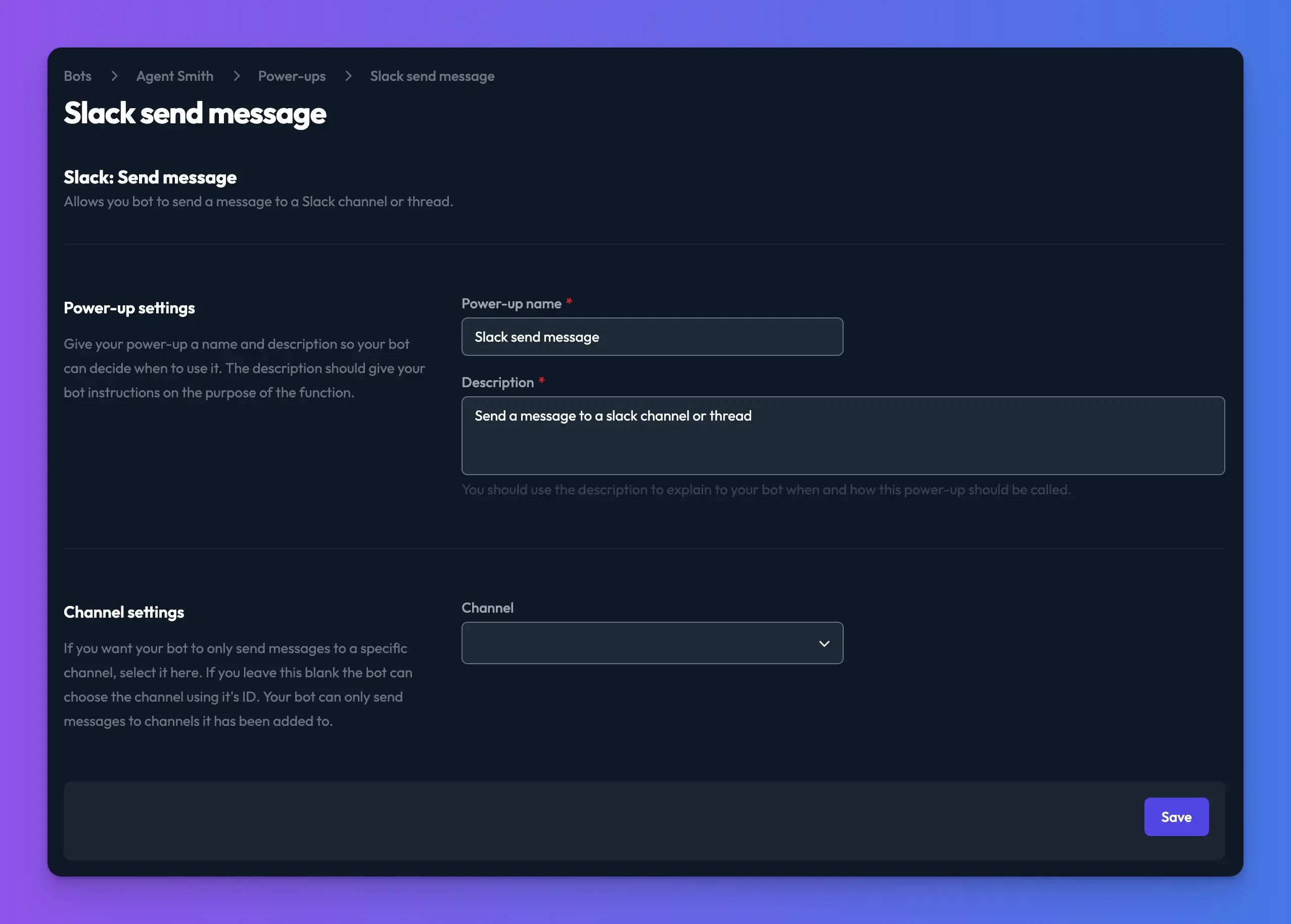
- Click Save.
Check it works
- Chat with your bot and ask it to post a test message, or to summarise a channel.
- Check the message in Slack, or open View details on the power-up call in the dashboard to see the result.
Troubleshooting
The bot says it can't post to or read a channel
The bot hasn't been added to that channel in Slack. Mention it in the channel to add it, then try again.
The bot posts to the wrong channel
Choose a fixed Channel in the power-up settings, or name the channel in the Description.
Related
- Add your bot to Slack
Create a Slack app for your bot so your team can ask it questions with @mentions, direct messages or the Slack assistant sidebar.
- Read Discord channel history from your bot
Let your bot pull message history from any Discord channel it can access, for cross-channel summaries or messages older than its usual context.
Last updated