Add your website
Add pages from any website so your bot can answer questions from them: your help centre, docs, product pages or blog.
Who can do this: team owners and admins.
Steps
- Open your bot, go to the Data sources tab and click New data source.
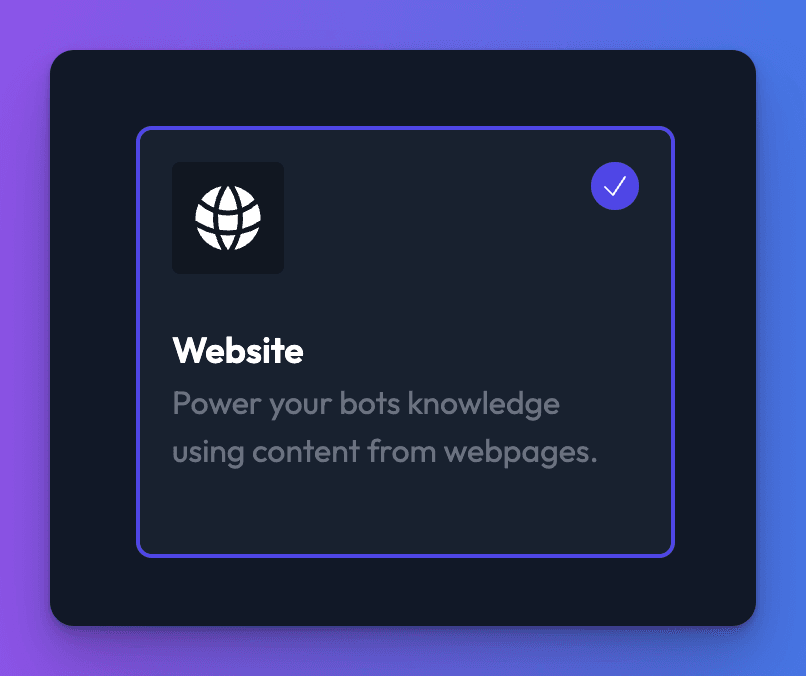
- Choose Website and click Create data source.
- On the Content tab, click the button for how you want to add pages (on a small screen, these are under Add):
- A single URL: enter one page address and click Add.
- Add bulk URLs: paste several addresses, one per line, and click Add.
- Add sitemap: enter your sitemap address (for example
https://example.com/sitemap.xml) and click Add URLs from sitemap. Every page in the sitemap is added. - Crawl: Chat Thing follows links from a starting page to find pages for you. See crawl a website.
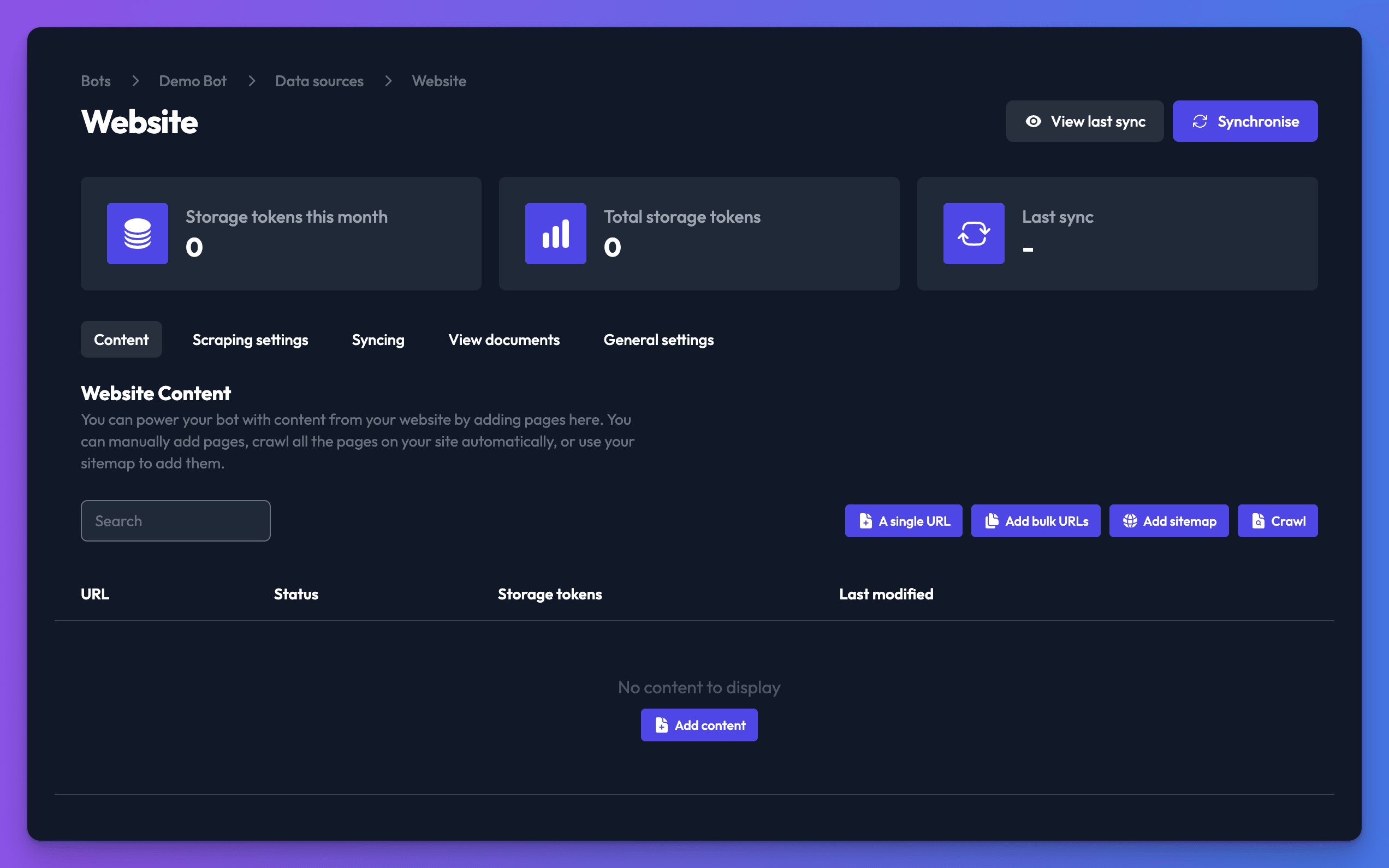
- Check the pages listed in the table. To remove one, delete its row.
- Optional but recommended: set a CSS selector so only the main content of each page is read. See choose which part of each page is read.
- Click Synchronise.
Crawl a website
- On the Content tab, click Crawl (on a small screen, Add > Crawl).
- Enter the address to start from, such as
https://example.com. - Choose a Strategy for which links to follow: Same hostname (the default), Same domain or Same origin. Each option shows examples of what it matches.
- To stay within one section, turn on Only include urls which match the path of the url being crawled?. For example, crawling
https://example.com/helpthen only adds pages under/help.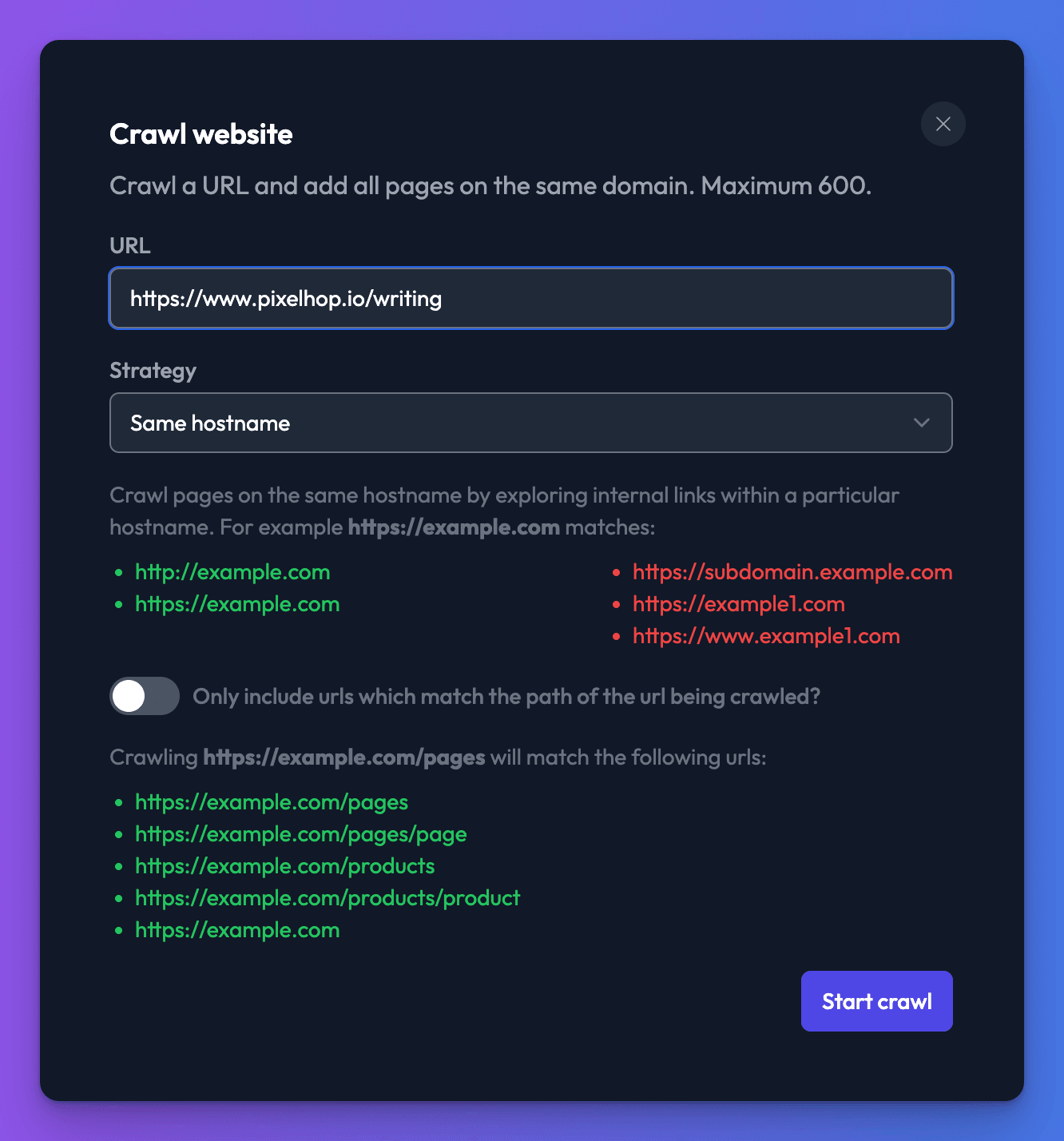
- Click Start crawl. Crawling can take several minutes on a large or slow site.
- When it finishes, click Review pages.
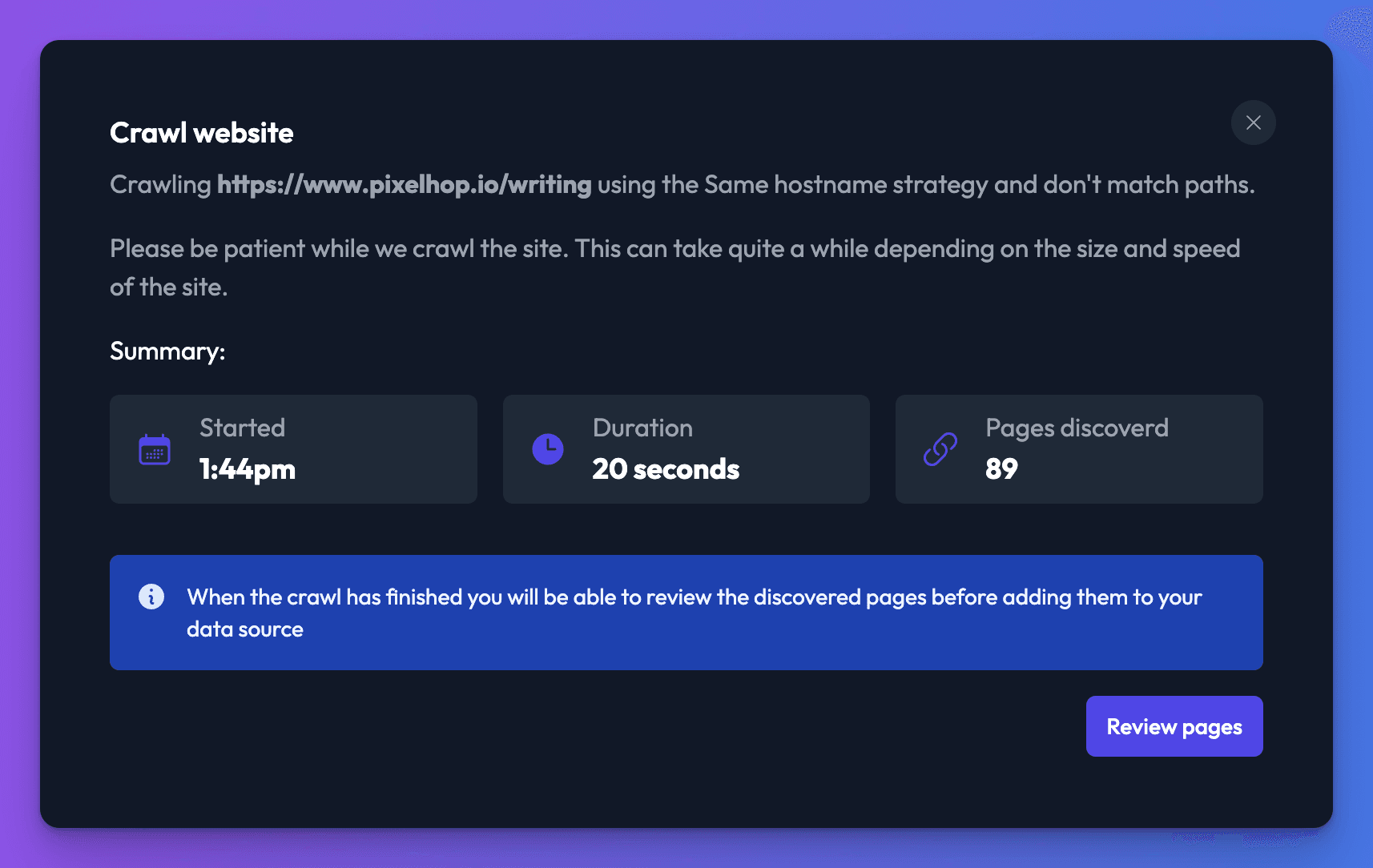
- Turn off the toggle next to any page you don't want, then click Add N URLs (the button shows how many pages are selected).
A crawl adds up to 600 pages. For bigger sites, use your sitemap, or crawl each section separately.
Choose which part of each page is read
By default Chat Thing reads each page's whole body and removes the header and footer. Menus, sidebars and cookie banners can still get through, which adds noise and uses storage tokens. A CSS selector fixes this.
- Open the data source's Scraping settings tab.
- Under Content selector, enter a CSS selector for the element that holds your main content, such as
mainorarticle. - Under CSS excludes, click Add exclude rule for each part you want removed, such as
navor.cookie-banner.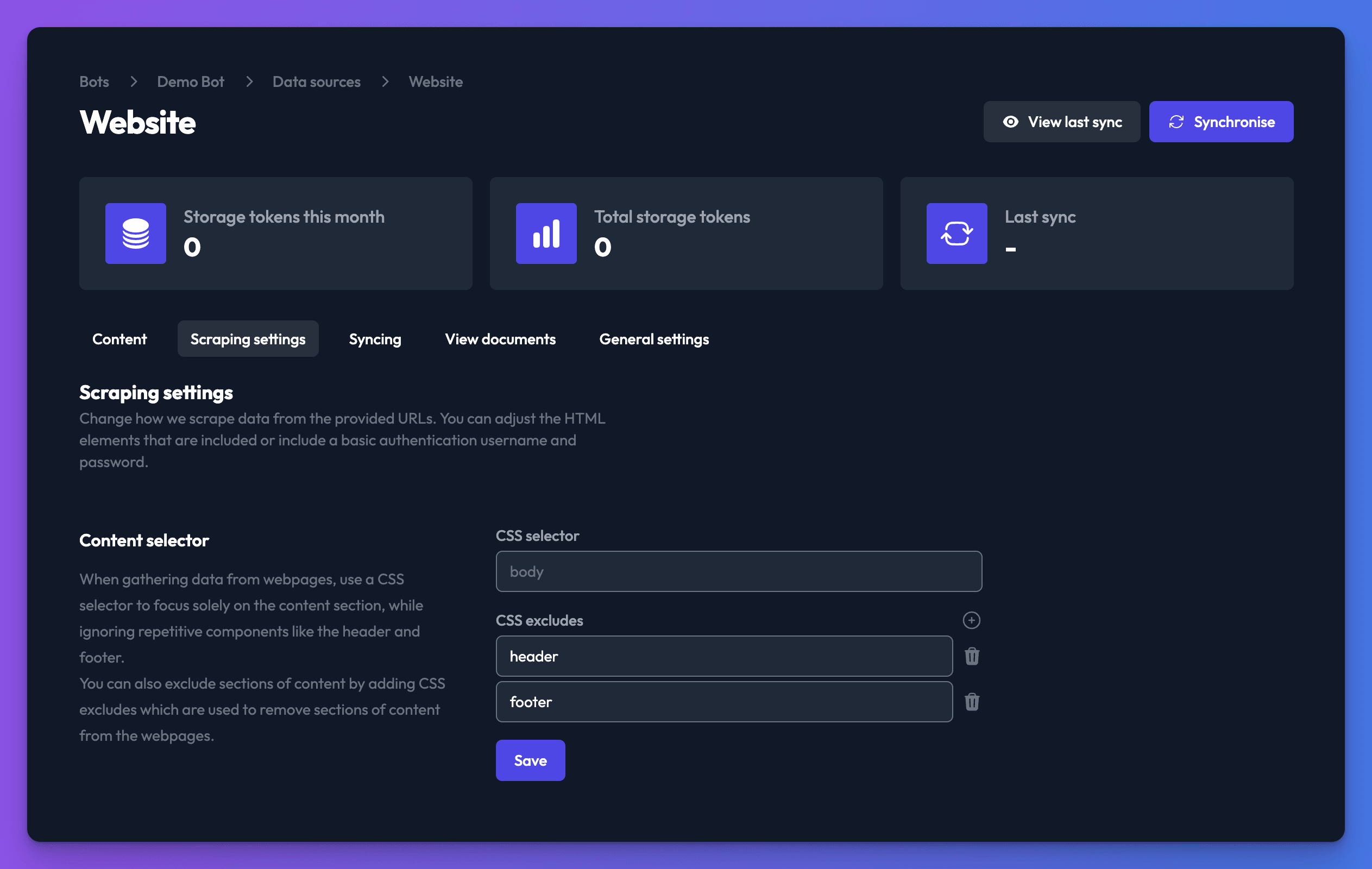
- Click Save, then sync the data source again.
Not sure which selector to use? See CSS selectors for common platforms. Test on a data source with one URL before syncing a whole site. The selector applies to every page in the data source, so if parts of your site use different layouts, put them in separate data sources.
Add a password-protected site
If your site uses HTTP Basic Auth (the browser pop-up asking for a username and password):
- Open the Scraping settings tab.
- Under Basic auth, enter the Username and Password.
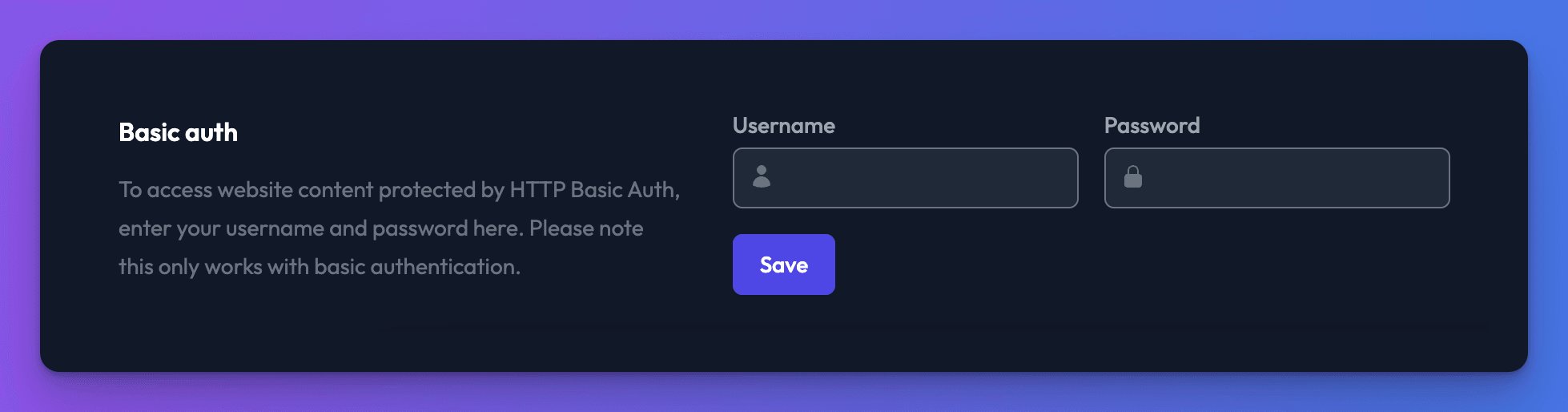
- Click Save and sync the data source.
This only works with Basic Auth. Pages behind a login form or single sign-on can't be read.
Add a website from an AI assistant
The MCP tools discover_pages and add_data_source do the same job from Claude, ChatGPT or another AI assistant, with one extra: URL patterns. When adding pages from a discovery, includePatterns and excludePatterns filter pages by URL path, for example /blog/** or !/legal/* (* matches within one path segment, ** across segments). The dashboard doesn't have URL pattern fields.
Check it works
- After the sync, the Status column shows Finished for each page.
- On the data source card menu, click Documents and open a few documents. They should contain your page content without menus or footers.
- Ask your bot a question that one of the pages answers.
Troubleshooting
A page synced but has no content
Chat Thing reads the HTML your server sends and doesn't run JavaScript. Pages that build their content in the browser (some single-page apps) come through almost empty and are skipped. Also check your CSS selector exists on that page.
"We were unable to crawl this sitemap"
Your site may be blocking automated requests, or the sitemap address is wrong. Open the address in your browser to check, then allow our requests in your firewall or bot-protection settings, or add the pages with Add bulk URLs instead.
New pages on my site aren't in the bot
Re-syncing a website data source refreshes the pages already in it; it doesn't crawl the site or re-read the sitemap again. Add new pages with A single URL, Add bulk URLs, Add sitemap or Crawl (only new pages are added), then sync.
A page was removed from my site but the bot still uses it
Re-syncing doesn't remove pages that have gone from your site: if a page now returns an error, its last good content is kept. Delete the page's row on the Content tab and sync again.
Related
- Structure your content for better answers
Split data sources sensibly, pick the right CSS selectors for your CMS, and write content your bot can find and quote accurately.
- Keep your bot's knowledge up to date
Re-sync data sources by hand, on a daily, weekly or monthly schedule, or automatically when you publish in your CMS, and see what each sync changes.
- Add, sync and delete data sources
Add a data source to your bot, sync it, re-sync after changes and delete it, plus how many data sources each plan allows and per-type limits.
Last updated