Add the chat widget to your website
Copy your bot's embed code from Chat Thing and paste it into your website, so visitors can chat to your bot from any page.
Available on every plan
The web channel is included on all plans, including Free. Before you put the bot in front of customers, run through the launch checklist.
Who can do this: team owners and admins. Viewers can also open Embed to copy the code.
Choose how the bot appears
| Option | What visitors see | Best for |
|---|---|---|
| Chat widget | A round chat button in the bottom-right corner of every page. Clicking it opens a chat window. On phones the window opens full screen. | Most websites |
| iframe embed | The chat shown inside an area of one page, in a Full width or Centered layout | A dedicated help or contact page |
| Bot page link | The bot on its own full page at https://app.chatthing.ai/bots/YOUR_BOT_ID | Emails, QR codes, a link in your navigation, or if you don't have a website |
You can use more than one. They all talk to the same bot.
Get your embed code
- Open your bot in Chat Thing.
- Click Embed at the top right of the bot's dashboard, next to Test and Open bot.

- The Embed your bot dialog opens. It has three sections:
- Embed as an iFrame - the iframe code, with a Layout choice of Full width or Centered.
- Embed as chat widget - the widget code.
- Other embed methods - your Bot ID and, if you've changed any widget settings, the Configuration JSON.
- Click the copy icon on the code you want.
Always copy the code from the dialog rather than typing it. It already contains your bot ID and any settings you've made.
Add the chat widget
The widget code looks like this, with your own bot ID in the id attribute:
<script src="https://chatthing.ai/chat-widget.js" type="text/javascript" id="YOUR_BOT_ID" async defer></script>
If you've turned on custom theming, set a language or turned on the first message preview, the dialog adds a line before it that starts <script>window.chatThingConfig = .... Copy both lines together.
- Copy the code from Embed as chat widget.
- Paste it into your site's HTML just before the closing
</body>tag. To show the widget on every page, paste it into a template, footer or "custom code" area that every page uses. - Save and publish your site.
The platform sections below show where to paste it on popular site builders.
Embed the chat in a page (iframe)
The iframe code looks like this:
<iframe src="https://app.chatthing.ai/bots/YOUR_BOT_ID/embed" width="100%" height="600" frameborder="0" allow="clipboard-write; microphone;"></iframe>
- In the Embed as an iFrame section, choose a Layout: Full width stretches the chat across the space you give it, Centered keeps the conversation in a narrower column in the middle. The code updates when you switch.
- Copy the code and paste it where you want the chat to appear on the page, using your site builder's HTML or embed block.
- Change
height="600"if you want a taller or shorter chat.
Keep the allow="clipboard-write; microphone;" part. The microphone permission is needed for voice input, and clipboard access for copy buttons.
Share a link to your bot
Click Open bot on your bot's dashboard to open its full-page chat. Copy the address from your browser and share it. It looks like https://app.chatthing.ai/bots/YOUR_BOT_ID. If you've set a widget language, the address starts with the language code, for example https://app.chatthing.ai/de/bots/YOUR_BOT_ID.
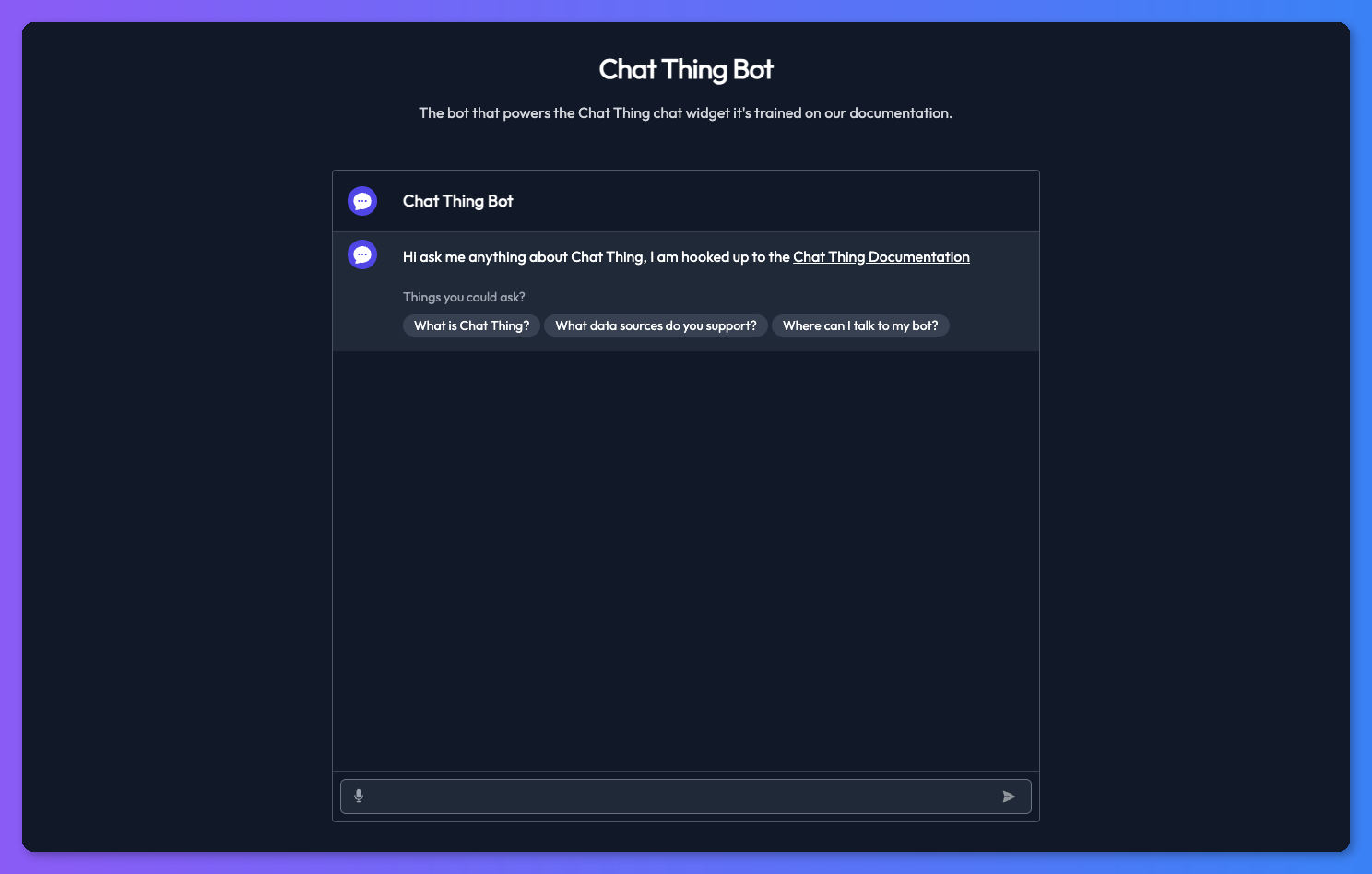
Anyone with the link can chat to your bot. To limit that, see Access and security.
Platform notes
Menu names on these platforms change from time to time. If you can't find an option, search the platform's help for "custom code", "footer code" or "code injection". Some builders only allow custom code on paid plans.
WordPress
- Self-hosted WordPress (WordPress.org): install a plugin that adds code to your site's header and footer, and paste the widget code into its footer or "body end" box. You can also paste it into your theme's
footer.phpjust before</body>, ideally in a child theme so a theme update doesn't remove it. - WordPress.com: adding scripts needs a plan that lets you install plugins.
- iframe: add a Custom HTML block to a page or post and paste the iframe code into it.
Shopify
- In Shopify admin, go to Online Store > Themes.
- Next to your current theme, open the ... menu and choose Edit code.
- Open
layout/theme.liquid, paste the widget code just before</body>, and click Save.
To embed the chat in one page instead, add a Custom Liquid section to that page in the theme editor and paste the iframe code into it.
Webflow
- Open Site settings > Custom code.
- Paste the widget code into Footer code and save.
- Publish your site. Custom code only runs on the published site, and needs a paid Webflow site plan.
To embed the chat in one page, add a Code Embed element and paste the iframe code into it.
Wix
- In your site's dashboard, open Settings and find Custom code (under the advanced or development settings).
- Click Add Custom Code, paste the widget code, choose All pages, place the code in Body - end, and apply.
Wix only runs custom code on sites with a premium plan and a connected domain. To embed the chat in one page, add an Embed HTML element and paste the iframe code into it.
Squarespace
Open Code Injection in your site settings and paste the widget code into the Footer box, then save. Code injection is only available on some Squarespace plans. To embed the chat in one page, add a Code block and paste the iframe code into it.
Google Tag Manager
- In your container, create a new tag and choose Custom HTML as the tag type.
- Paste the widget code (both lines, if there are two).
- Set the trigger to All Pages (or only the pages you want).
- Save, then Submit and publish the container.
Single-page apps (React, Vue, Next.js and similar)
Add the widget code once, in your root HTML file or root layout, not in a component that mounts on every route. To control the widget from your app's code, see the JavaScript SDK.
Check it works
- Open your website in a private or incognito window, so you see the latest version of the page.
- Look for the chat button in the bottom-right corner (or where you've positioned it).
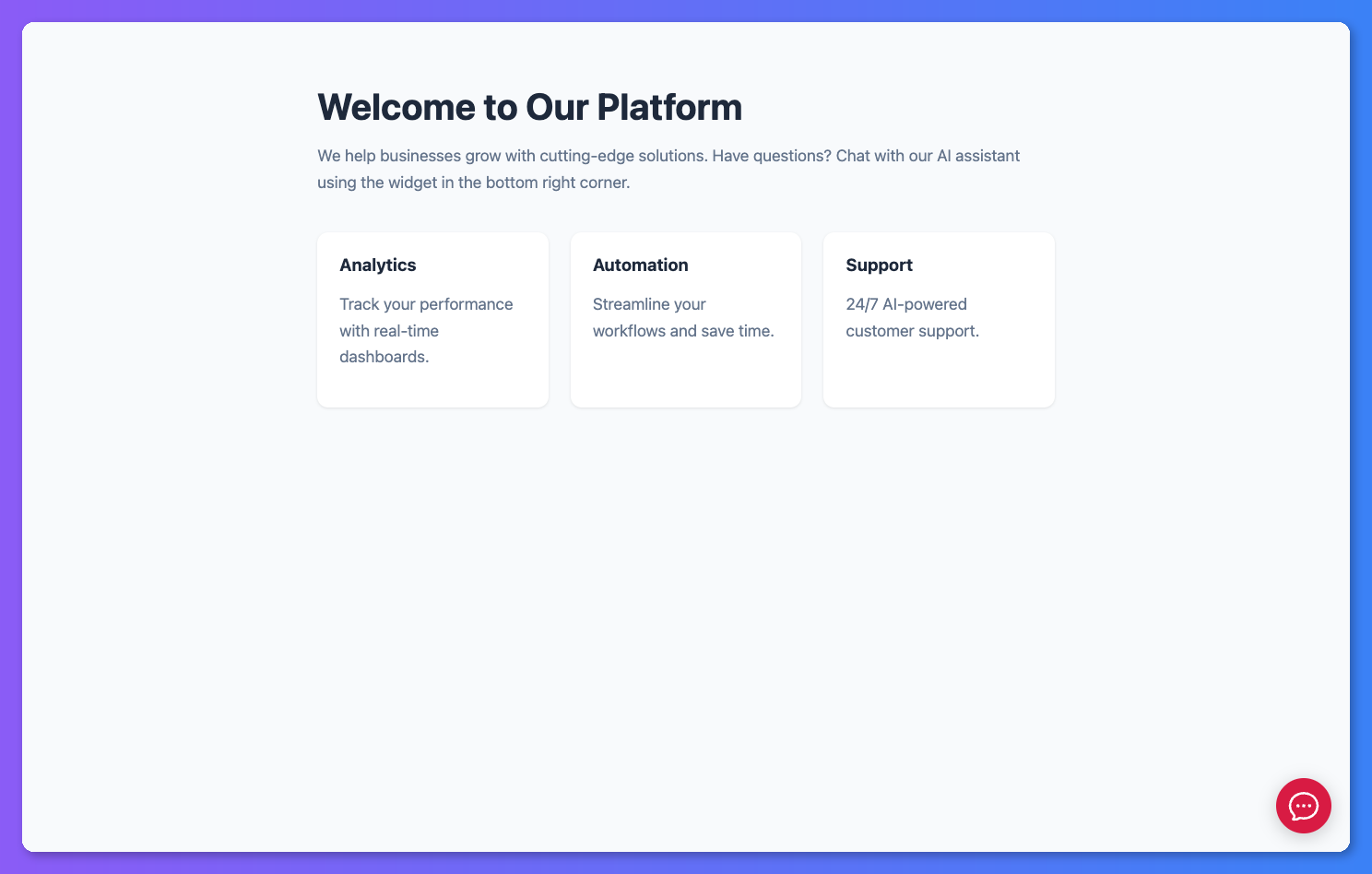
- Click it and send a question your bot should be able to answer.
The conversation appears in Conversations in Chat Thing.
Troubleshooting
The chat button doesn't appear
Check the code is on the published page (view the page source and search for chat-widget.js), and that nothing on your site blocks it. Widget troubleshooting walks through the common causes.
I changed my colours or language, but the widget button hasn't changed
The widget button's colour and icon, the language and the first message preview are written into the embed code. After changing them, copy the code from Embed again and replace the old code on your site.
Related
- Change how the chat widget looks and behaves
Set the widget's colours, light or dark mode, icons, welcome message, first message preview, link behaviour and voice input from the web channel settings.
- Fix chat widget problems
What to check when the chat widget doesn't appear, shows old colours, blocks page scrolling or won't load on your website.
- Customise the chat widget with code
Every chatThingConfig option for the Chat Thing widget - position, colours, launcher label, auto-open, per-language greetings and full CSS overrides.
Last updated