Manage your team and roles
A team is a separate workspace with its own bots, conversations, usage and plan. Use teams to work with colleagues, or to keep projects (or clients) apart. This page covers team types, roles, inviting and removing members, and moving bots between teams.
Personal and organisation teams
| Personal team | Organisation team | |
|---|---|---|
| Who gets one | Everyone, automatically when you sign up | Anyone who creates one or converts their personal team |
| Members | Just you. You can't invite anyone | Invite up to your plan's team member limit |
| Plan | Its own plan, starting on Free | Its own plan. Creating one requires a paid plan |
| Can be deleted | No, only by deleting your account | Yes, by the owner |
Each team has its own subscription, so a new organisation team is billed separately from your personal team. The number of members you can have depends on the plan (see Compare plans); add more seats with the Extra team member add-on.
Switch between teams with the team switcher at the top of the sidebar.
Roles
| Role | What they can do |
|---|---|
| Owner | Everything, including Billing, transferring team ownership and deleting the team. Each team has exactly one owner |
| Admin | Create, edit and delete bots, data sources, power-ups, channels, webhooks, tasks and tests, and use Otto. Invite and remove members, and change the roles of Responders and Viewers. Use My Chats and take over conversations. Can't open Billing |
| Responder | Read customer conversations and take over live chats to reply to customers. Can't see or change bots. Responders land on Conversations when they sign in |
| Viewer | Read-only. See the bots list, each bot's overview and analytics, and conversations. Can't change anything or take over chats |
Use Responder for support staff who answer customers but shouldn't change how your bots work.
What each role can do
| Task | Owner | Admin | Responder | Viewer |
|---|---|---|---|---|
| Read conversations | Yes | Yes | Yes | Yes |
| Take over and reply to live chats | Yes | Yes | Yes | No |
| See the bots list, each bot's Overview and analytics | Yes | Yes | No | Yes |
| Create, duplicate and delete bots | Yes | Yes | No | No |
| Edit bot settings and instructions | Yes | Yes | No | No |
| Add, sync and delete data sources | Yes | Yes | No | No |
| Add and change power-ups | Yes | Yes | No | No |
| Set up channels, including the API channel secret key, custom domains and phone numbers | Yes | Yes | No | No |
| Manage webhooks | Yes | Yes | No | No |
| Manage scheduled tasks | Yes | Yes | No | No |
| Create and run tests | Yes | Yes | No | No |
| Use Otto | Yes | Yes | No | No |
| Use My Chats | Yes | Yes | No | No |
| Change bots from an AI assistant over MCP | Yes | Yes | No | No |
| Move a bot to another team (needs this role in both teams) | Yes | Yes | No | No |
| Invite and remove members, and change their roles | Yes | Responders and Viewers only | No | No |
| Manage billing, the plan and add-ons | Yes | No | No | No |
| Transfer team ownership and delete the team | Yes | No | No | No |
Anyone with a Chat Thing account can connect an AI assistant or create an MCP API key for themselves. What the assistant can change in each team follows your role there.
Create an organisation team
- Open the team switcher at the top of the sidebar and select New team.
- Enter a Team name and, optionally, upload a Team logo.
- Under Subscription plan, choose a plan for the team.
- Select Create team and complete payment in Stripe checkout.
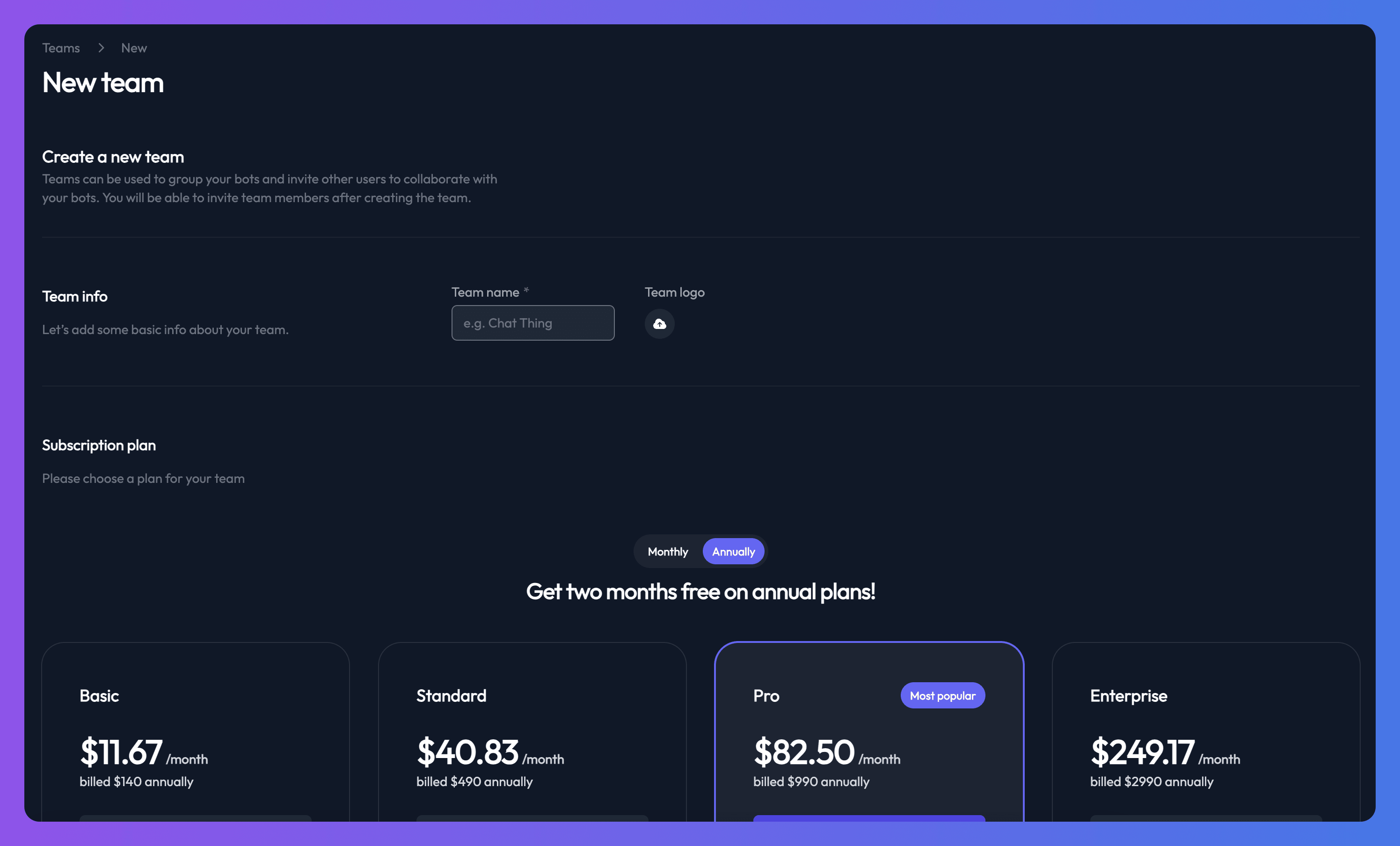
You're switched to the new team when it's ready. To move existing bots into it, see Move a bot to another team.
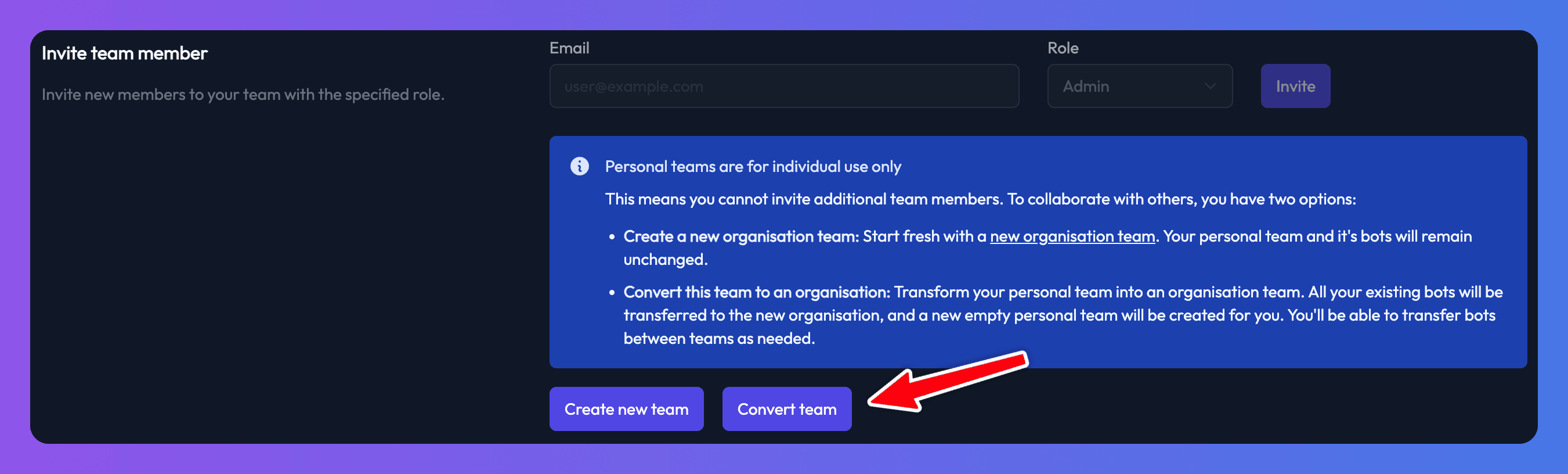
Convert a personal team to an organisation
Converting turns your personal team, with all its bots, into an organisation team you can invite people to. A new, empty personal team is created for you.
Your personal team must be on a paid plan before you can convert it.
- Switch to your personal team.
- Open the team switcher and select Team settings.
- Select Convert team.
Invite a team member
Who can do this: the team owner and admins. Your team must be an organisation team.
- Switch to the team you want to manage.
- Open the team switcher and select Team settings.
- On Manage your team, go to Invite team member.
- Enter their Email and choose a Role: Admin, Responder or Viewer.
- Select Invite.
Chat Thing emails them an invitation, and you can also select Copy invite link to send the link yourself. The link expires after 3 hours.
The person must accept using the same email address you invited. If they don't have a Chat Thing account yet, the invite link asks them to log in. They can select Create an account there, confirm their email, then open the invite link again (within the 3 hours) to join.
Change a member's role
- Go to Team settings and find People.
- Choose a new role from the dropdown next to the member.
Only the owner can change an admin's role.
Remove a team member
- Go to Team settings and find People.
- Open the ⋮ menu next to the member and select Delete.
They're removed straight away, with no confirmation step. Admins can remove Responders and Viewers; only the owner can remove an admin. The owner can't be removed. Members can't leave a team themselves; ask an owner or admin to remove you.
Transfer team ownership
- Go to Team settings and find Transfer ownership. It appears when the team has more than one member.
- Select Transfer, choose the Team member, and confirm.
The new owner takes over billing. You become an admin.
Move a bot to another team
Who can do this: owners and admins of both teams. The receiving team must have room for another bot on its plan.
- Open the bot and go to its General settings tab.
- Scroll to Transfer ownership and select Transfer. This section only appears if you belong to more than one team.
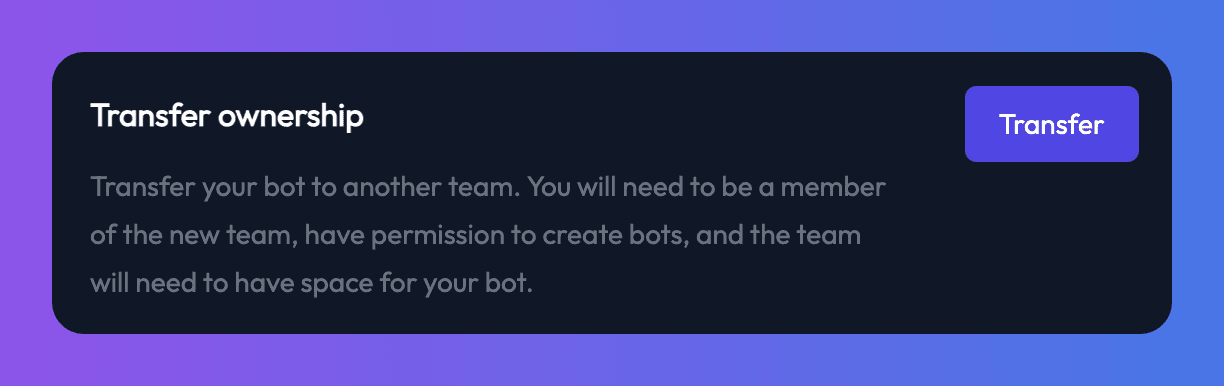
- Choose the team to move the bot to.
- Select Transfer to confirm.
The bot now appears in the other team's bot list.
Delete a team
Only the owner can delete an organisation team, and only once every other member has been removed.
- Go to Team settings.
- Select Delete team.
Deleting a team deletes its bots and all their conversations, and cancels its subscription. It happens straight away and can't be undone.
Troubleshooting
"Team member limit reached"
Your team has as many members as its plan allows. Remove someone, upgrade, or add an Extra team member add-on.
"Personal teams cannot invite members"
Personal teams are for one person. Create an organisation team or convert your personal team.
The invite link has expired
Invite links last 3 hours. Ask the owner or an admin to invite you again.
"This invite link was sent to a different email"
Sign in with the email address the invitation was sent to, or ask for a new invite to your current address.
"Team has no space for the new bot"
The receiving team is at its bot limit. Upgrade that team's plan or add an Extra bot add-on there, then try again.
I didn't get the invite email
Check your spam folder, or ask the person who invited you to send you the invite link directly with Copy invite link.
Related
- Manage billing and your plan
How Chat Thing billing works - subscribe, change or cancel your plan, find invoices, and what happens to your bots and data when you downgrade.
- Take over a live chat from your bot
Let your team step into a live website chat, reply to the customer directly while the bot pauses, then hand the conversation back to the bot.
- Security and data handling
Where Chat Thing stores your data, which AI providers process it, whether it's used for training, how access and deletion work, GDPR, DPA and SOC 2.
Last updated