Add, sync and delete data sources
A data source is one place your bot gets knowledge from, such as your website, a set of files or some Notion pages. This page covers the steps that are the same for every type; each type's own page covers adding its content.
Who can do this: team owners and admins.
What counts as one data source
One data source can hold many pages, files or entries. A website data source with 500 URLs is one data source; so is a file data source with 40 PDFs, or a Notion data source with a whole workspace section.
You might still create more than one data source of the same type, for example to use a different CSS selector for part of your website, or to sync some content more often than the rest. See best practices.
Add a data source
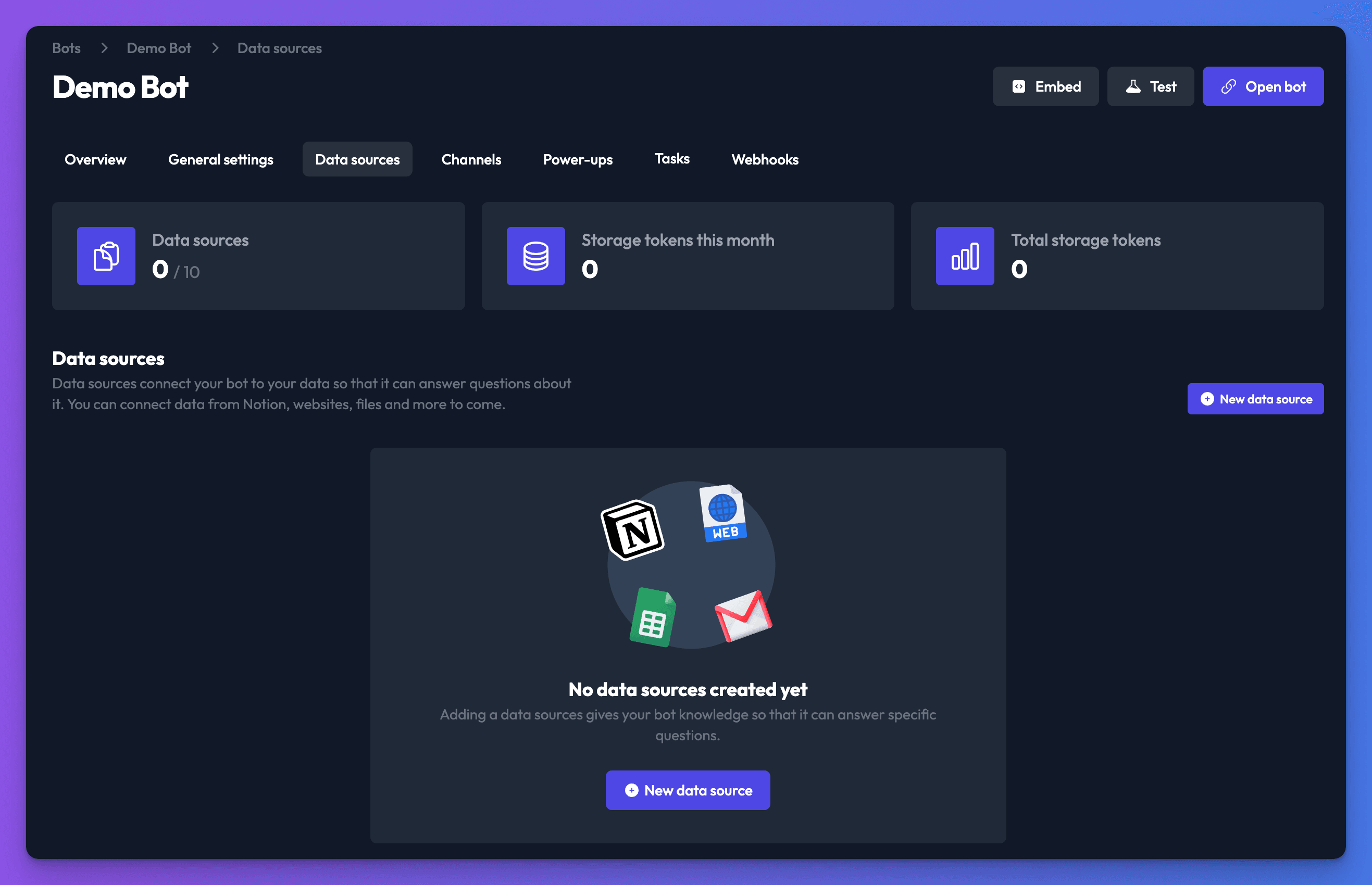
- Open your bot and go to the Data sources tab.
- Click New data source.
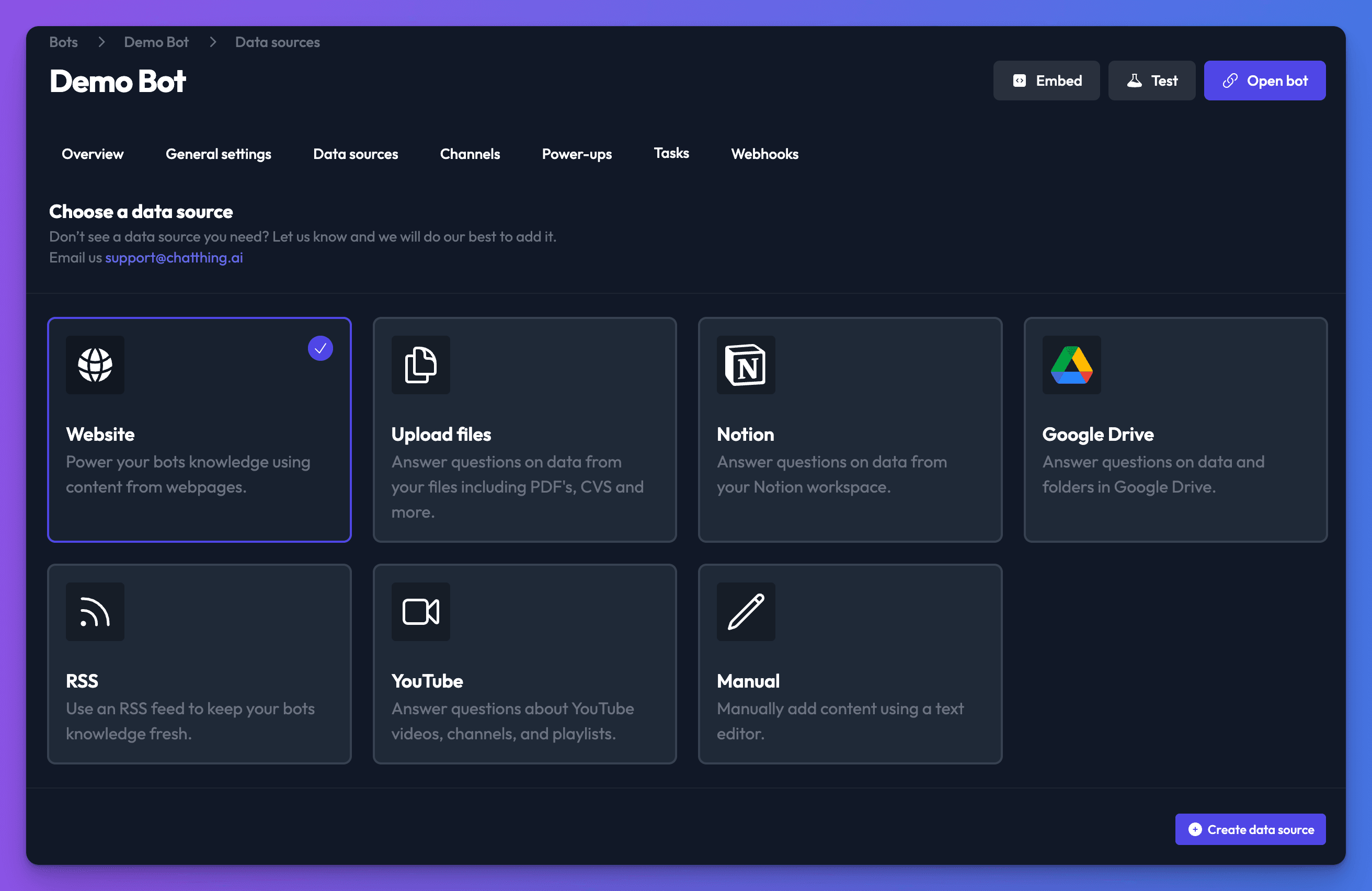
- Under Choose a data source, pick a type:
- Website: pages from any website. See website.
- Upload files: PDFs, Word documents, CSVs and more. See files.
- Notion: pages and databases from your Notion workspace. See Notion.
- RSS: posts from an RSS feed. See RSS.
- YouTube: transcripts of videos and playlists. See YouTube.
- Manual: text you write in Chat Thing. See manual content.
- Click Create data source. The data source opens on its Content tab.
- Add your content (see the page for your type).
- Click Synchronise at the top of the page.
You can also add data sources from an AI assistant with the add_data_source MCP tool, or with the Data sources API.
Sync a data source
Your bot can only use content after it has been synced. Syncing downloads your content, splits it into small pieces called documents and stores them so the bot can search them. Syncing uses storage tokens.
A sync can take a few seconds or much longer: large websites and large Notion workspaces can take over an hour. While it runs, the data source card shows Syncing; click View sync progress in its menu to watch it. A sync has three stages: Discovery (finding content), Pull (downloading it) and Teaching (storing it for the bot).
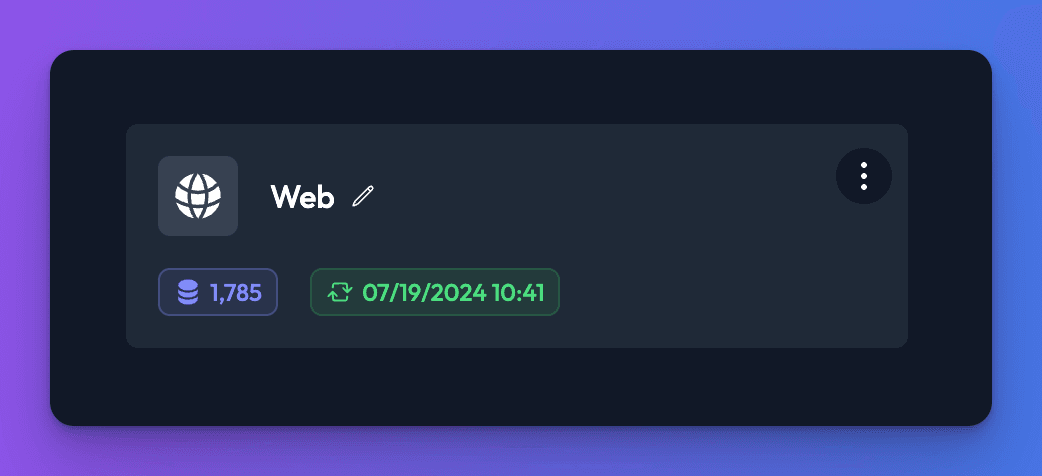
When it finishes, the card shows the storage tokens used and the time of the last sync.
Re-sync after your content changes
A sync is a snapshot. When your content changes, sync again so the bot has the latest version:
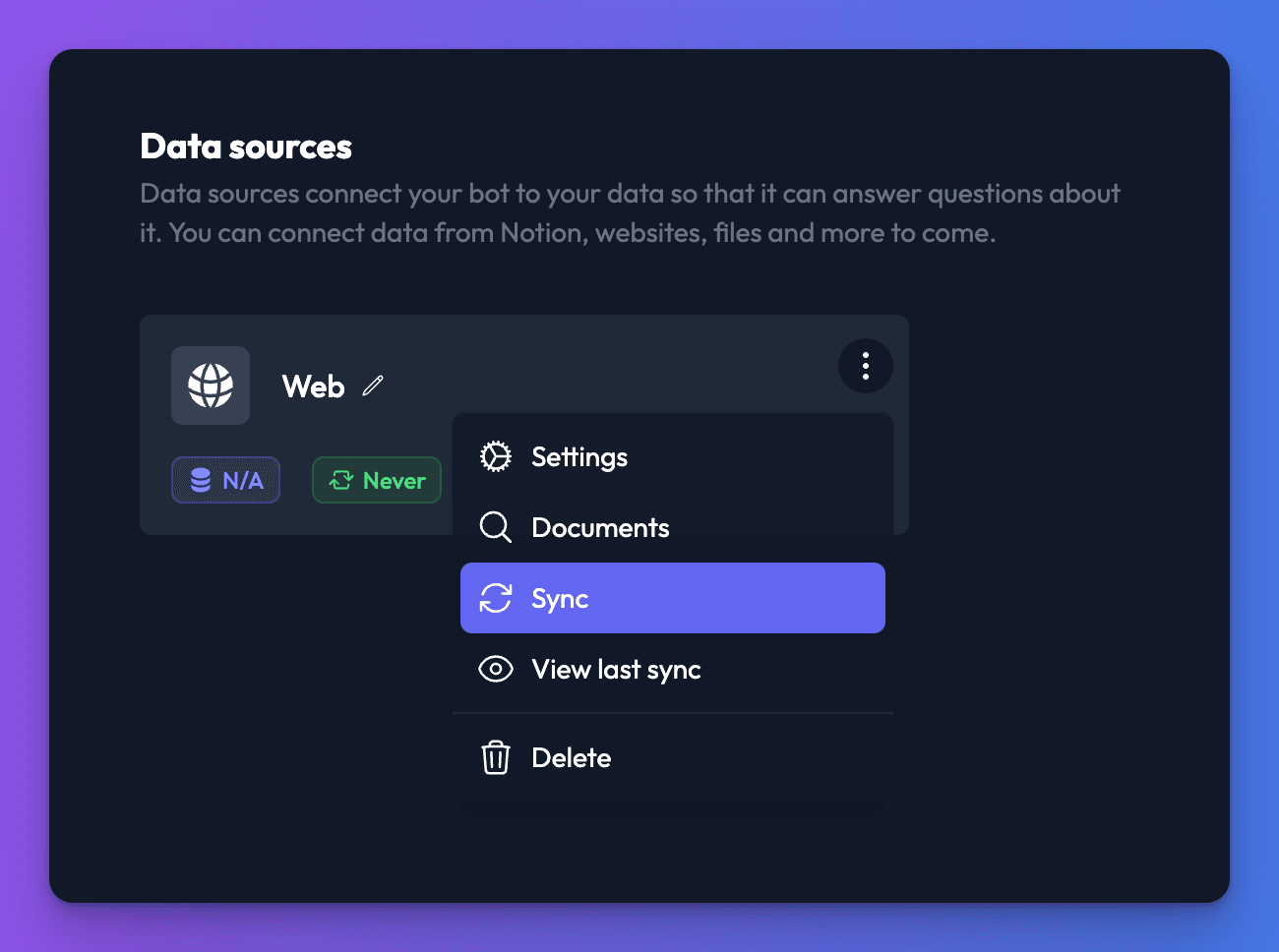
- On the Data sources tab, click the three dots on the data source card.
- Click Sync.
Re-syncing only uses storage tokens for content that is new or has changed since the last sync. Unchanged pages, files and entries are checked but not processed again, so re-syncing unchanged content costs nothing.
To re-sync automatically on a schedule, or when you publish in your CMS, see keep your bot up to date.
Other data source actions
Click the three dots on a data source card to:
- Settings: open its content, scraping settings (website and RSS), syncing and general settings.
- Documents: see the documents your content was split into.
- View last sync: see what the last sync found and changed.
- Re-authenticate: shown when a connected account (such as Notion) needs reconnecting.
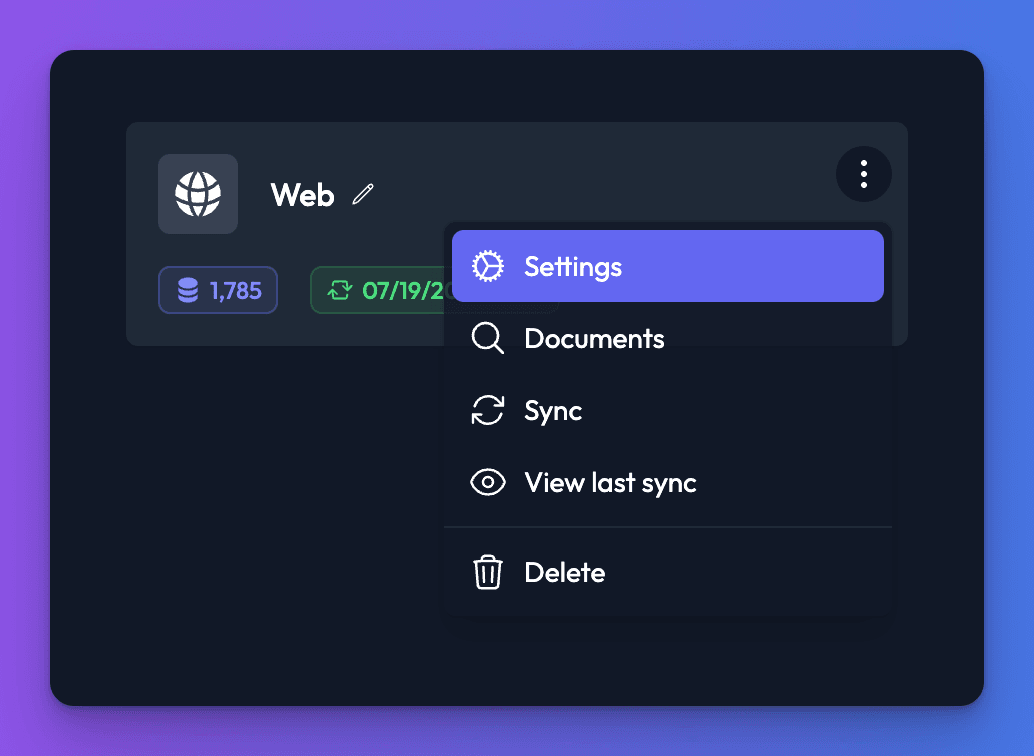
To give a data source a name you'll recognise, click the pencil icon next to its title.
Delete a data source
- On the Data sources tab, click the three dots on the data source card.
- Click Delete.
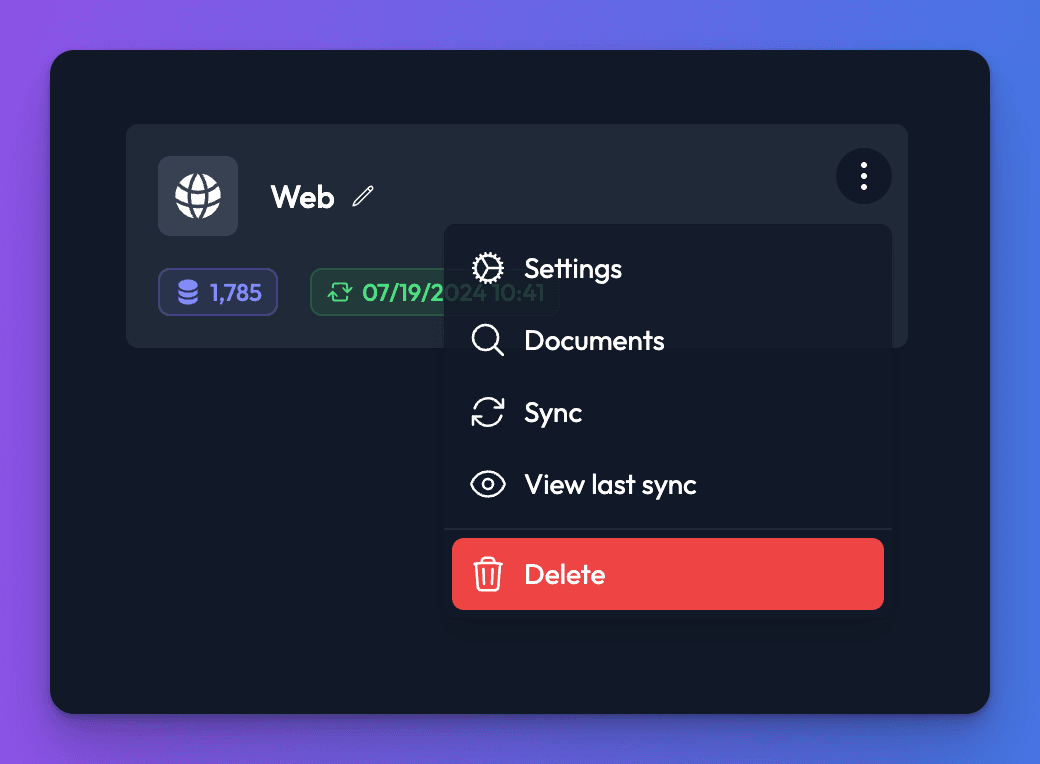
- Confirm. The data source and all of its content are permanently removed from Chat Thing. This can't be undone.
Deleting a data source frees a place in your plan's data source limit straight away. It doesn't give back storage tokens already used this month.
To remove a single page, file or entry instead, delete its row on the data source's Content tab. Its content is removed from the bot the next time the data source syncs.
Limits
Data sources per bot
| Plan | Data sources per bot |
|---|---|
| Free | 1 |
| Basic | 1 |
| Standard | 3 |
| Pro | 10 |
| Enterprise | Unlimited |
Need more? Add the Extra data source add-on: each one adds one more data source per bot. See add-ons. When you reach the limit, creating a data source fails with "Bot data source limit reached. Please upgrade plan to add new data sources."
Storage tokens
Each plan includes a monthly allowance of storage tokens, used whenever content is synced. See storage tokens for the allowance on each plan and how to add more.
If a sync would take you over your allowance, it doesn't start, or stops before storing anything, with the message "Over plan storage token limit, please upgrade plan" or "Sync will take your storage tokens over your plan limit". Content from earlier syncs stays in place, so your bot keeps answering from it.
Limits by type
| Type | Limits |
|---|---|
| Website | Crawl adds up to 600 pages per crawl. Sitemaps and URL lists have no fixed page limit. Only HTML pages are read (a link straight to a PDF isn't). |
| Files | .csv, .pdf, .json, .md, .html, .mht, .docx, .txt, .zip and .epub. The upload dialog shows the maximum size per file. PDFs must contain text: scanned images of text aren't read. |
| Notion | No page limit. Child pages and database entries are included automatically. Images aren't included. |
| YouTube | Only videos with English captions are used. Playlists are expanded into their videos. |
| RSS | Only items currently in the feed are kept. |
| Manual | No limit on the number or length of entries. |
Any page, file or entry with fewer than 25 letters or numbers is skipped.
Troubleshooting
My sync failed
Click View last sync in the data source's menu to see the reason. The most common causes are running out of storage tokens, a website blocking our requests, or a connected account (such as Notion) that needs reconnecting: use Re-authenticate. Team owners and admins are also emailed when a sync fails.
"Sync in progress, please wait."
The data source is already syncing. Wait for the current sync to finish; use View sync progress to follow it.
Related
- Keep your bot's knowledge up to date
Re-sync data sources by hand, on a daily, weekly or monthly schedule, or automatically when you publish in your CMS, and see what each sync changes.
- Storage tokens and how syncing uses them
What storage tokens are, when syncing and re-syncing use them, what happens when you reach your monthly limit, and how to use fewer.
- Compare plans
What each Chat Thing plan costs and includes - monthly and yearly prices, bots, data sources, tokens, channels, power-ups and team members.
Last updated