Add YouTube videos
Add YouTube videos or playlists so your bot can answer questions from what's said in them, such as tutorials, webinars and product walkthroughs.
Who can do this: team owners and admins.
Captions required
Chat Thing reads each video's English captions. Videos without English captions are added but have no content. Auto-generated captions work; captions you've uploaded or corrected are more accurate.
Steps
- Open your bot, go to the Data sources tab and click New data source.
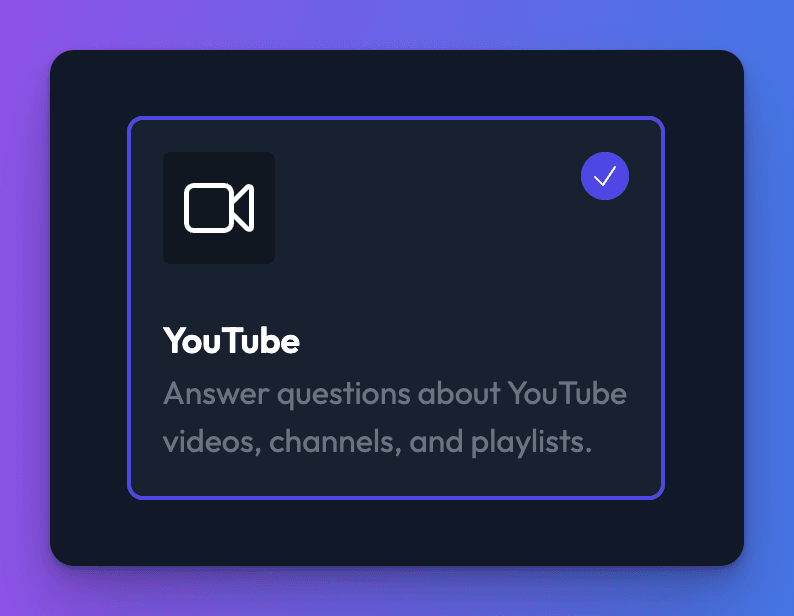
- Choose YouTube and click Create data source.
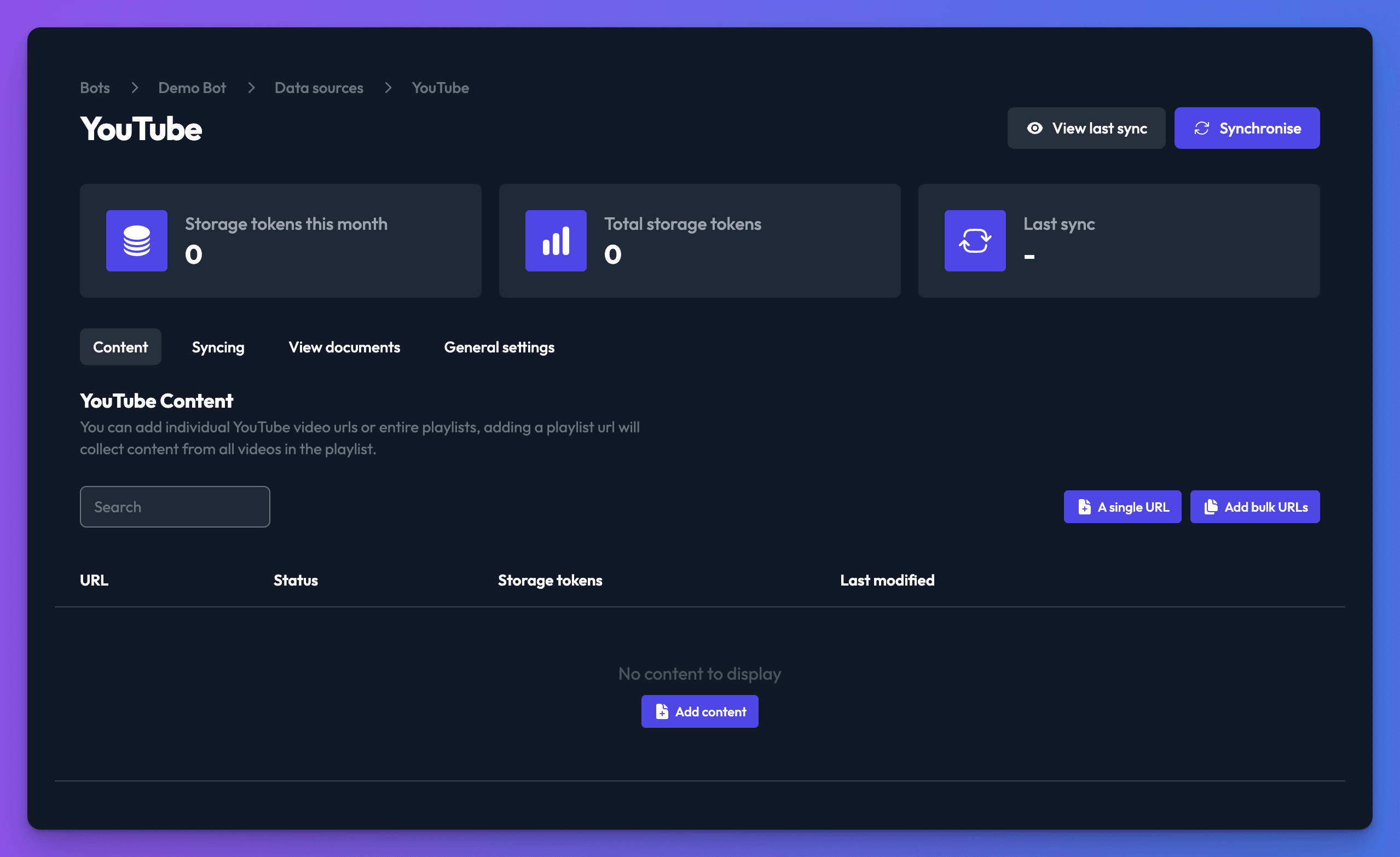
- On the Content tab, click one of these buttons (on a small screen, they're under Add):
- A single URL: paste the address of one video or playlist.
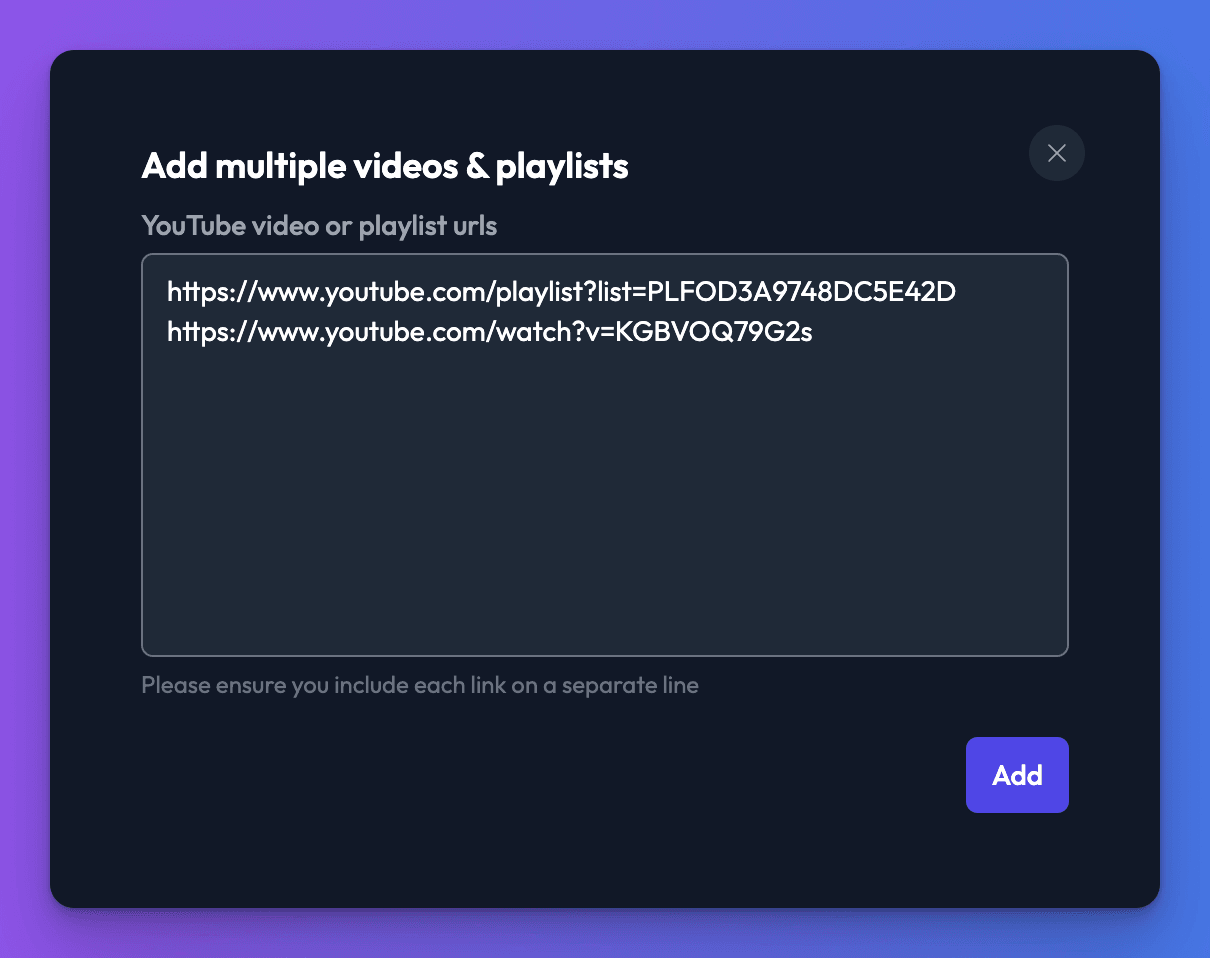
- Add bulk URLs: paste several video or playlist addresses, one per line.
- Click Add.
- Click Synchronise.
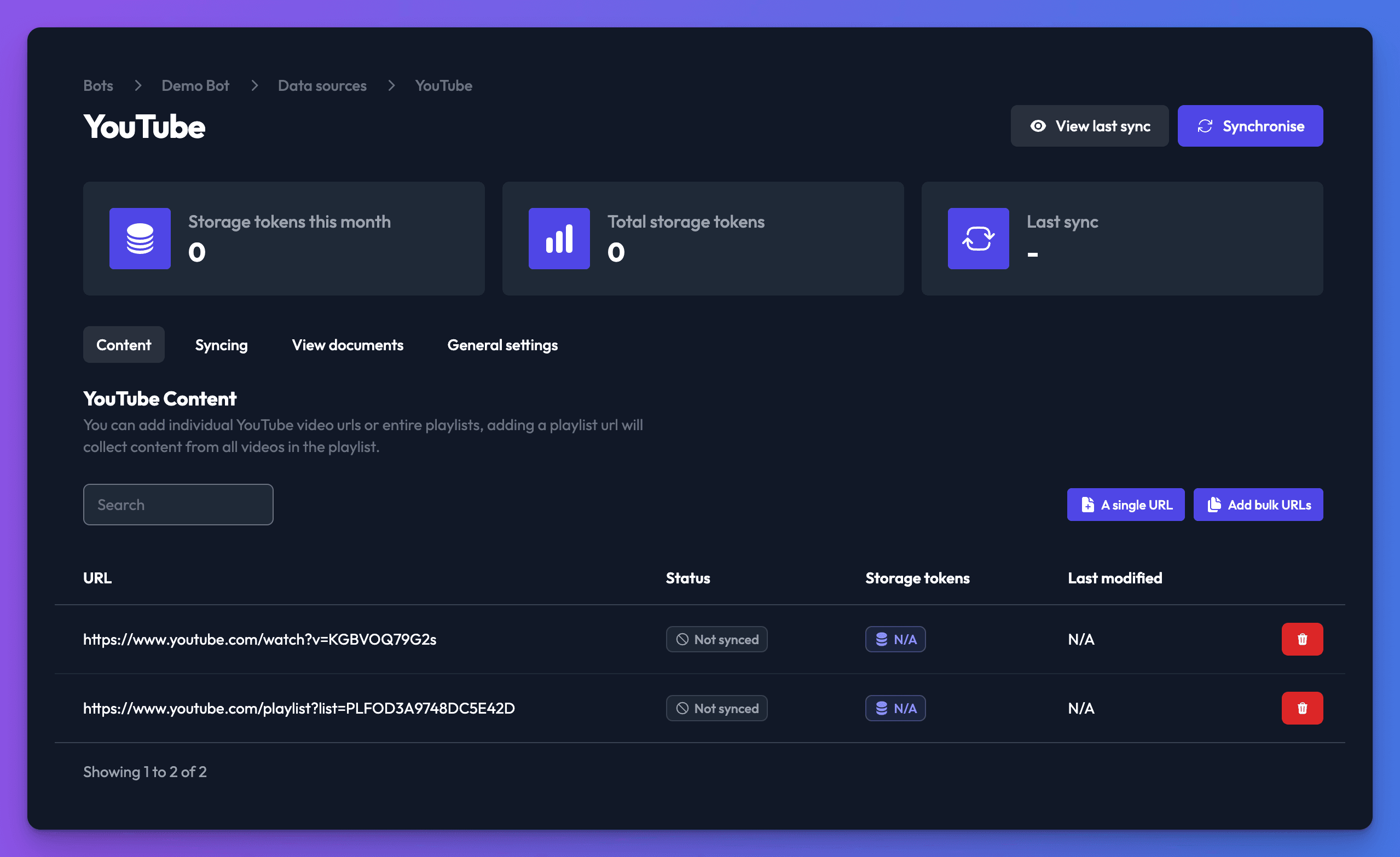
Adding a playlist adds every video in it. Each sync checks the playlist again: videos added to it since the last sync are added, and videos removed from it are removed from your bot.
Check it works
- After the sync, check each video's Storage tokens column. A video with no storage tokens had no English captions.
- Ask your bot a question that one of the videos answers.
Troubleshooting
A video has no content after syncing
The video has no English captions, or captions are turned off. Add or enable English captions in YouTube Studio, then sync again.
Related
- Add, sync and delete data sources
Add a data source to your bot, sync it, re-sync after changes and delete it, plus how many data sources each plan allows and per-type limits.
- Keep your bot's knowledge up to date
Re-sync data sources by hand, on a daily, weekly or monthly schedule, or automatically when you publish in your CMS, and see what each sync changes.
Last updated