Test your bot's answers
Build a set of test questions for your bot, each with checks its answer must pass, and run them whenever you change the prompt, model, settings or knowledge. Test runs show what passed, what failed and why.
Plan requirement
Bot tests are available on the Enterprise plan. On other plans, the Tests tab isn't shown.
Who can do this: team owners and admins.
Create test cases
- Open your bot and go to the Tests tab.
- Click Manage test cases, then New test case.
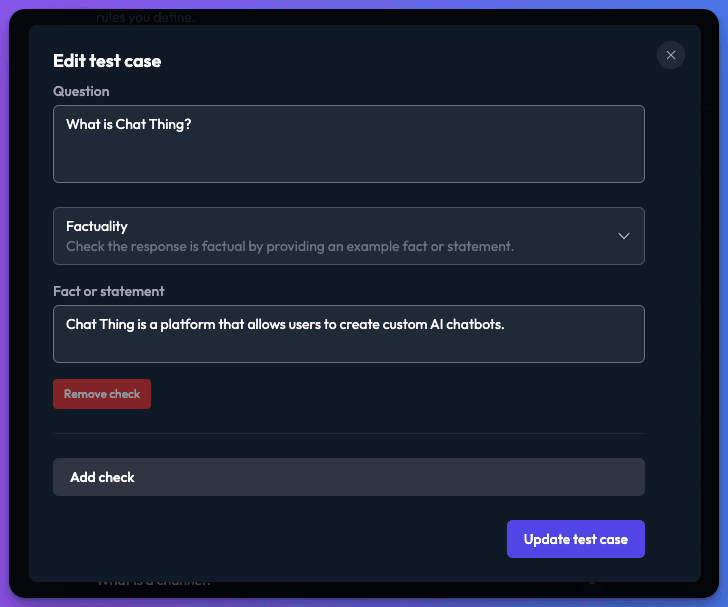
- In Question, enter a question a user might ask.
- Choose a check (see the table below) and fill in its fields: usually a Fact or statement and a Threshold.
- Click Add check to add more checks to the same question. A test case needs at least one check.
- Click Create test case. Repeat for each question.
Check types
| Check | Passes when |
|---|---|
| Factuality | The answer agrees with the fact or statement you provide. |
| Similarity | The answer is similar enough to an example answer you provide. |
| Requirements | The answer meets the requirements you list, such as "mentions the 30-day return window". |
| Relevance | The answer is relevant to the question. |
| Power-up called | The bot used a specific power-up while answering. |
| Power-up not called | The bot did not use a specific power-up, for example because it should answer from its knowledge. |
| Power-up succeeded | The bot used a power-up and every use succeeded. |
Similarity, Requirements and Relevance checks have a Threshold from 0.1 to 0.9 that sets how strict the check is. The default of 0.7 is a good starting point; lower it if answers that look right are failing.
Run the tests
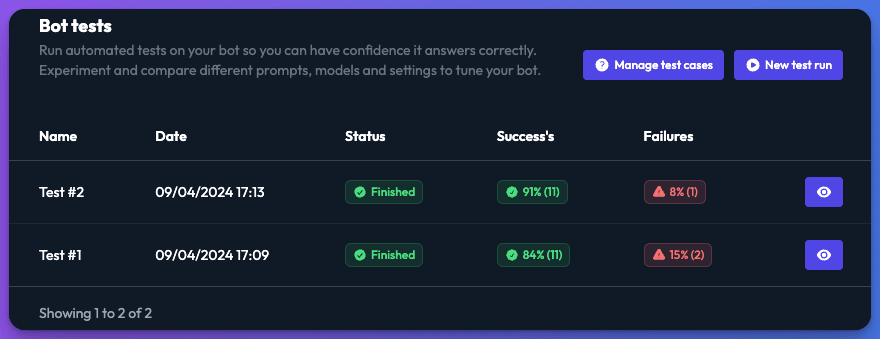
- On the Tests tab, click New test run.
- Give the run a Name (it defaults to "Test #" and a number) and click Start test.
- Open the run from the list to see its results.
To run a single test case, click its play button on the Test cases page.
Test runs use message tokens: for the bot's answers, and for grading the checks, which uses an AI model.
Read the results
Each run shows:
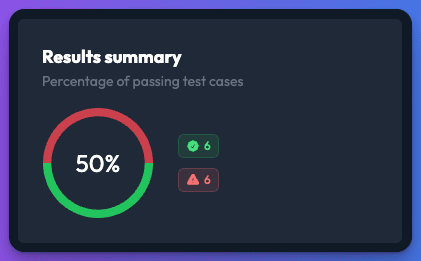
- The percentage of checks passing, failing and pending.
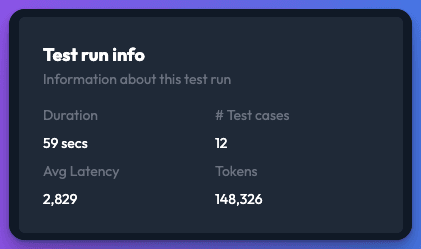
- Duration, number of test cases, average latency and tokens used.
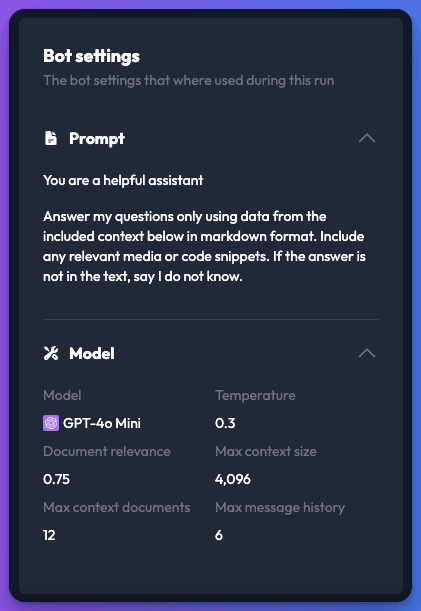
- Bot settings: a snapshot of the prompt, model and settings used for the run, so you can compare runs after changing them.
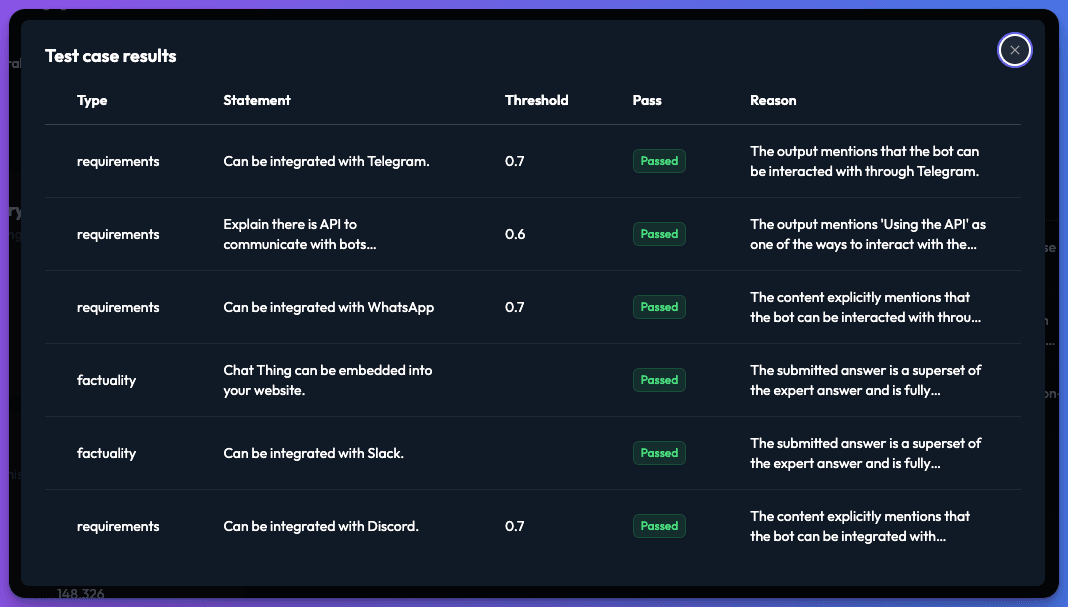
- Each question with the bot's response and its checks. Click a result to see each check's Pass status and the Reason it passed or failed.
Check it works
Run your tests once before changing anything to get a baseline. After each change, run them again and compare the pass rate and the failed checks with the baseline.
You can also create test cases and start runs from an AI assistant with the MCP tools.
Troubleshooting
Answers that look right are failing
Lower the check's Threshold, or reword the Fact or statement so it states only what matters. Open the result and read the Reason to see what the grader expected.
A question fails because the bot can't find the answer
The problem is usually retrieval rather than the prompt. See retrieval settings.
Related
- Write your bot's instructions
Write the prompt that sets your bot's role, topics, tone, answer length, language, power-up use and handoff, with before-and-after examples.
- Retrieval settings
Control how much of your knowledge your bot reads for each message - document relevance, context documents, enhanced retrieval, sources and chunk size.
- Improve your bot's answers
Fix a bot that says "I don't know", gives wrong or made-up answers, goes off-topic, rambles, forgets context or replies in the wrong language.
Last updated