Trigger Zapier actions from your bot
The Zapier AI Action power-up lets your bot run an action you've enabled in Zapier AI Actions, such as posting to a Slack channel, adding a row to Google Sheets or creating a calendar event.
Zapier has deprecated AI Actions
Zapier no longer develops or supports AI Actions, the Zapier feature this power-up uses. Existing setups may keep working, but they could stop without notice. For new integrations, use Call your API to send data to a Zap that starts with a Webhooks by Zapier "Catch Hook" trigger, or check whether a dedicated power-up exists for your tool.
Before you start
- Who can do this: team owners and admins.
- A Zapier account.
- At least one action enabled in Zapier AI Actions (at
actions.zapier.com), with the accounts it needs connected in Zapier.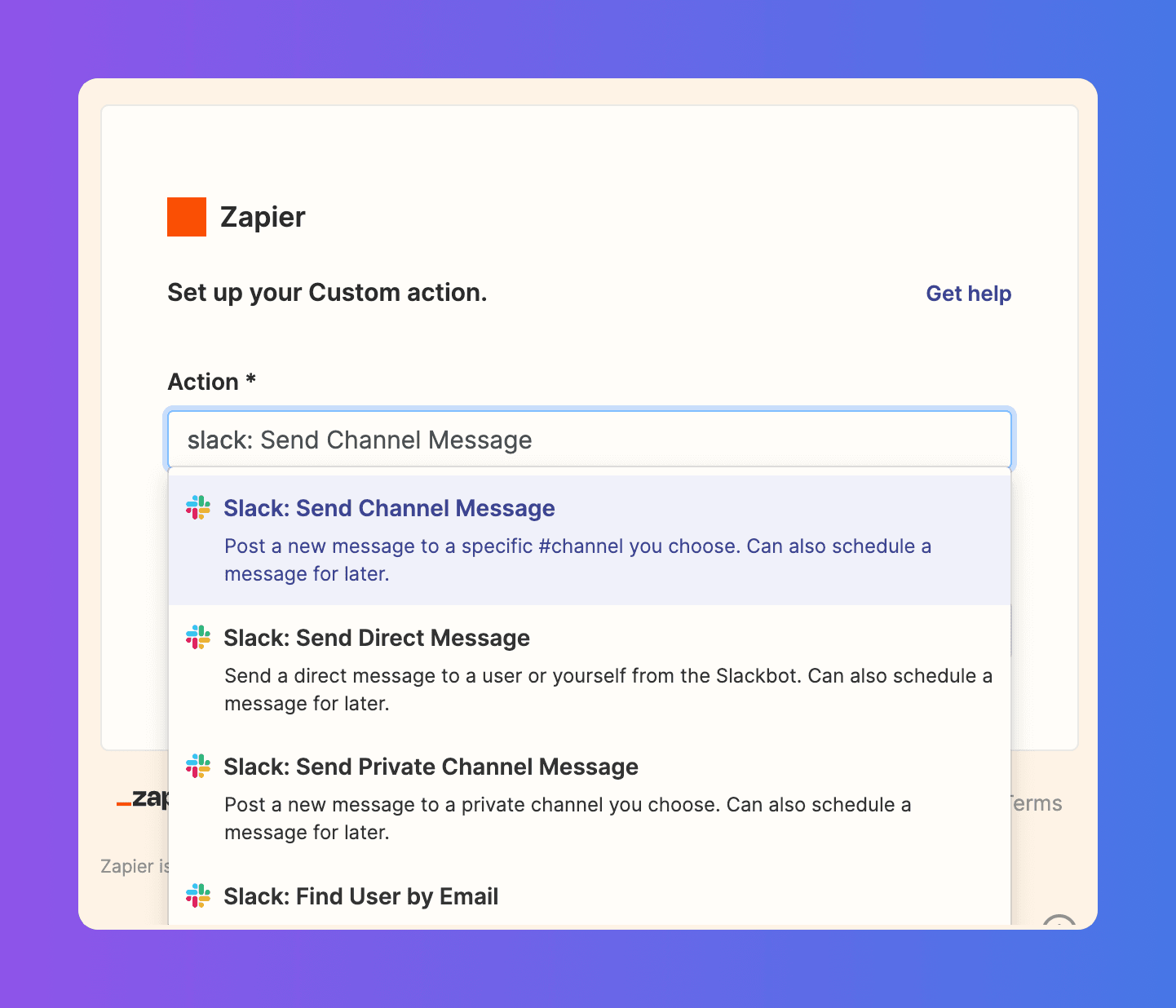
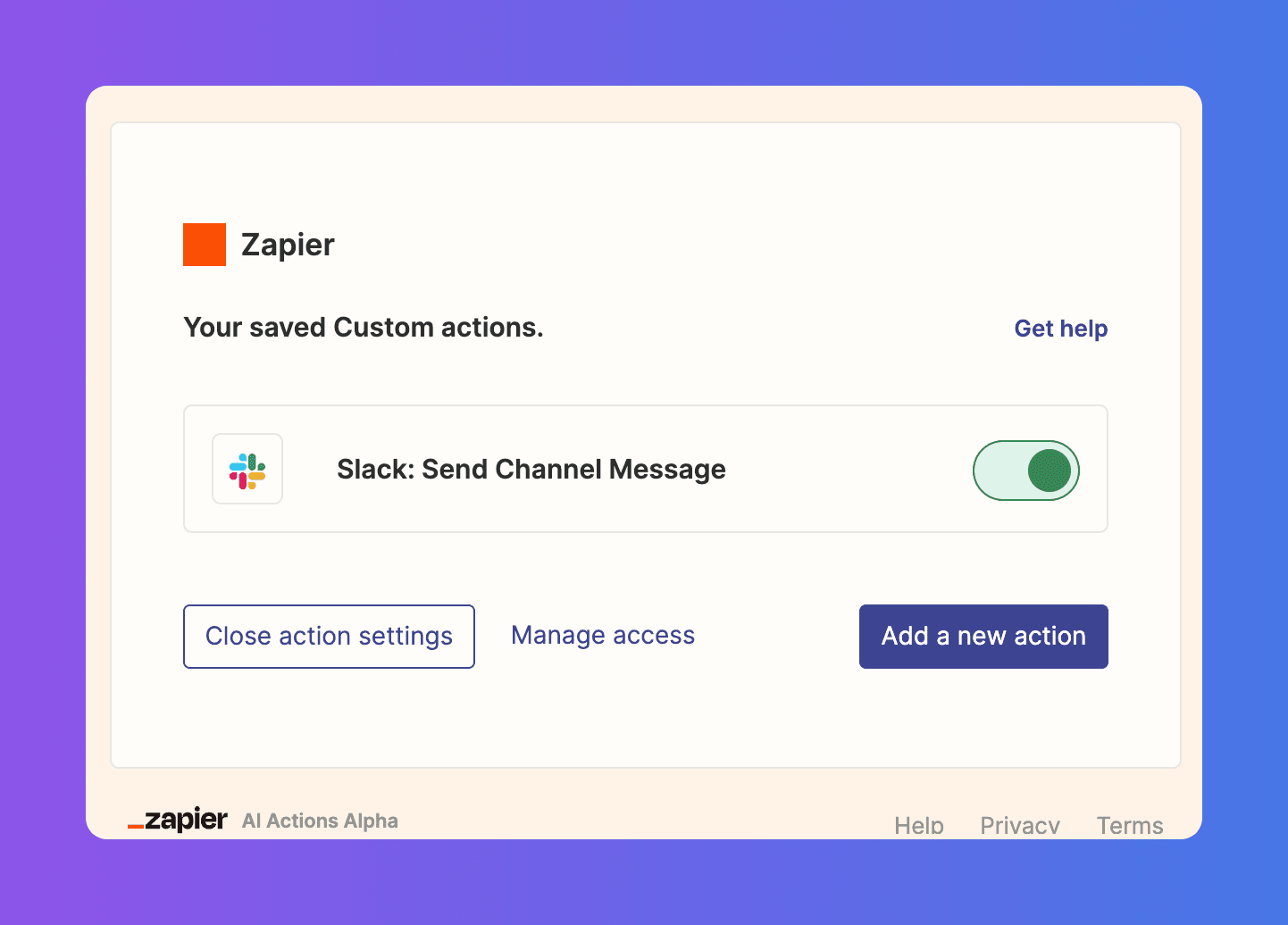
- Your Zapier AI Actions API key, from the credentials page in Zapier AI Actions.
Steps
- Open your bot, go to the Power-ups tab and click New power-up.
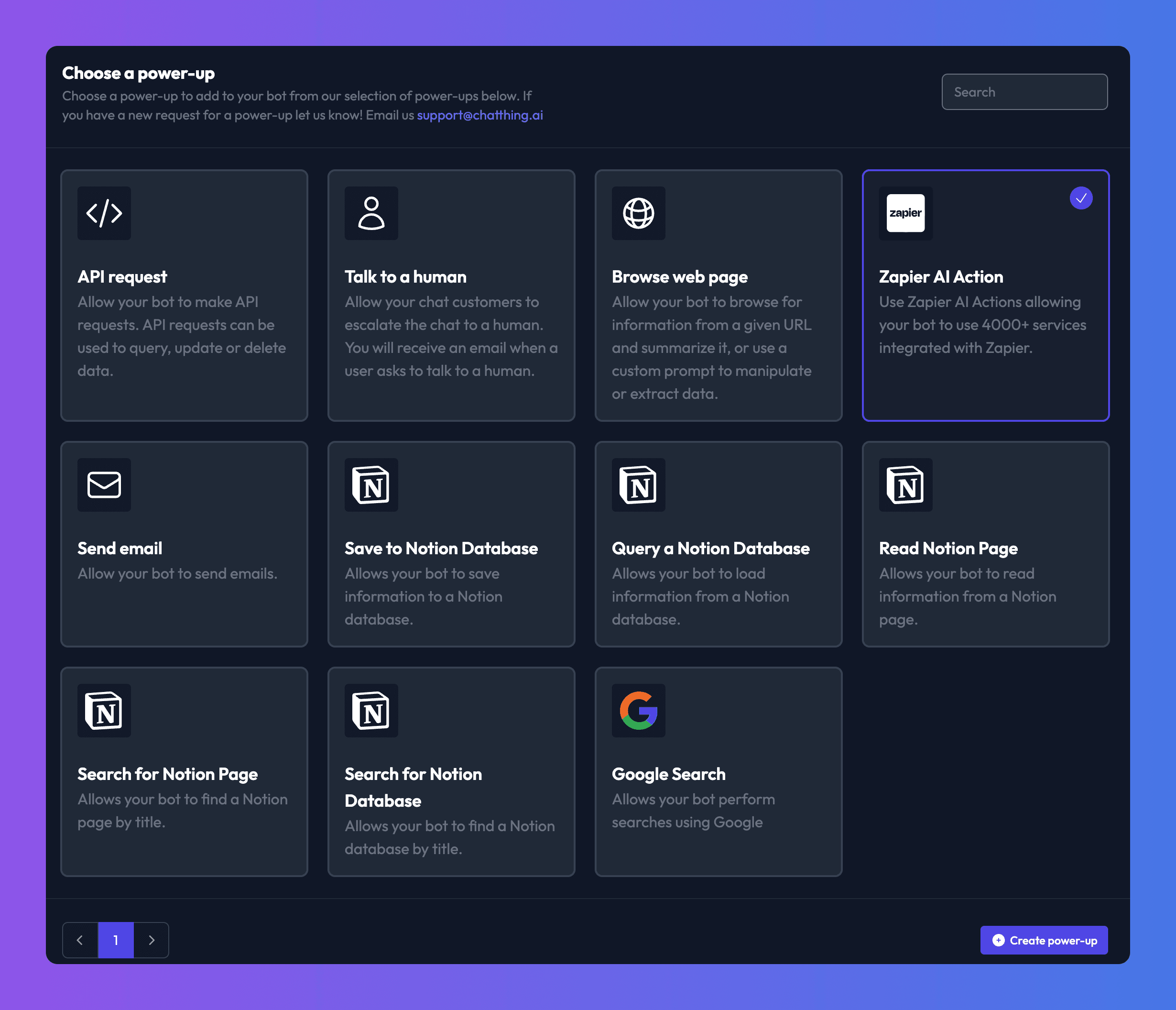
- Choose Zapier AI Action and click Create power-up.
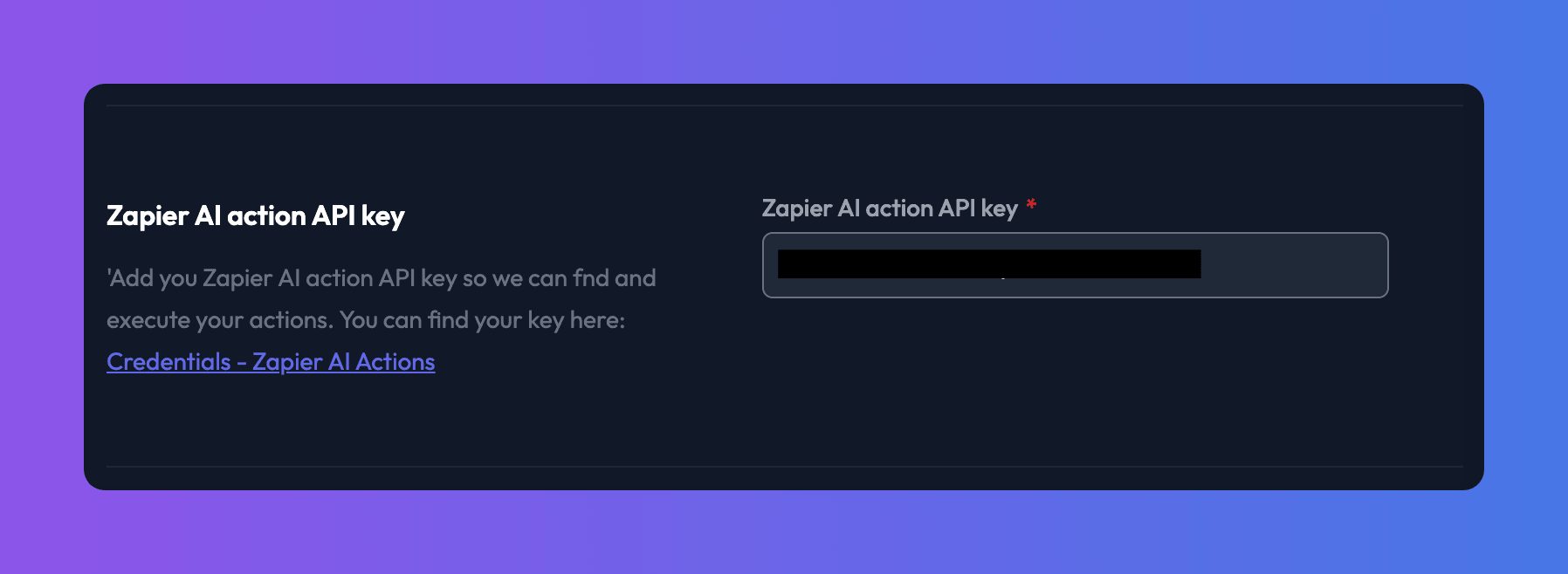
- Paste your key into Zapier AI action API key. You can't choose an action until you do.
- Choose an action in Zapier AI action. Only actions you've enabled in Zapier appear.
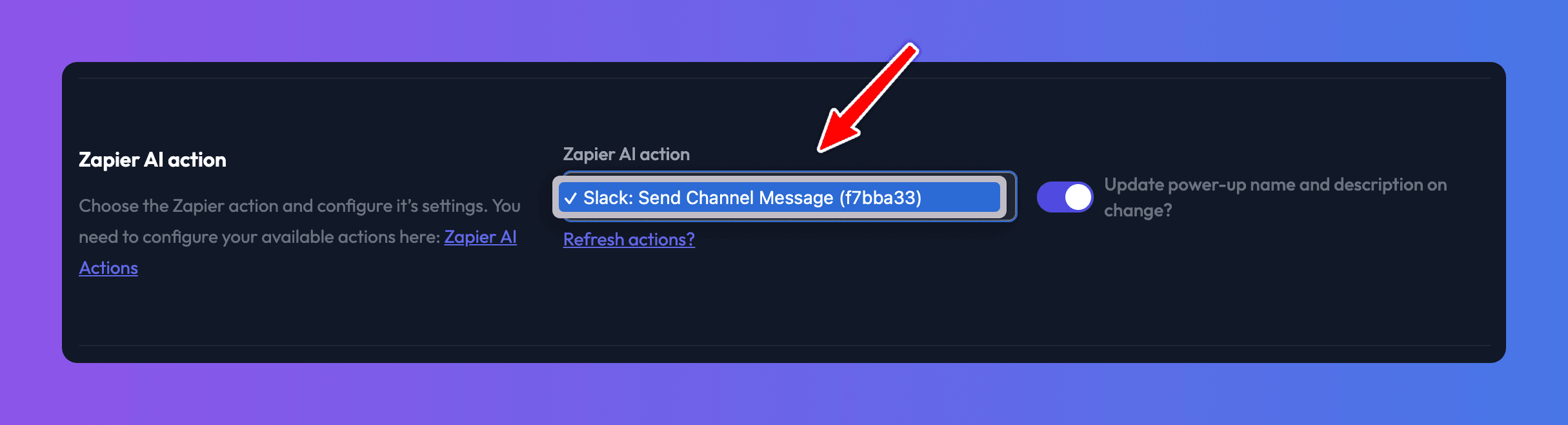
- With Update power-up name and description on change? on, Chat Thing writes a name and description for the action. Check them and edit if needed.
- Configure the Action fields (see below).
- Click Save.
Action fields
When you choose an action, its fields are listed in a table:
| Column | What it's for |
|---|---|
| Name | The field's name in Zapier. |
| Description | Tells the bot what the field is for. This is how the bot learns to fill it in, so make it clear. |
| Value | Optional fixed value, for example always posting to the same Slack channel. Leave blank to let the bot fill it in or ask the visitor. |
| Ignore | The bot never sends this field. Use it for optional fields you don't need. |

Check it works
- Chat with your bot while signed in and ask it to do what the action does.
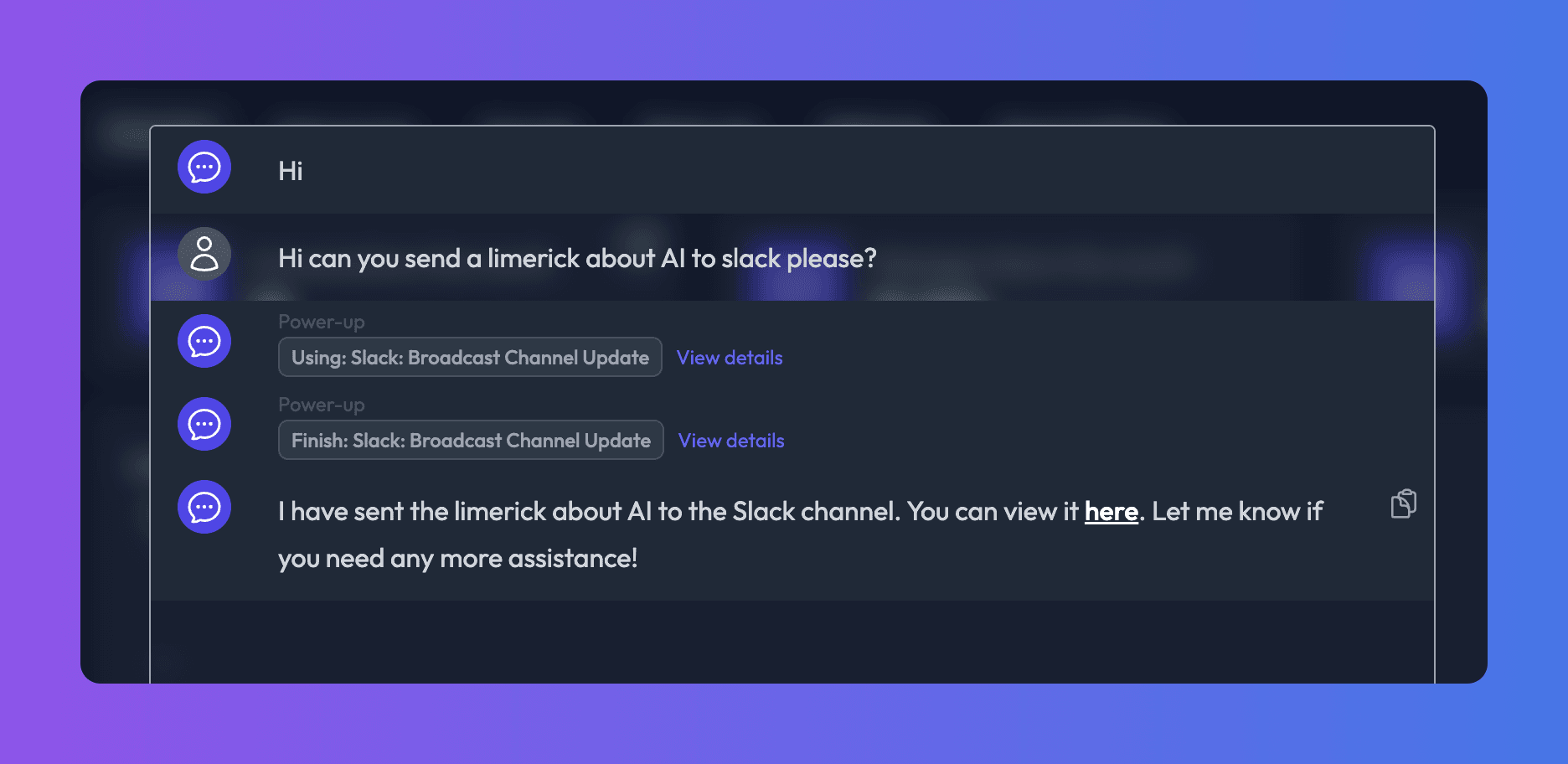
- Open View details on the power-up call to see the fields the bot sent and any error Zapier returned.
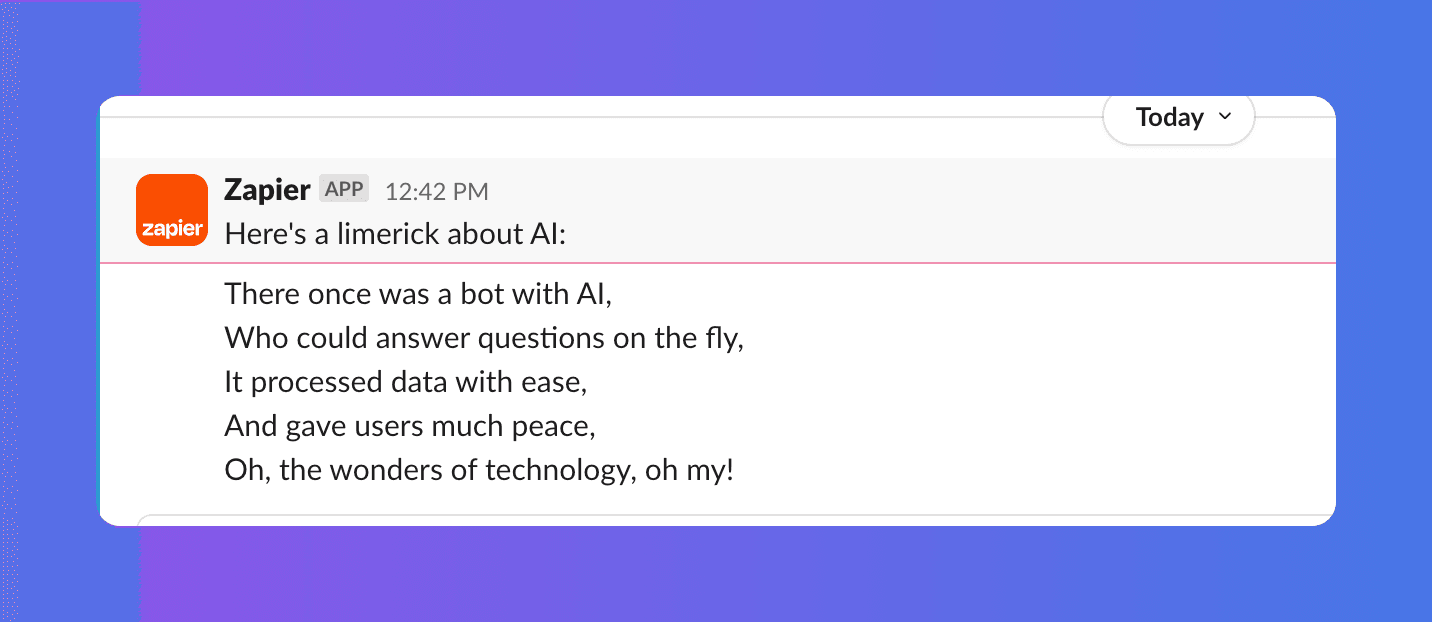
- Check the result in the target app.
Troubleshooting
My action doesn't appear in the list
Check that the action is enabled in Zapier AI Actions and that you pasted the API key from the same Zapier account.
The action runs with the wrong values
Open View details to see what was sent, then improve the field Descriptions, set fixed Values, or add instructions to the power-up's Description.
Related
- Call your API from your bot
Let your bot call any HTTP API to look up or send data, such as order status, stock levels or new leads, using the API request power-up.
Last updated