Channels
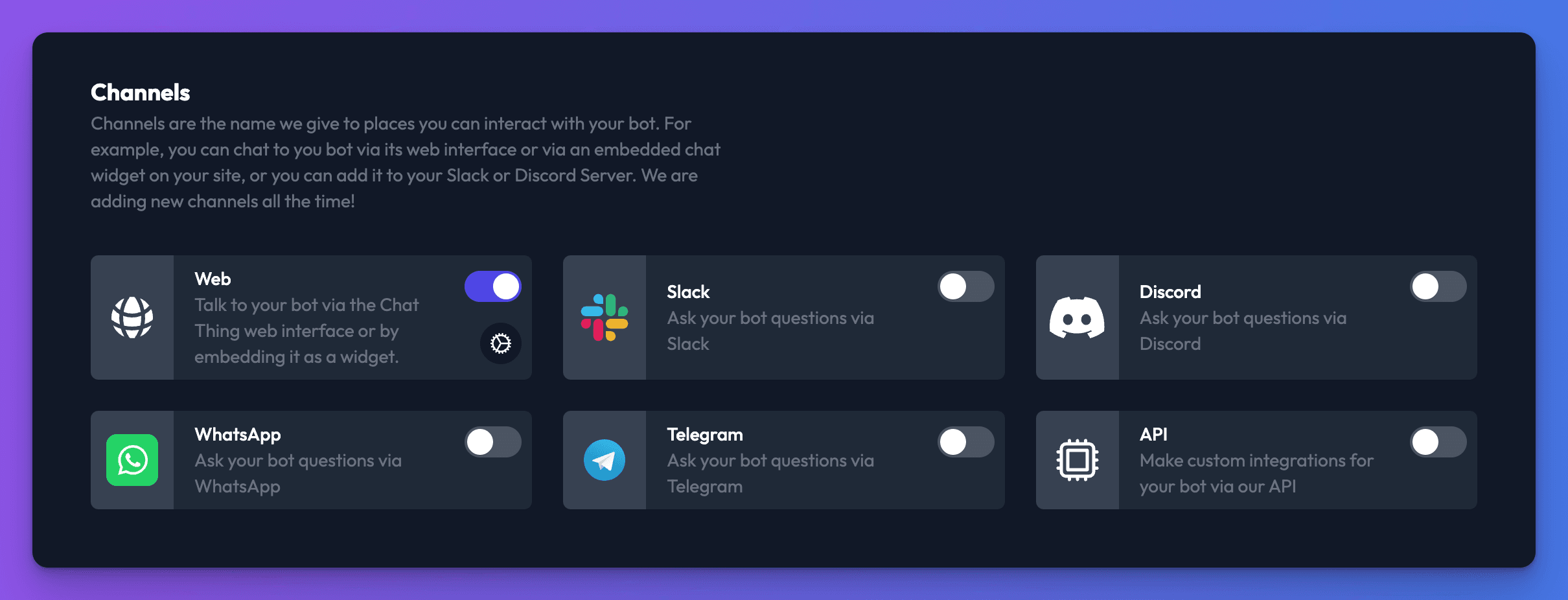
A channel is a place where people can talk to your bot. Every bot has the Web channel switched on, so you can chat to it on its own page or add it to your website as a chat widget. The other channels connect the same bot to WhatsApp, Slack, Discord, Telegram, email or your own app. The bot uses the same instructions, knowledge and power-ups everywhere, and conversations from every channel appear in Conversations.
Which channels are on which plans
| Channel | What it's for | Plans |
|---|---|---|
| Website | A chat widget or embedded chat on your site, plus a shareable bot page | All plans |
| Answer messages sent to your WhatsApp Business number | Standard, Pro, Enterprise | |
| Slack | Ask the bot questions in your Slack workspace | Standard, Pro, Enterprise |
| Discord | Answer slash commands, @mentions and DMs in a Discord server | Standard, Pro, Enterprise |
| Telegram | Run the bot as a Telegram bot | Standard, Pro, Enterprise |
| Give the bot its own email address that it answers | Standard, Pro, Enterprise | |
| API | Build your own integration with the Chat API | Standard, Pro, Enterprise |
On the Free and Basic plans, cards for channels your plan doesn't include show Not included in subscription plan. Upgrade your plan to use. See Compare plans.
Turn a channel on or off
- Open your bot and select the Channels tab.
- Turn on the toggle on the channel's card.
- Click the settings (cog) icon on the card to configure the channel. Most channels need some setup before they work.
Only team owners and admins can open the Channels tab.
If you turn off WhatsApp, Slack, Discord, Telegram or email, the bot stops answering there and replies to new messages with "This bot is currently unavailable. Please try again later." Your settings are kept, so you can turn the channel back on without setting it up again.
Most common tasks
In this section
- Website chat widgetPut your bot on your website as a floating chat widget, an embedded chat or a shareable page, then match it to your brand.
- Connect your bot to WhatsAppConnect your bot to a WhatsApp Business number through a Meta app, so it answers WhatsApp messages using your knowledge and power-ups.
- Add your bot to SlackCreate a Slack app for your bot so your team can ask it questions with @mentions, direct messages or the Slack assistant sidebar.
- Add your bot to a Discord serverConnect your bot to Discord so it answers slash commands, @mentions and direct messages in your server, using your knowledge and power-ups.
- Connect your bot to TelegramCreate a Telegram bot with BotFather and connect it to Chat Thing, so anyone can chat to your bot in Telegram.
- Let your bot answer emailsGive your bot its own email address so it replies to emails using your knowledge, or processes forwarded emails with power-ups without replying.
- Upgrade from Slack V1 (legacy)The original Slack V1 integration is deprecated. How to tell if your bot still uses it and how to upgrade to the current Slack integration.
Related
- Compare plans
What each Chat Thing plan costs and includes - monthly and yearly prices, bots, data sources, tokens, channels, power-ups and team members.
- Review customer conversations
Find, filter and read every conversation your bots have with customers, see AI summaries and user details, and share or download transcripts.
Last updated