Use a custom domain for your chat widget
Serve your bot's chat widget, iframe embed and bot page from a domain you control, such as chat.example.com, instead of Chat Thing's domains.
Paid add-on
Custom domains need the Custom Domain add-on ($25 a month), bought from Billing. Each add-on gives your team one custom domain, which you set up on one bot. Domains are counted across the whole team, so two bots with their own domains need two add-ons. See Add-ons.
Who can do this: team owners and admins add the domain. Only the owner can buy the add-on in Billing.
Before you start
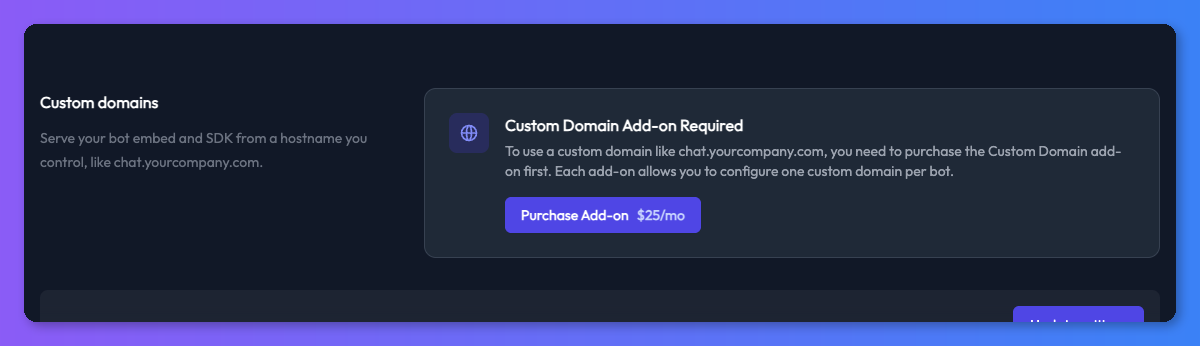
- Buy the Custom Domain add-on from Billing. Without it, the Custom domains section of the web channel settings shows Custom Domain Add-on Required and a Purchase Add-on button.
- Choose a subdomain you own, such as
chat.example.com, and make sure you can add DNS records for it with your domain or DNS provider.
Steps
- Open your bot and select the Channels tab.
- Click the settings (cog) icon on the Web card.
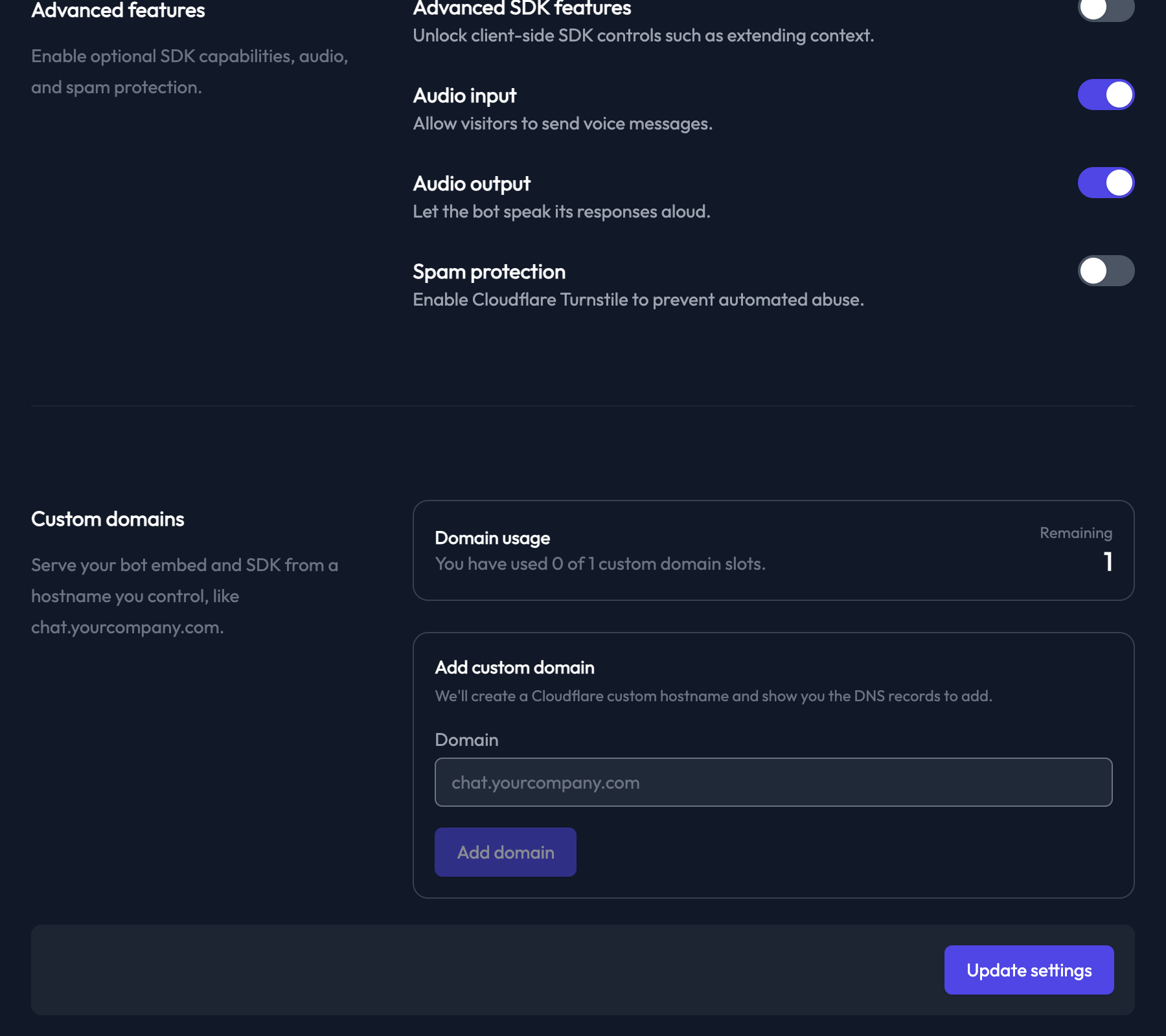
- Scroll to the Custom domains section.
- Under Add custom domain, enter your domain in the Domain field, for example
chat.example.com. - Click Add domain. Chat Thing creates the domain and shows the DNS records to add. The certificate record can take a few moments to generate.
- Add these three records at your DNS provider, copying the values from the DNS configuration panel:
| Record | Type | Name | Value |
|---|---|---|---|
| 1. Certificate validation | TXT | Shown in the panel (usually _acme-challenge. followed by your domain) | Shown in the panel |
| 2. Hostname ownership | TXT | Shown in the panel | Shown in the panel |
| 3. Routing | CNAME | Your domain, such as chat.example.com | embed.chatthing.ai |
- Wait a few minutes for the DNS changes to take effect, then click Verify DNS.
- When the domain shows Active, copy the new embed code from the Usage panel (or from Embed on the bot's dashboard) and replace the old code on your website.
Domain statuses
| Status | Meaning |
|---|---|
| Pending | The domain has been added and is waiting for its DNS records |
| DNS pending | Records have been found, but the certificate is still being issued |
| Active | The domain is ready to use |
| Failed | Verification failed. Check your DNS records and click Verify DNS again. |
Embed code with a custom domain
Once the domain is active, the Embed dialog has a Domain choice so you can copy code for either Default (chatthing.ai) or your own domain. The code uses your domain everywhere:
<script>window.chatThingConfig = { url: "https://chat.example.com" };</script>
<script src="https://chat.example.com/chat-widget.js" type="text/javascript" id="YOUR_BOT_ID" async defer></script>
<iframe src="https://chat.example.com/bots/YOUR_BOT_ID/embed" width="100%" height="600" frameborder="0" allow="clipboard-write; microphone;"></iframe>
Remove a domain
Click Remove next to the domain. This frees the slot so you can use it for another domain. Update any embed code that uses the removed domain first, or the chat will stop loading on those pages.
Check it works
Open https://YOUR_DOMAIN/bots/YOUR_BOT_ID in your browser. The bot's page should load over HTTPS on your domain. Then check the widget on your website.
Troubleshooting
Verification keeps failing
- Check all three records are added exactly as shown, with no extra spaces or quotes.
- Some DNS providers add your domain to the end of the record name automatically. If the panel shows a full name such as
_acme-challenge.chat.example.comand your provider adds the domain for you, enter only the part before your domain. - DNS changes can take a while to spread. Wait a few minutes and click Verify DNS again.
I can't add another domain
The Domain usage panel shows how many of your custom domain slots are used. When they're all used, the Add domain button is disabled. Buy another Custom Domain add-on from Billing, or remove a domain you no longer need.
Related
- Add more tokens, bots or seats with add-ons
Raise one limit on your paid plan without upgrading - extra message tokens, storage tokens, bots, data sources, team members or custom domains.
- Remove the "Powered by Chat Thing" branding
Hide the "Powered by Chat Thing" footer from your chat widget, embedded chat, bot page and shared chats. Available on Standard, Pro and Enterprise.
- Add the chat widget to your website
Copy your bot's embed code and paste it into your site as a chat widget or embedded chat, with steps for WordPress, Shopify, Webflow, Wix and more.
Last updated