Add your bot to a Discord server
Bring your bot into a Discord server so your community can ask it questions.
Standard, Pro and Enterprise
The Discord channel is included on the Standard, Pro and Enterprise plans.
Who can do this: team owners and admins.
What the bot can do
Chat Thing connects to Discord in one of two ways, called transports. You choose one at the top of the channel settings.
| Gateway (recommended) | Legacy | |
|---|---|---|
| Answer a slash command | Yes | Yes |
| Reply to @mentions in channels | Yes | No |
| Reply to direct messages | Yes | No |
| Keep context in threads | Yes | No |
| Read recent channel messages when @mentioned | Yes | No |
| Needs the Message Content Intent | Yes | No |
New channels use Gateway. Choose Legacy only if you want slash commands alone and don't want to turn on extra Discord permissions.

Create a Discord application
Video walkthrough, recorded in 2024 before the Gateway transport existed. Some screens have changed since.
- Go to the Discord developer portal and click New Application.
- Give it a name and create it.
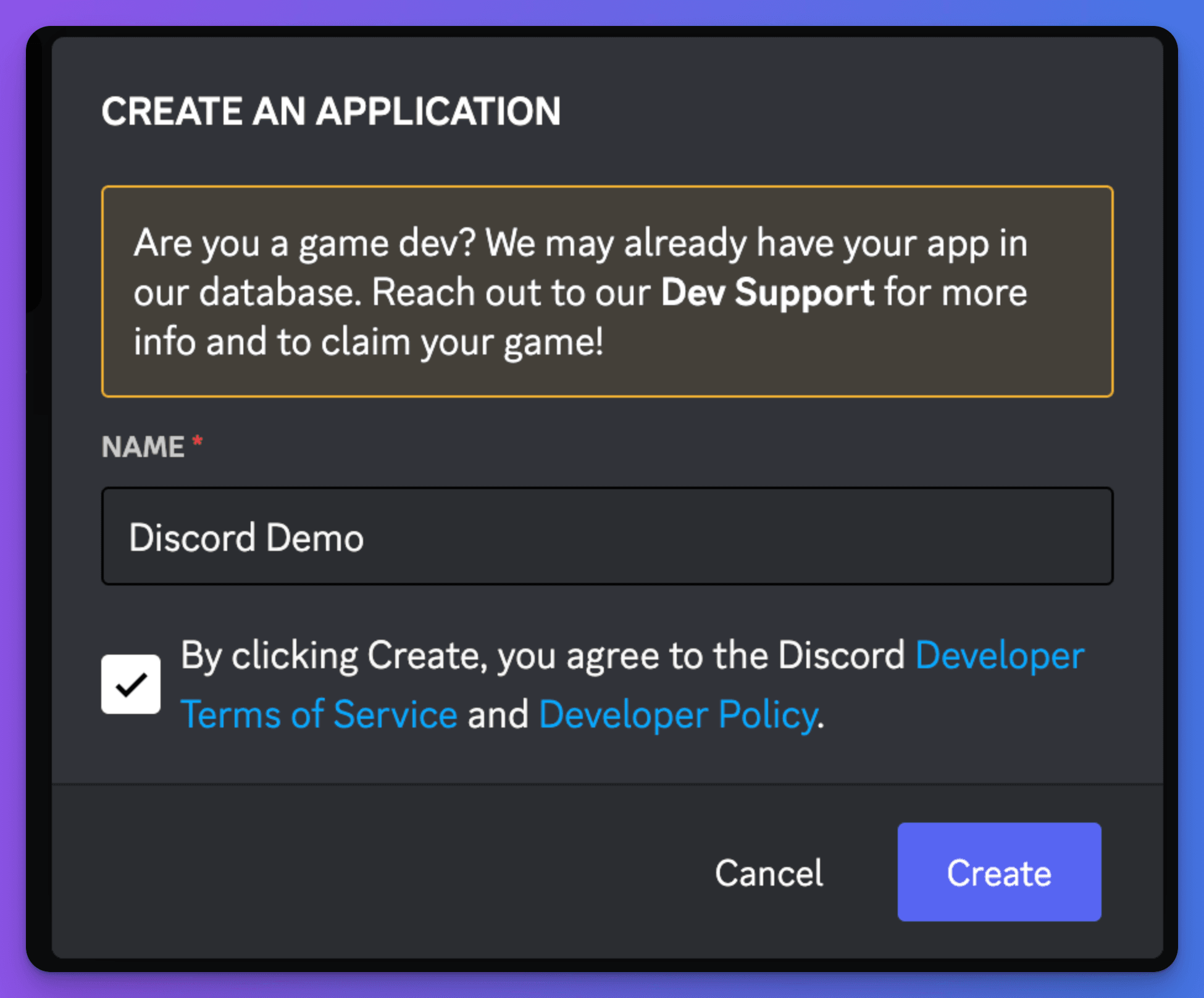
- On the application's General Information page, copy the Application ID.
Connect it to Chat Thing
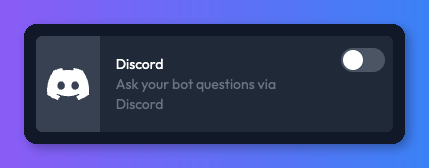
- In Chat Thing, open your bot, select the Channels tab and turn on the Discord card. The Discord bot settings page opens.
- Under Discord transport, keep Gateway (recommended) or choose Legacy.
- Paste the ID into Application ID. The rest of the settings appear.
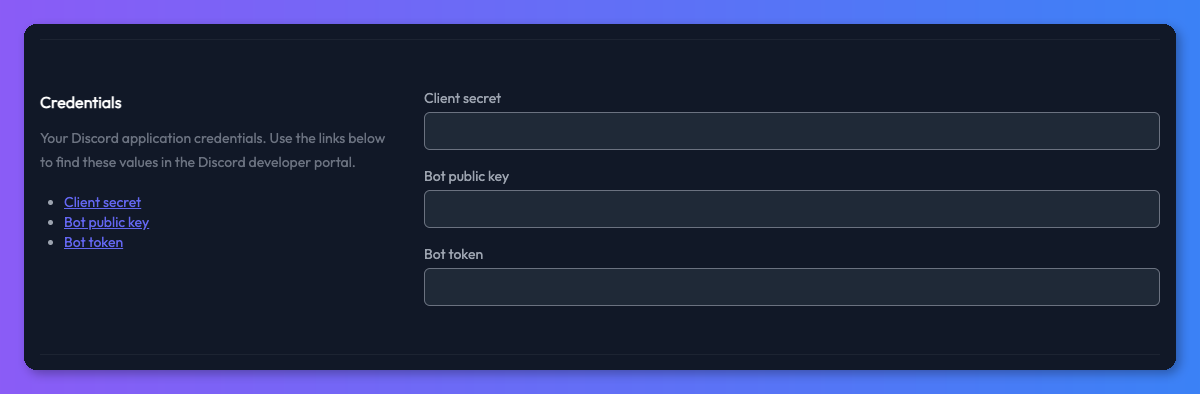
- Under Credentials, fill in the three values from the Discord developer portal. The links in this section take you to the right pages.
- Client secret - on the OAuth2 page. Click Reset Secret to reveal it.
- Bot public key - the Public Key on the General Information page.
- Bot token - on the Bot page. Click Reset Token to reveal it.

- Gateway only: on the Bot page in Discord, under Privileged Gateway Intents, turn on Message Content Intent and save. Without it the bot can't read @mentions or DMs, and saving in Chat Thing fails.
- Optional: under Bot command, set the Bot slash command (for example
/askbot) and Bot slash command description. The command must start with/, use only lowercase letters and numbers, and be at least 4 characters long.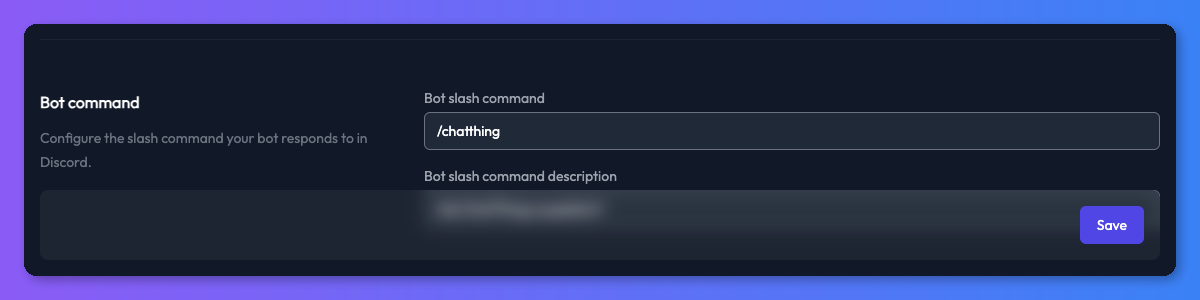
- Click Save. Do this before the next step.
- Under Integration URLs, copy the Interactions endpoint URL and paste it into Interactions Endpoint URL on the General Information page in Discord. Save the changes in Discord.

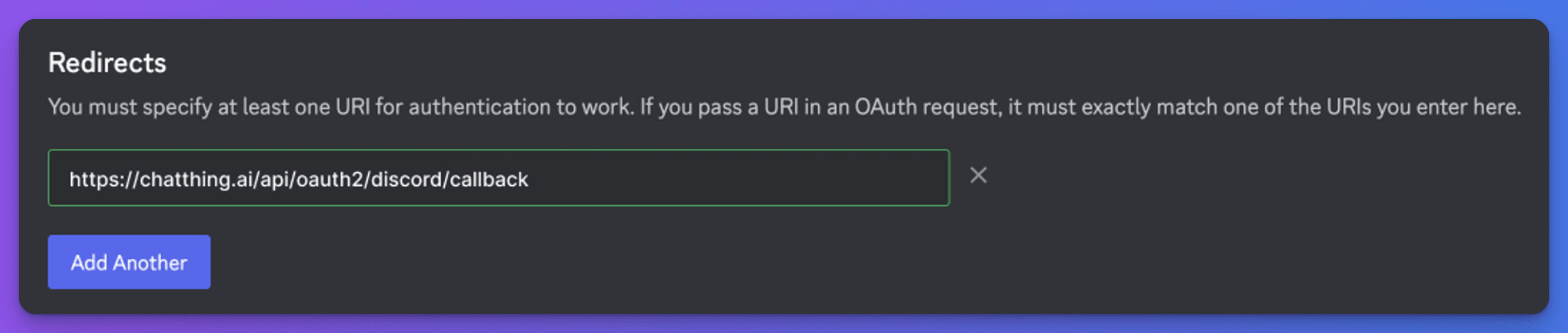
- Copy the OAuth2 redirect URL and add it as a redirect on the OAuth2 page in Discord. Save the changes in Discord.
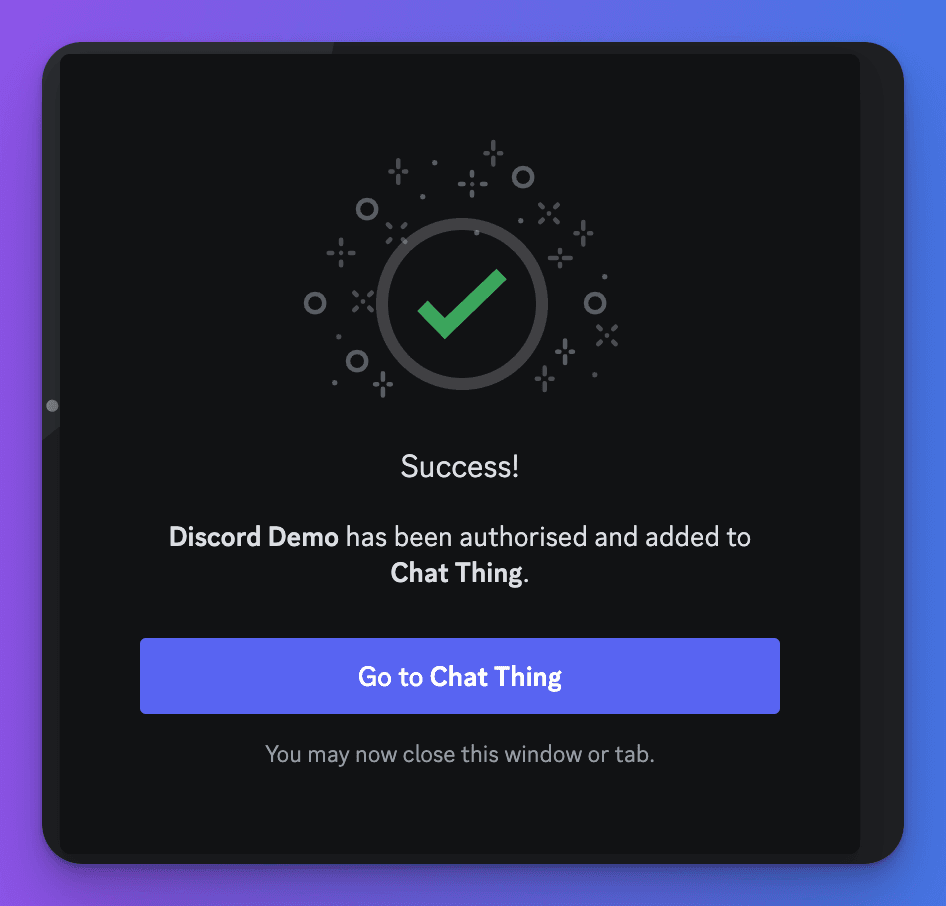
- Under Add to Discord, click Add to Discord, choose your server and authorise the bot. With Gateway, the bot asks for permission to read messages so it can respond to @mentions; with Legacy it only asks to send messages.
Choose how much channel history the bot sees
With Gateway, when someone @mentions the bot in a channel, it reads the most recent messages there before replying, so it can answer follow-ups like "what does everyone think?". If the @mention is a reply to another message, the bot also sees that message. Discord @mentions are turned into people's names so replies read naturally.
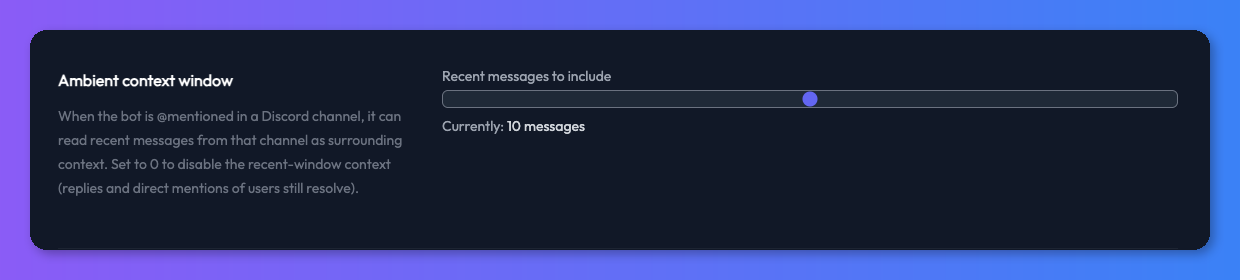
Set how many messages it reads with Recent messages to include in the Ambient context window section: 0 to 20, default 10. At 0 the bot doesn't read recent messages, but it still sees the message someone replied to.
For older or cross-channel history on demand, add the Discord Get Channel History power-up - see Discord power-ups.
Switch transport
You can change transport at any time in the channel settings:
- The Interactions endpoint URL changes when you switch. Copy the new one into Discord's General Information page and save.
- If you switch to Gateway, turn on Message Content Intent in Discord first.
- Your slash command is registered again automatically when you save.
- The Ambient context window setting only appears with Gateway.
Change the bot's name or icon
Change the icon on the application's General Information page, and the display name on the Bot page, in the Discord developer portal.
Check it works
In your Discord server, use the slash command or @mention the bot with a question it should answer. The conversation also appears in Conversations.
Troubleshooting
Settings won't save with the Gateway transport
Saving checks that Message Content Intent is on. Turn it on under Privileged Gateway Intents on the Bot page in Discord, then save again.
Discord won't save the Interactions endpoint URL
Discord checks the URL when you save. This fails if you haven't saved the Client secret, Bot public key and Bot token in Chat Thing yet, or if one of them is wrong. Check them, click Save in Chat Thing, then try again in Discord.
I've done every step and the bot doesn't respond
The usual cause is a credential pasted into the wrong field. Reset the client secret and bot token in Discord, paste them in again, click Save and try again. With Gateway, also check Message Content Intent is on.
The bot doesn't know about earlier messages in the channel
- Check Recent messages to include isn't set to 0.
- The bot only reads as many messages as the setting allows. Increase it, or add the Discord Get Channel History power-up.
- Check Message Content Intent is on, and that the bot has permission to read the channel in your server's role settings.
- Recent-message context only works with Gateway.
The bot replies "This bot is currently unavailable"
The Discord channel is turned off. Turn the Discord card back on in the Channels tab.
Related
- Read Discord channel history from your bot
Let your bot pull message history from any Discord channel it can access, for cross-channel summaries or messages older than its usual context.
- Channels
Where your bot talks to people - your website, WhatsApp, Slack, Discord, Telegram, email and the API - and which plans include each channel.
Last updated