Add your bot to Slack
Add your bot to your Slack workspace so your team can ask it questions where they already work. The bot answers from its knowledge, can use power-ups, and can summarise or post to channels when you give it the Slack power-ups.
Standard, Pro and Enterprise
The Slack channel is included on the Standard, Pro and Enterprise plans. You also need permission to create and install apps in your Slack workspace.
Who can do this: team owners and admins.
This page covers the current Slack integration. If your bot still uses the original version, see Upgrade from Slack V1.
Connect your bot to Slack
Video walkthrough, recorded in 2024. Some screens have changed since.
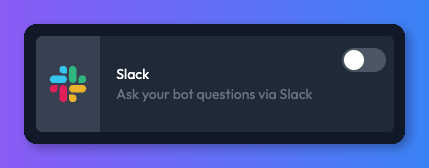
- Open your bot, select the Channels tab and turn on the Slack card. The Slack channel settings page opens.
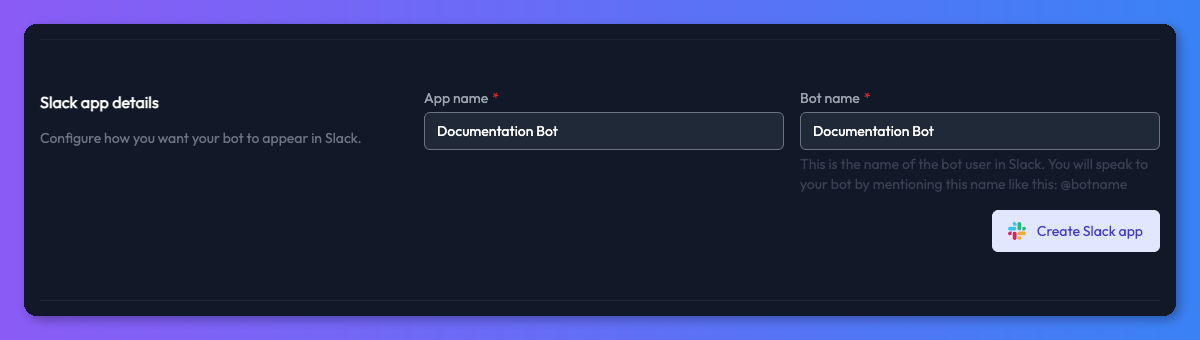
- Under Slack app details, enter an App name and a Bot name. The bot name is how people mention it in Slack, like
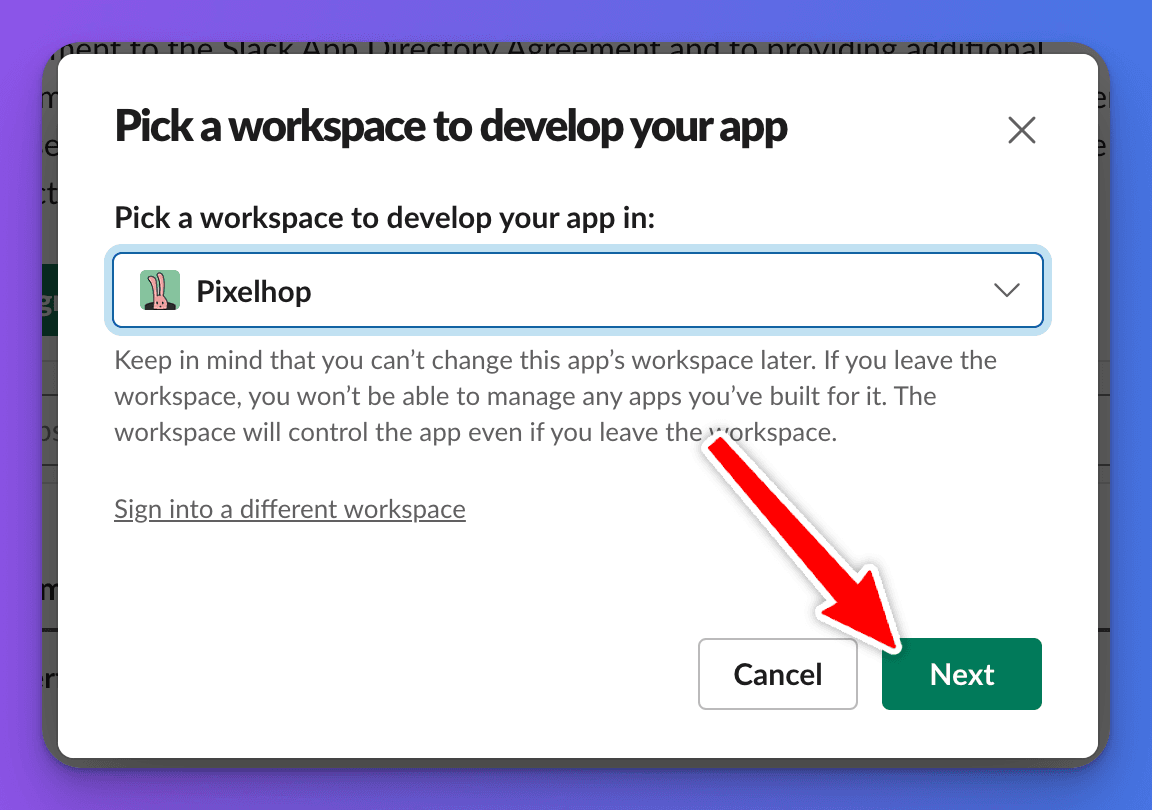
@botname. It can differ from the app name. - Click Create Slack app. Slack opens in a new window. Choose the workspace to add the app to and click Next.
- Review the app's permissions and click Create.
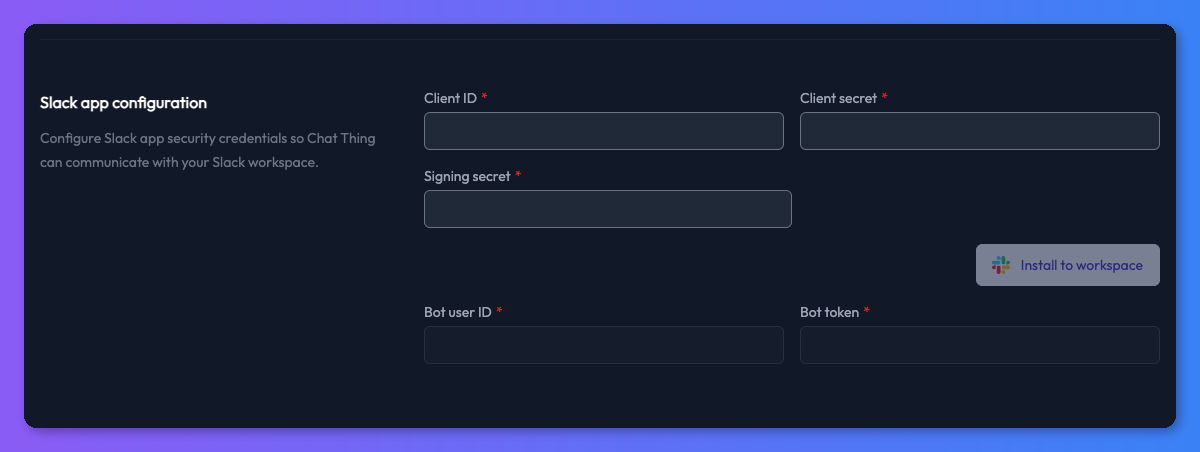
- On the new app's Basic Information page in Slack, copy the Client ID, Client Secret and Signing Secret into the matching fields under Slack app configuration in Chat Thing. Click Show in Slack before copying each secret, otherwise you'll copy the hidden placeholder.
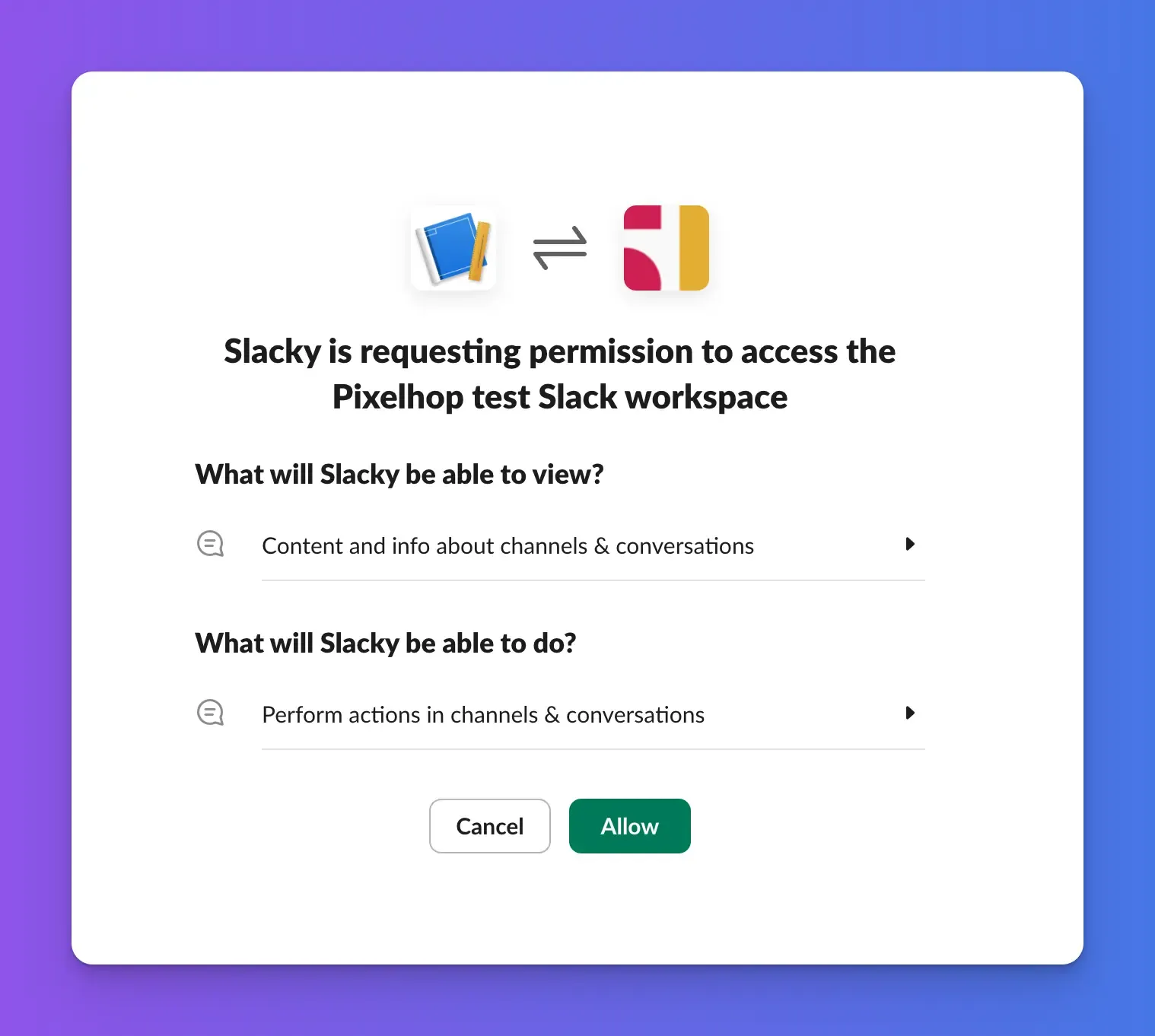
- Click Install to workspace. Slack asks for permission to add the app to your workspace; click Allow.
- Back in Chat Thing, a success message appears and the Bot user ID and Bot token fields are filled in.
If nothing opens at step 3 or 6, your browser blocked the pop-up. Allow pop-ups for Chat Thing and try again.
Talk to your bot in Slack
- @mention it in a channel or thread. Invite the bot to the channel and include its handle in your message. It only replies to messages that mention it, so mention it again when you follow up.
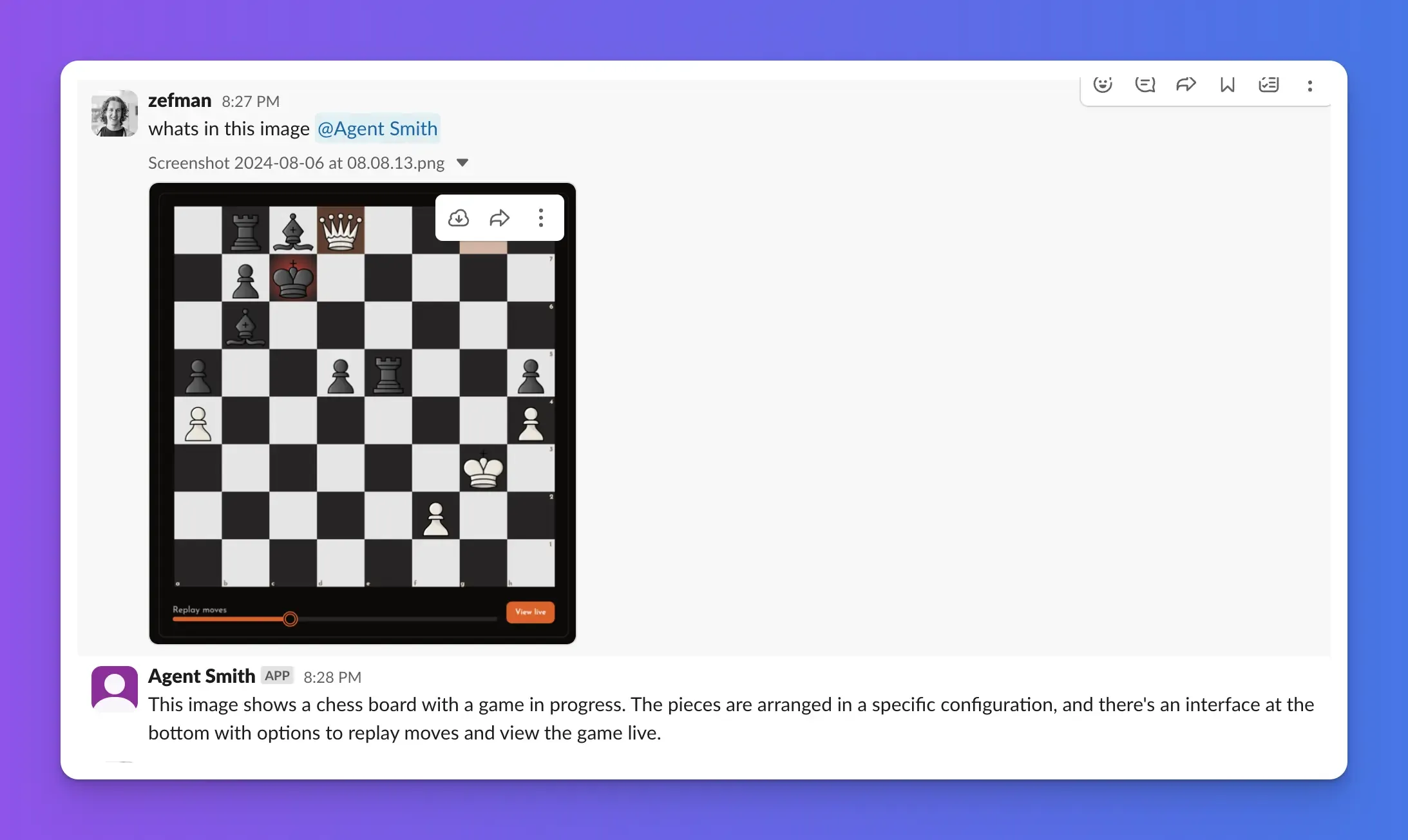
- Direct message it. Click the bot's name under Direct messages in Slack. In a DM it replies to every message, no mention needed.
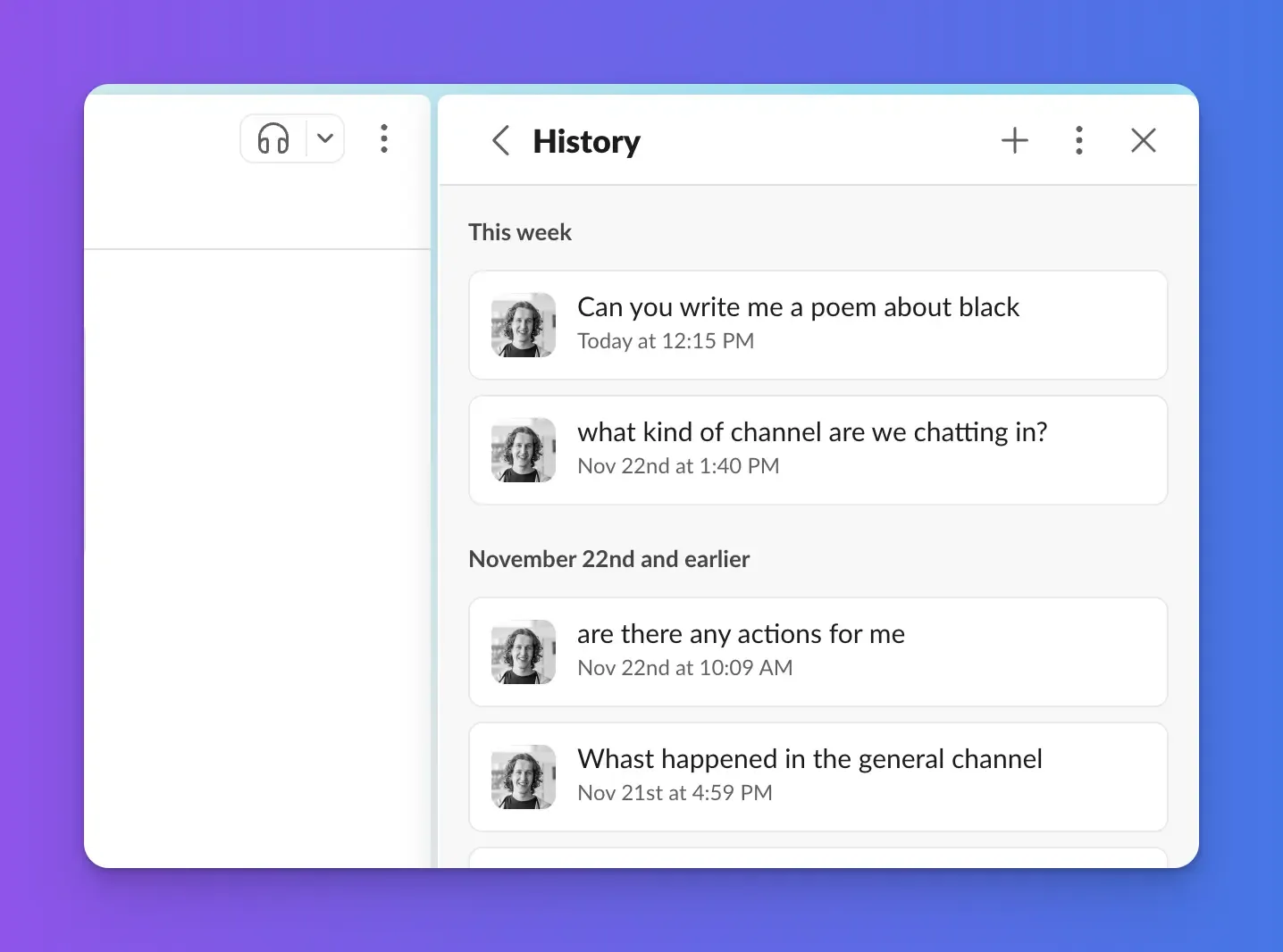
- Use the assistant sidebar. Open the bot from the AI assistant area at the top right of Slack. It opens in a panel next to your current channel, replies to every message, and keeps a history of your previous chats with it.
Summarise channels and post messages
When you mention the bot in a channel, it sees a limited amount of recent message history. Add these power-ups to let it do more:
- Slack Get History - reads the full history of any channel the bot has been added to, for questions like "Summarise what happened in #general this week".

- Slack Send Message - posts messages into any channel the bot has been added to, for requests like "Write a summary of this week and post it in #announcements".
See Slack power-ups for setup.
Schedule a weekly summary
Combine the Slack power-ups with a scheduled task to have the bot post a report on its own. For example, a task that runs every Monday at 9am with a goal like:
Write a Monday morning report on everything that happened last week.

Get all messages from the previous week in these Slack channels:
* general
* sales
* support

For each channel, summarise what happened and highlight any actions that need following up. Mention people if you need a response from them.

Don't reply with the report. Post it straight into the team-updates channel.
The bot needs the Slack Get History and Slack Send Message power-ups and must be added to every channel it reads from or posts to.
Change the bot's name or icon
- Icon: change it in your Slack app's Basic Information page on the Slack website.
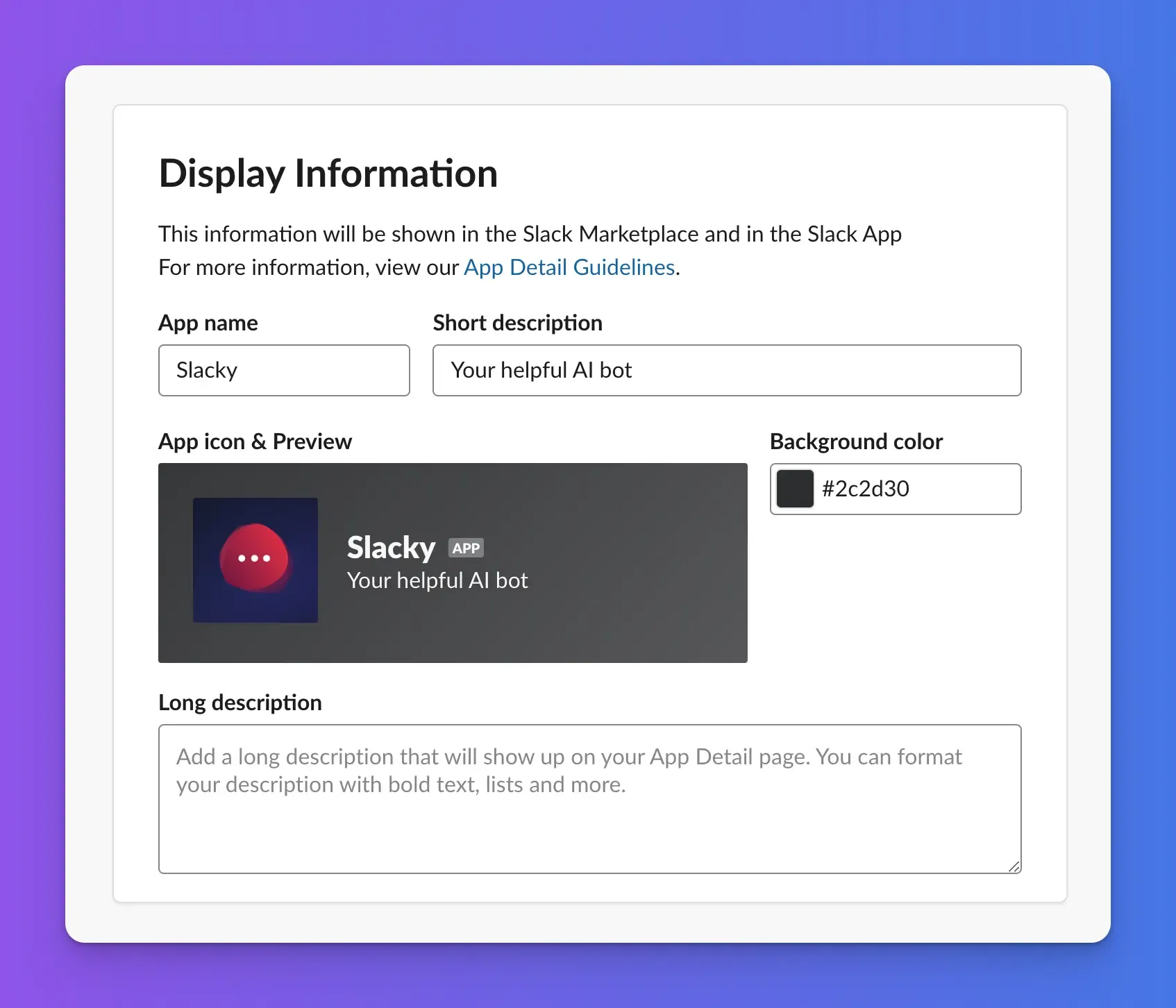
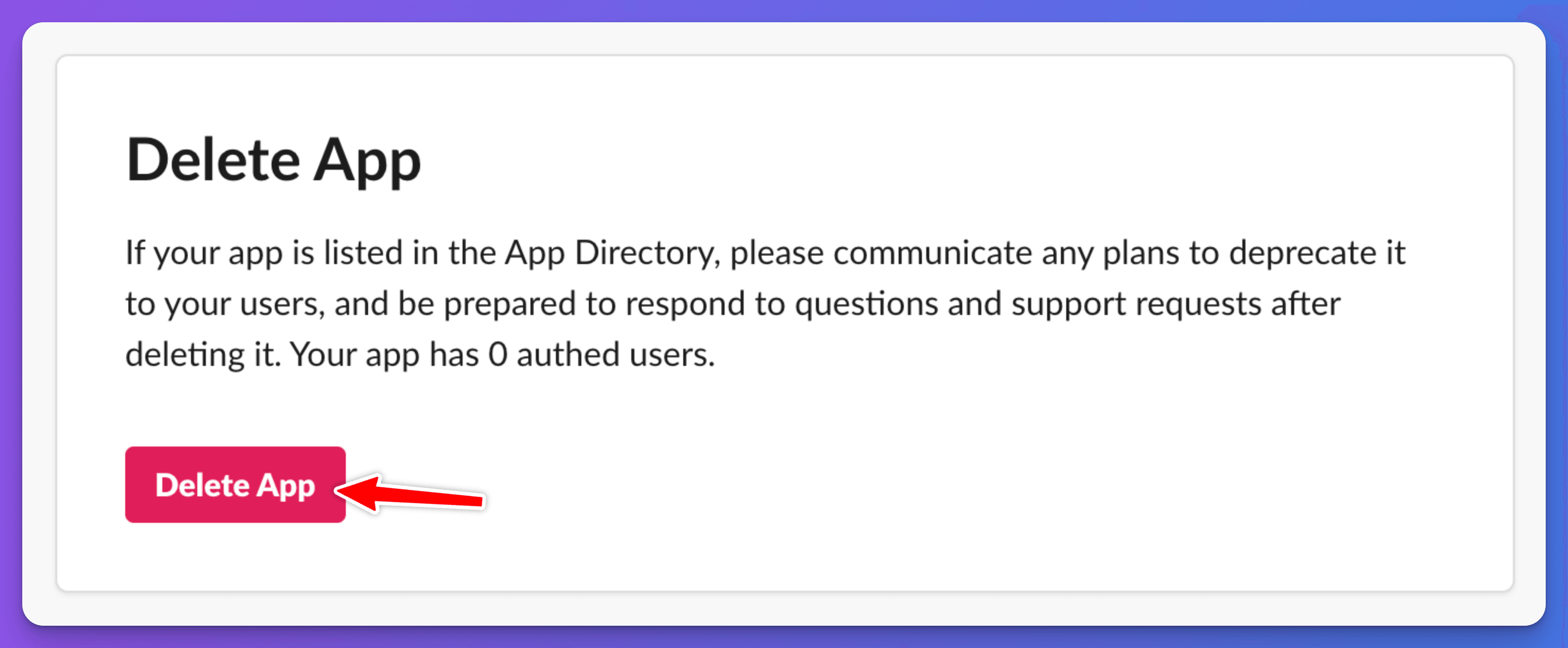
- Name: the simplest way is to delete the app in Slack (on the app's settings page, choose Delete App), change the App name or Bot name in Chat Thing, and repeat the connection steps from step 3.
Check it works
Send the bot a direct message in Slack with a question it should be able to answer. The conversation also appears in Conversations.
Troubleshooting
The bot doesn't reply in a channel
Check the bot has been added to the channel and that your message mentions it with its handle. In channels and threads it only replies to messages that mention it.
Installation fails or the bot token doesn't appear
The most common cause is copying a hidden secret. Click Show next to the Client Secret and Signing Secret in Slack, copy them again, paste them into Chat Thing and click Install to workspace again.
The bot replies "This bot is currently unavailable"
The Slack channel is turned off. Turn the Slack card back on in the Channels tab.
Related
- Send and read Slack messages from your bot
Let your bot post messages to Slack channels and threads, and read channel history to answer questions like "What happened in
- Schedule tasks for your bot
Have your bot carry out a task on a schedule, such as a weekly summary or a daily check, using its knowledge and power-ups.
- Answer your team's questions with an internal helpdesk bot
Set up a bot that answers staff questions about IT, HR, policies and processes from your internal docs, in Slack, Discord or a private web page.
Last updated