Let your bot search Google
Add the Google Search power-up so your bot can search the web when the answer isn't in its knowledge, or when the information changes too often to keep in a data source.
Who can do this: team owners and admins.
Example uses:
- Current information: news, events, flight or travel updates.
- Search one site: limit searches to your help centre or a trusted source, such as a research site or a supplier's documentation.
- Research assistant: find sources, then read the best one with Browse a web page.
Video walkthrough; the first part covers Google Search. Recorded in 2024, so some screens have changed since.
Steps
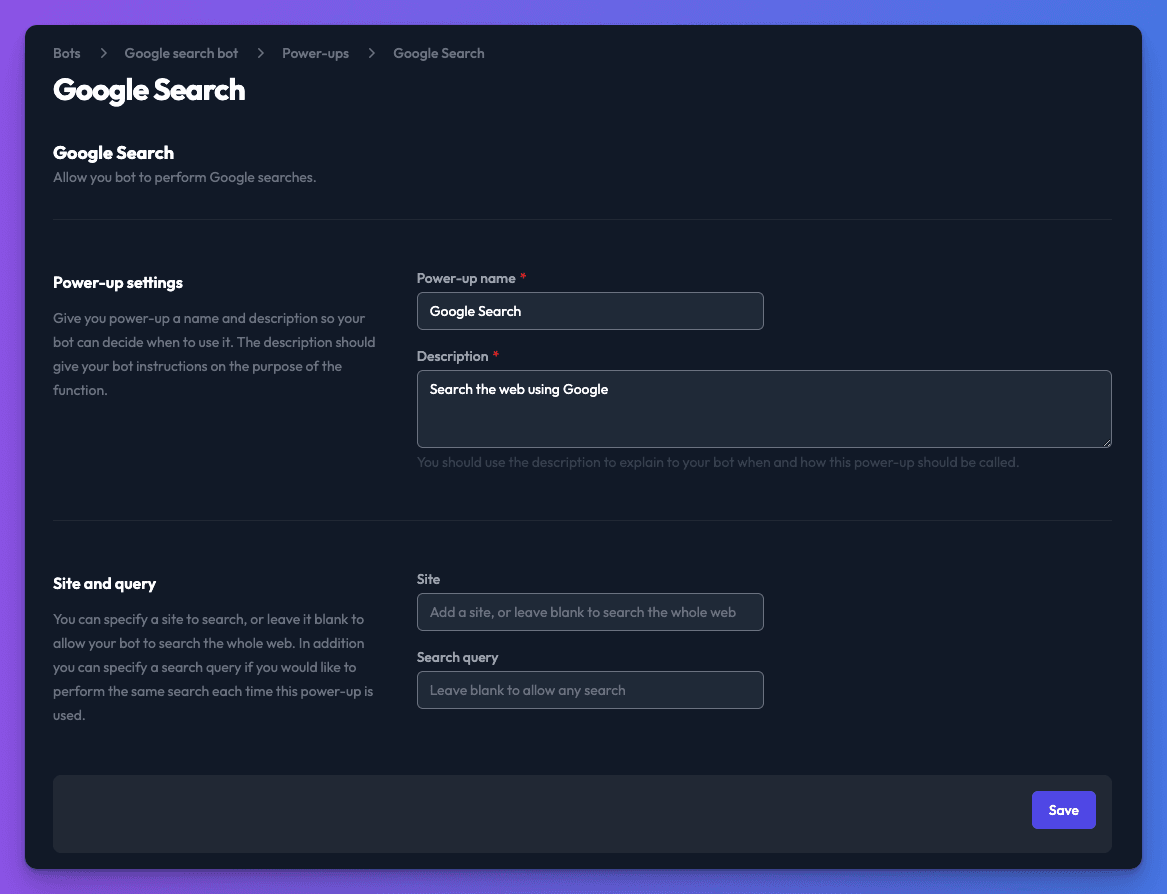
- Open your bot, go to the Power-ups tab and click New power-up.
- Choose Google Search and click Create power-up.
- Edit the Power-up name and Description. Say when the bot should search, for example "Search the web for current information the knowledge base doesn't cover, like prices or news."
- Under Site and query, optionally fill in:
- Site: a domain such as
example.comto search only that site. Leave blank to search the whole web. - Search query: a fixed query to run every time the power-up is used. Leave blank to let the bot write the query.
- Site: a domain such as
- Optionally choose a Display mode to show results as cards or a table. See Show a power-up's results visually.
- Click Save.
What the bot gets back
Each search returns a page of results, each with a title, a short snippet and a link. The bot answers from these and can ask for the next page of results. It doesn't open the pages themselves. To let it read a result in full, also add Browse a web page.
Check it works
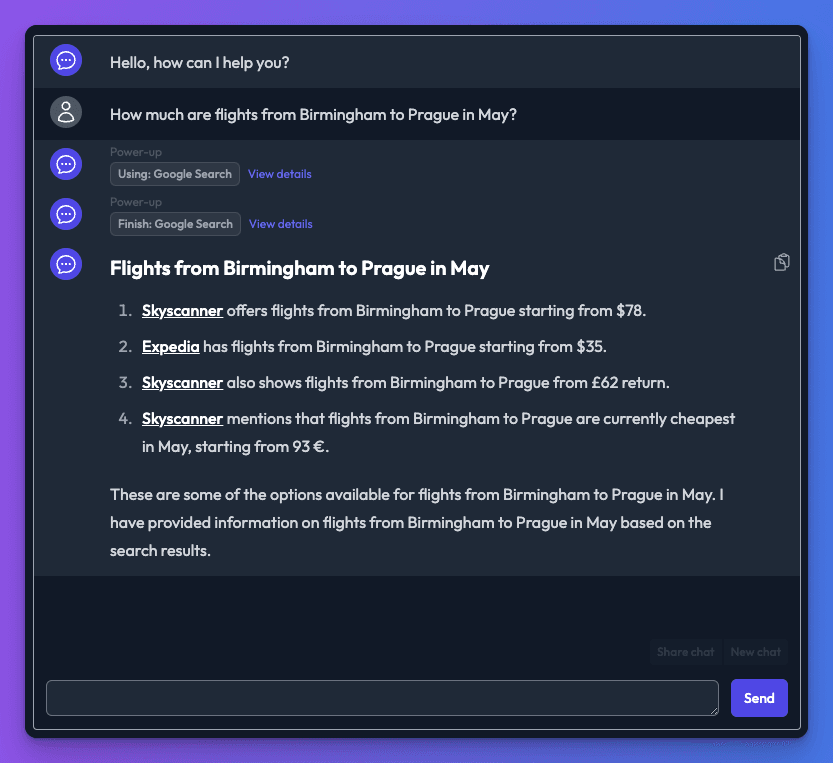
- Chat with your bot while signed in and ask about something recent that isn't in its knowledge.
- Open View details on the power-up call to see the query the bot used and the results.
Troubleshooting
The bot searches when it should use its knowledge
Make the Description narrower, for example "Only search if the answer isn't in the context provided", or add a rule to your bot's prompt.
Results come from the wrong sites
Set a Site to restrict every search to one domain, or name trusted sources in the Description.
Related
- Let your bot read a web page
Let your bot fetch a web page during a chat and pull out what it needs. Use any URL or one fixed page, with CSS selectors, a custom prompt and basic auth.
- Knowledge
Give your bot the knowledge it answers from - add websites, files, Notion, YouTube, RSS and manual content, keep it fresh and tune retrieval.
Last updated