Schedule tasks for your bot
A task is an instruction your bot carries out on a schedule without anyone chatting to it. Each time a task runs, it starts a new conversation and sends the task's goal to the bot as the first message. The bot then works through it using its knowledge and power-ups, for example to look something up, post to Slack or send an email.
Some examples:
- "Every Monday at 8am, check our website's pricing page and email me a summary of anything that looks out of date."
- "Every weekday at 9am, post a reminder to the #support Slack channel listing today's public holidays in our office countries."
- "On the first of each month, read the latest posts on our blog and send the team a short digest."
Plan requirement
Tasks are available on the Standard plan and above.
Who can do this: team owners and admins.
| Plan | Tasks per bot | Task runs per bot per month |
|---|---|---|
| Standard | 1 | 60 |
| Pro | 3 | 180 |
| Enterprise | 5 | 600 |
Before you start
Set the bot up first: its instructions, data sources and any power-ups the task needs. A task can only do what the bot's power-ups allow, so a task that posts to Slack needs the Slack power-up.
Steps
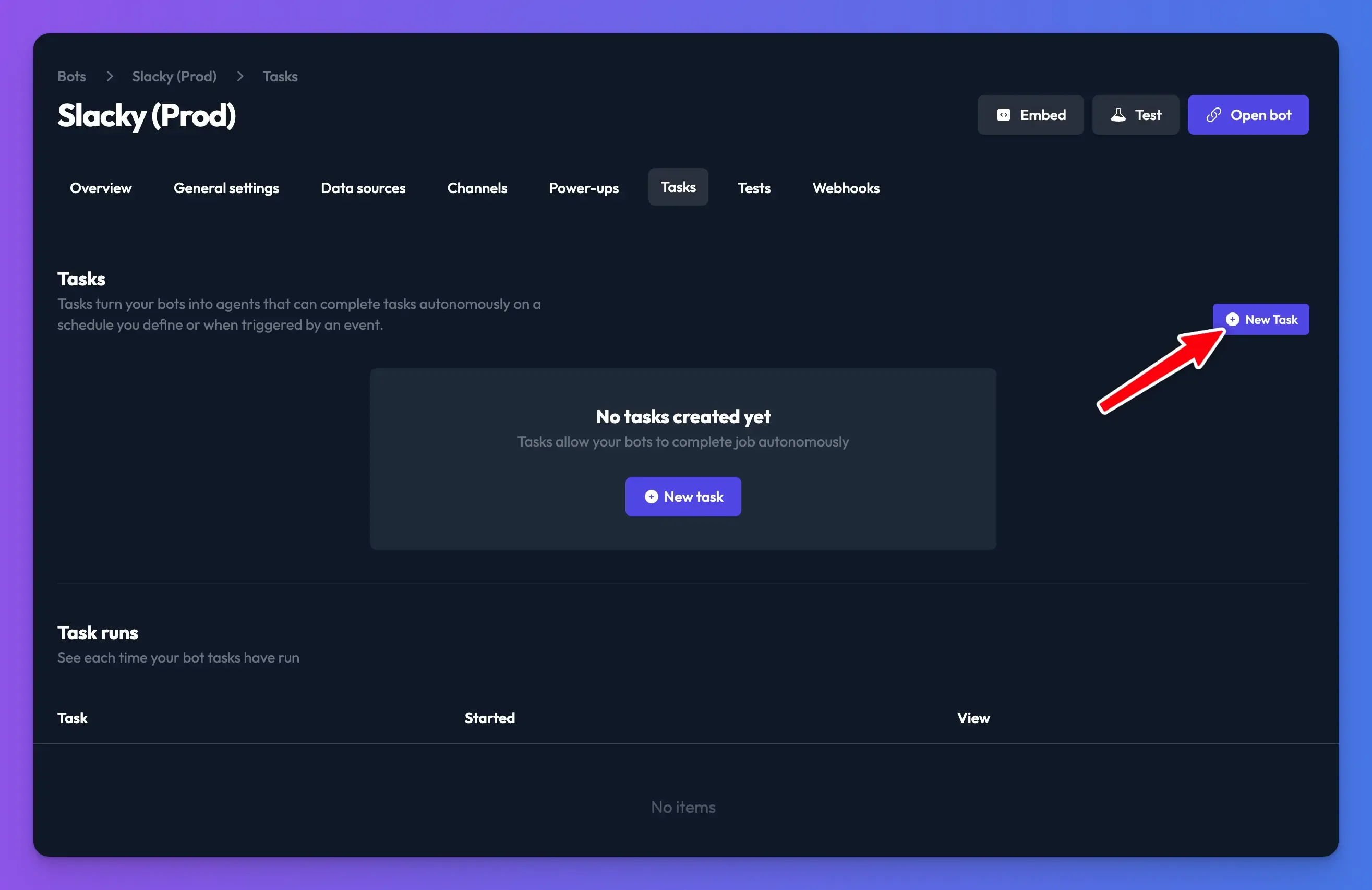
- Open your bot and go to the Tasks tab.
- Click New Task.
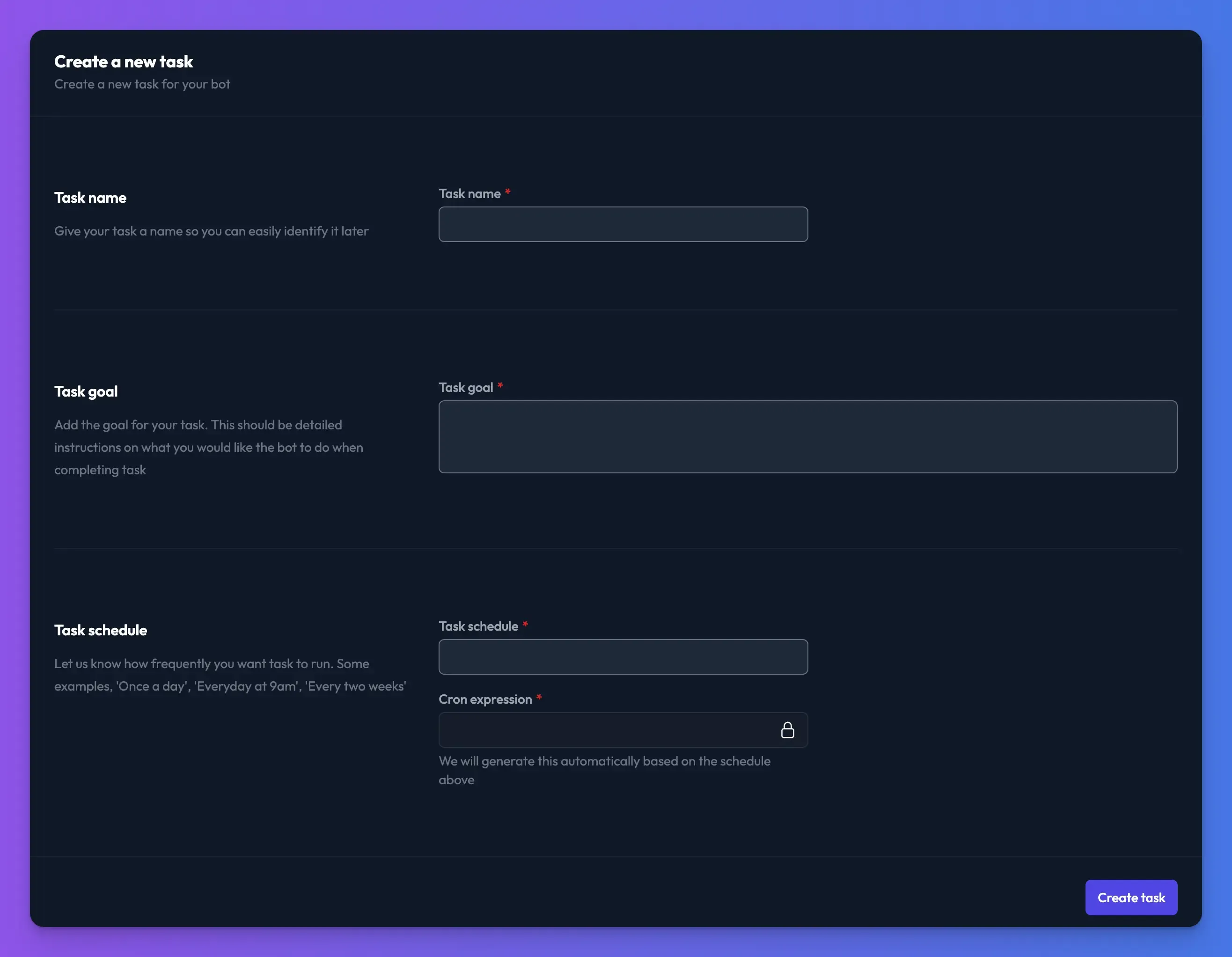
- In Task name, enter a name you'll recognise in the list of runs.
- In Task goal, write detailed instructions for what the bot should do (see write a good task goal).
- In Task schedule, describe how often it should run in plain English, such as "Every weekday at 9am", "Once a day" or "Every two weeks". Include your time zone if the time matters.
- Check the Cron expression that's generated from your schedule. It's read-only; if it doesn't match what you meant, reword the schedule.
- Click Create task. Make sure the task's toggle is on in the list. The toggle only controls the schedule: turn it off to pause the task without deleting it.
A task can't run more often than every 10 minutes.
Write a good task goal
- Write it as steps. Numbered steps are easier for the bot to follow than one long paragraph.
- Say which power-ups to use and where results should go, such as the Slack channel or email address.
- Describe the output format, such as "a bulleted list with a one-line summary per item".
- Tell it not to reply in the chat first if the result should only be posted elsewhere.
- Keep it under your bot's maximum message length (6,000 characters by default; see usage limits), because the goal is sent as a message.
This example needs your blog as a data source and the Send email power-up:
Your goal is to send the team a weekly digest of new blog posts.

Steps:
1. Find the posts published on our blog in the last 7 days.
2. For each post, write one sentence summarising it and include its link.
3. Send the digest by email to team@example.com with the subject
   "This week on the blog".

If there are no new posts, send a one-line email saying so.
Don't reply here first; just send the email.
Complex tasks often need a few test runs to get right. A more capable model can help with long, multi-step goals.
Run a task now
To test a task without waiting for its schedule:
- On the Tasks tab, open the task's menu.
- Click Run.
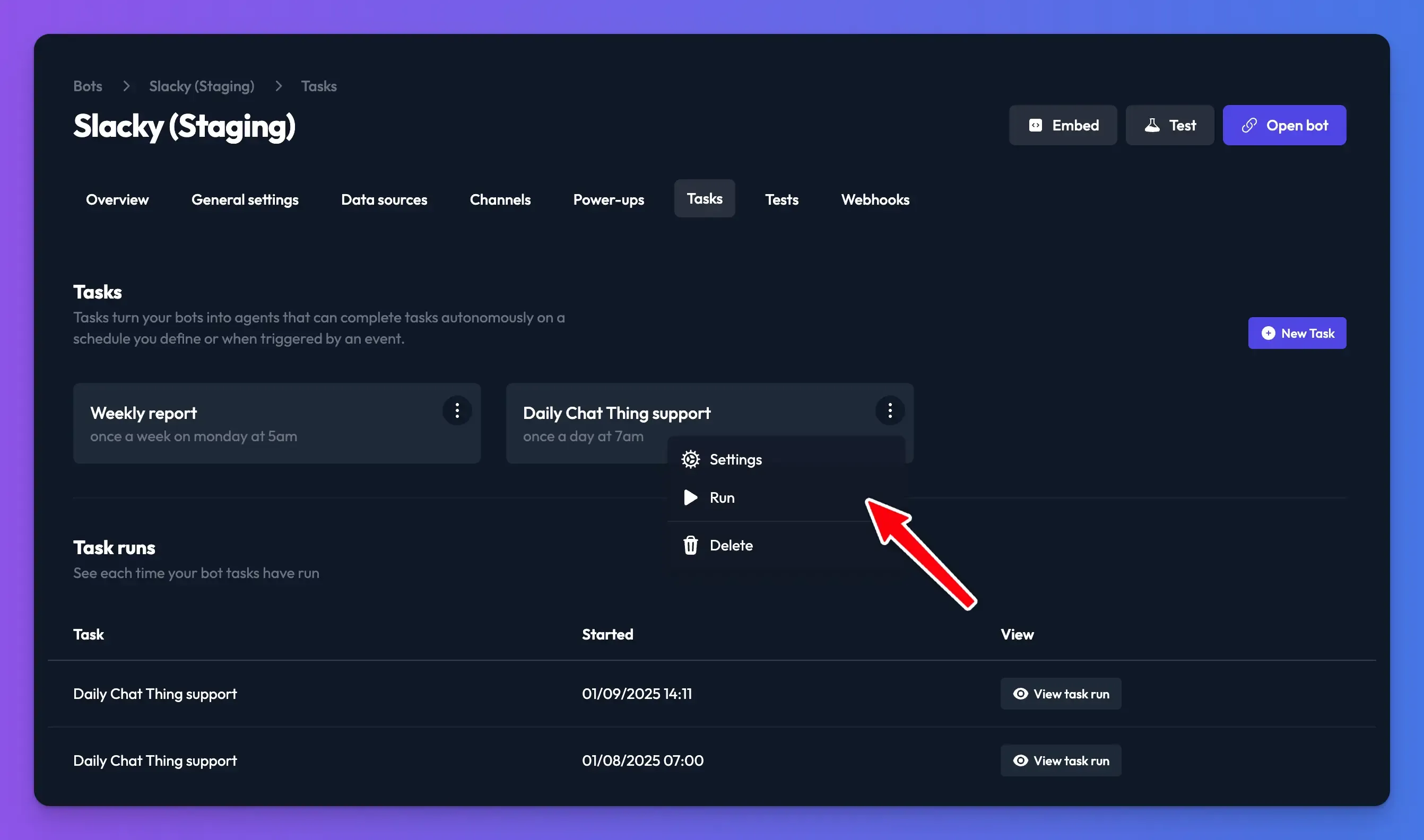
Run works whether the task's toggle is on or off, so you can test a paused task before switching its schedule on. Manual runs count towards your monthly task runs.
Check it works
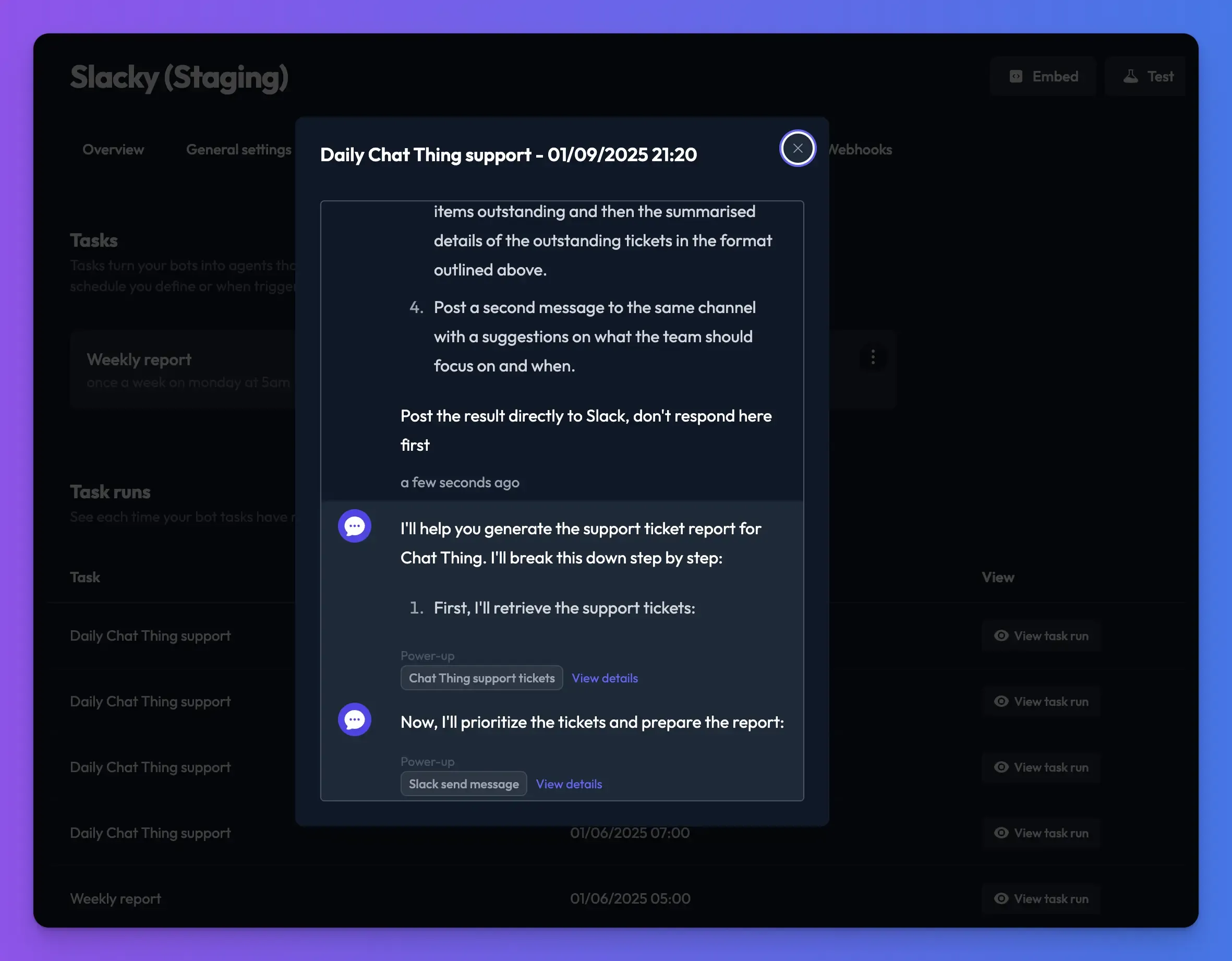
On the Tasks tab, Task runs lists every run with its task, status and start time. Click View task run to see the conversation. Task runs are ordinary conversations, so they use message tokens like any other chat.
Troubleshooting
"Tasks are only available on the Standard plan and above"
Your plan doesn't include tasks. Upgrade to Standard or above.
"Task limit reached. Please upgrade plan to add new tasks."
The bot already has as many tasks as your plan allows. Delete or reuse a task, or upgrade.
A run failed with "Task run limit reached for this month"
The bot has used its task runs for the month. The bot's owner is emailed when a run fails. Runs are available again next month, or you can upgrade.
The task ran at the wrong time
The schedule is converted into a cron expression. Check the Cron expression on the task and reword the Task schedule, including your time zone.
Related
- How power-ups work
What power-ups are, how to add, edit, turn off and delete them, how your bot decides to use one, and what visitors see in the chat.
- Write your bot's instructions
Write the prompt that sets your bot's role, topics, tone, answer length, language, power-up use and handoff, with before-and-after examples.
- Review customer conversations
Find, filter and read every conversation your bots have with customers, see AI summaries and user details, and share or download transcripts.
Last updated