Change how the chat widget looks and behaves
Match the chat widget to your brand and choose what visitors can see and do, without writing any code.
Who can do this: team owners and admins.
Open the web channel settings
- Open your bot and select the Channels tab.
- Click the settings (cog) icon on the Web card.
- Make your changes, then click Update settings at the bottom of the page.
Colours, theme and icons
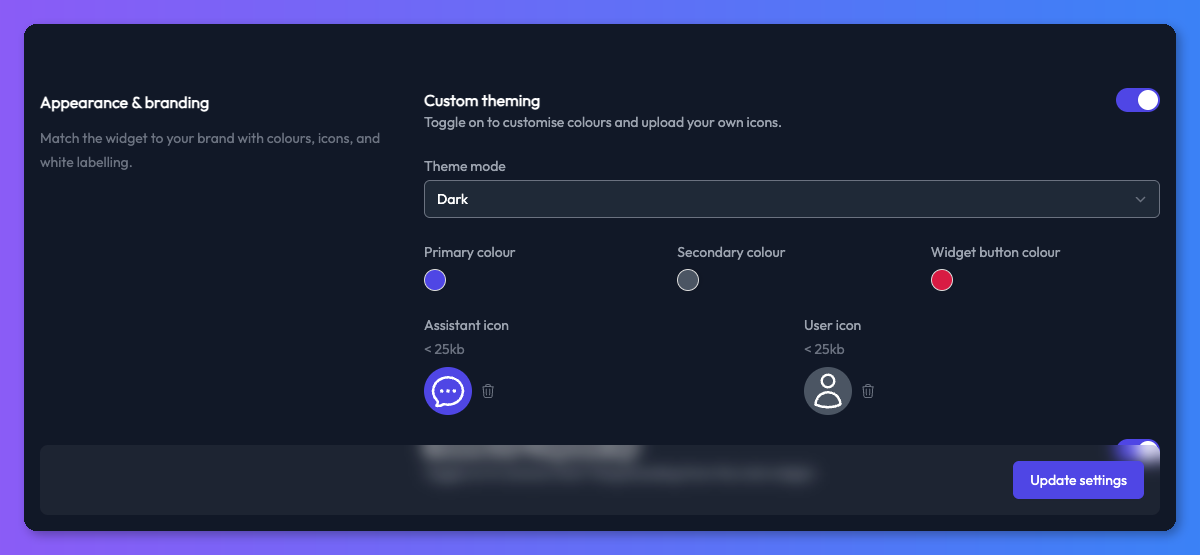
In the Appearance & branding section, turn on Custom theming. These settings appear:
| Setting | What it changes |
|---|---|
| Theme mode | Light or Dark chat window |
| Primary colour | The send button and the background of the bot's avatar |
| Secondary colour | The background of the visitor's avatar |
| Widget button colour | The round button that opens the chat widget |
| Assistant icon | The bot's avatar. It's also used as the icon on the widget button. |
| User icon | The visitor's avatar |
Icons must be smaller than 25 KB and ideally square.
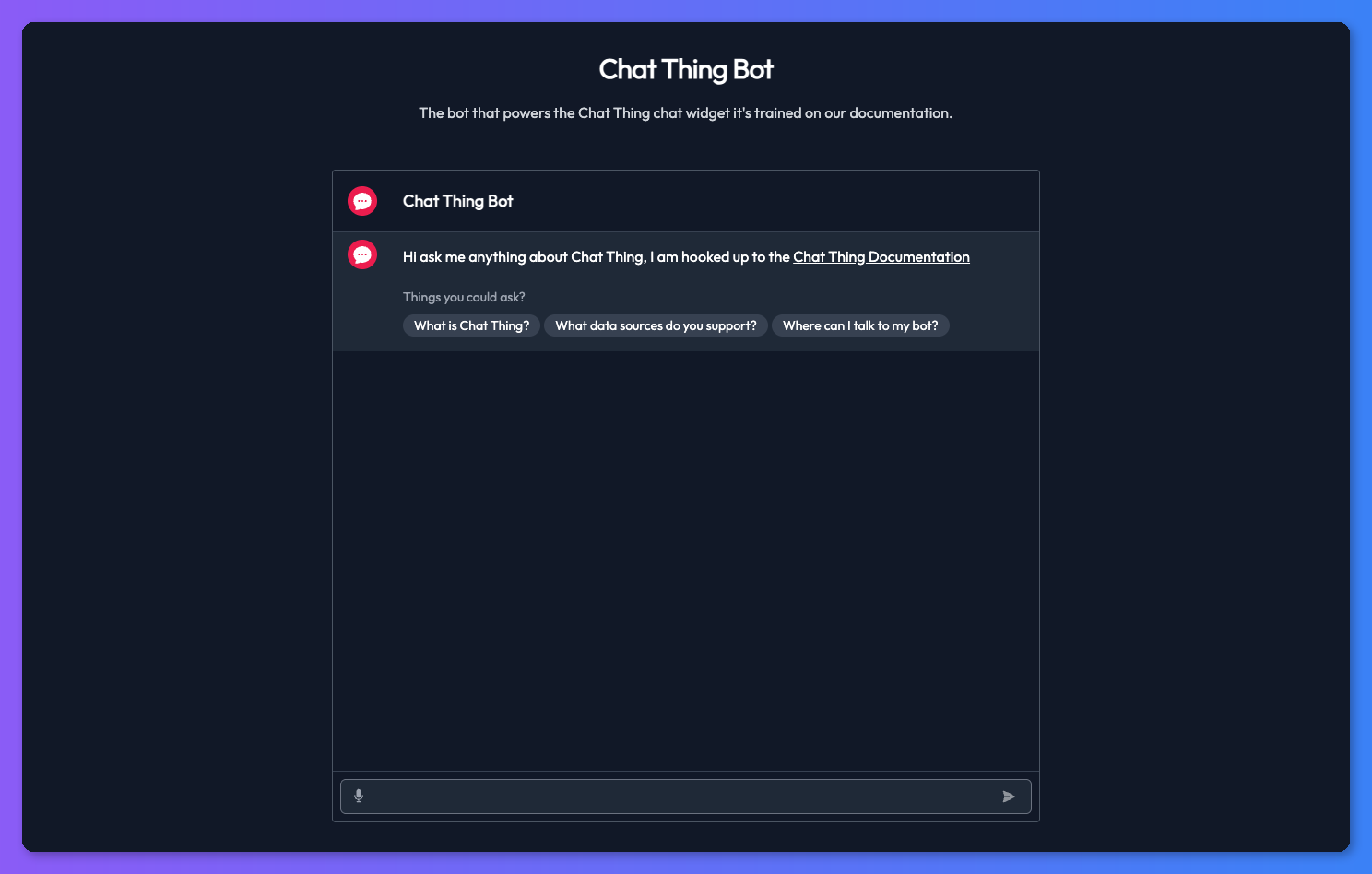
The same section has the Remove Chat Thing branding? toggle. See Remove the Chat Thing branding.
Welcome message and example questions
The bot's opening message and the suggested questions shown when a chat starts are bot settings, not web channel settings. Change them in your bot's General settings under Welcome message and Example questions. See the settings reference.
What visitors can see and do
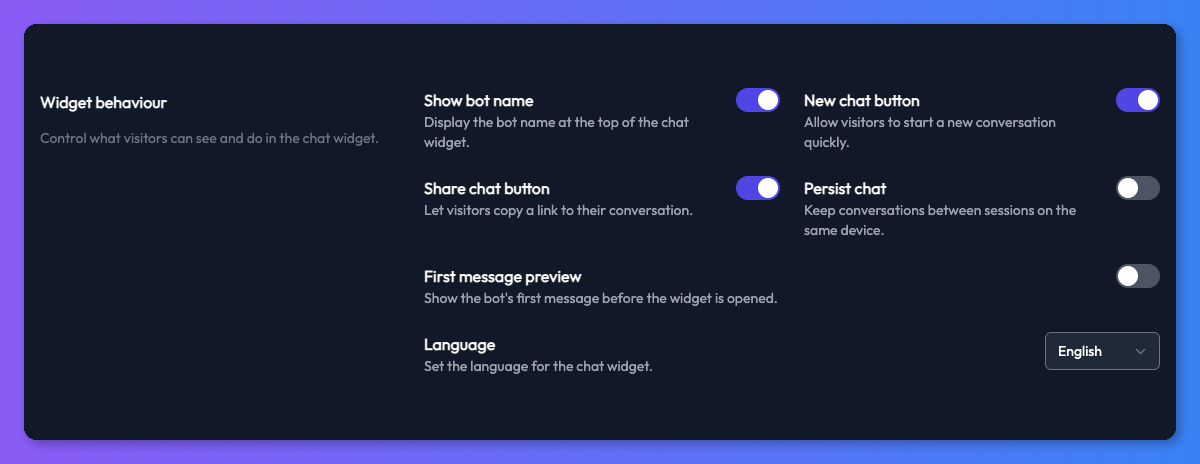
The Widget behaviour section controls the chat window:
| Setting | What it does | Default |
|---|---|---|
| Show bot name | Shows the bot's name at the top of the chat | On |
| New chat button | Lets visitors start a fresh conversation | On |
| Share chat button | Lets visitors copy a link to their conversation | On |
| Persist chat | Keeps a visitor's conversation between visits on the same device, so they can pick up where they left off | Off |
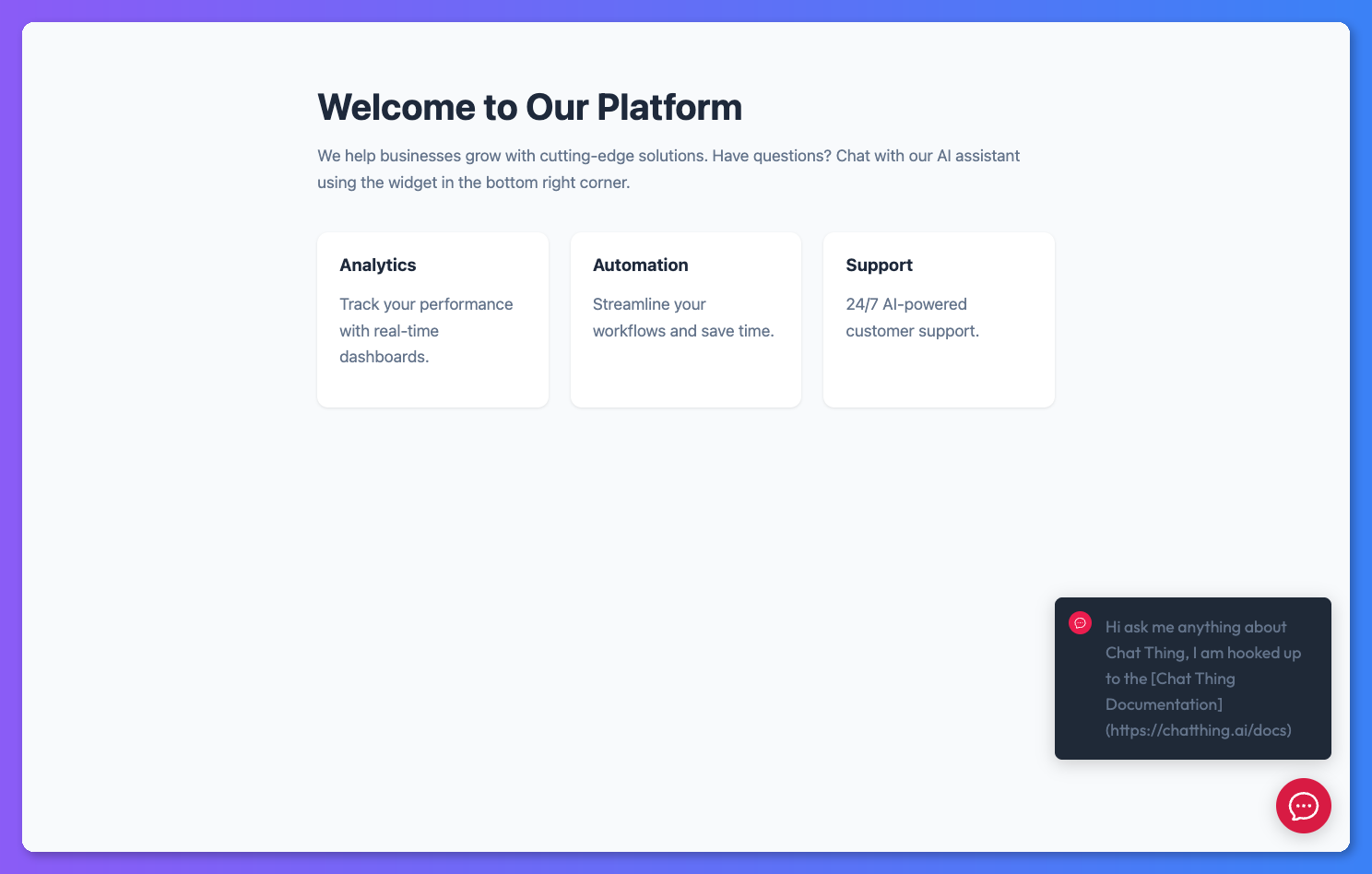
| First message preview | Shows the bot's welcome message in a bubble above the widget button before the chat is opened | Off |
| Message preview delay | How long to wait, from 0 to 10 seconds, before the preview bubble appears | 3 seconds |
| Language | The language of the widget's buttons and labels. See Languages. | English |
The preview bubble uses your theme mode, so it matches a light or dark widget.
Link behaviour
When an answer contains a link, it opens in a new tab by default. If you've embedded the bot in your own page, you may want links to that page to scroll the visitor there instead. Choose this under Link behaviour in the Advanced features section:
- New tab (default) - every link opens in a new browser tab.
- Same page as the embed - links open in the page the bot is embedded in, so a link to a section of that page scrolls to it.
The bot must answer with full web addresses
Same page as the embed only applies to full addresses such as https://example.com/pricing#plans. A short link such as #plans still opens in a new tab. If your bot writes short links, add a line to its instructions telling it to always include your full domain.
With this option, any full address in an answer navigates the visitor away from the page they're on, including links to other websites. If your bot often links to other sites, keep New tab.
Voice input and read-aloud
Two settings in Advanced features let visitors use their voice:
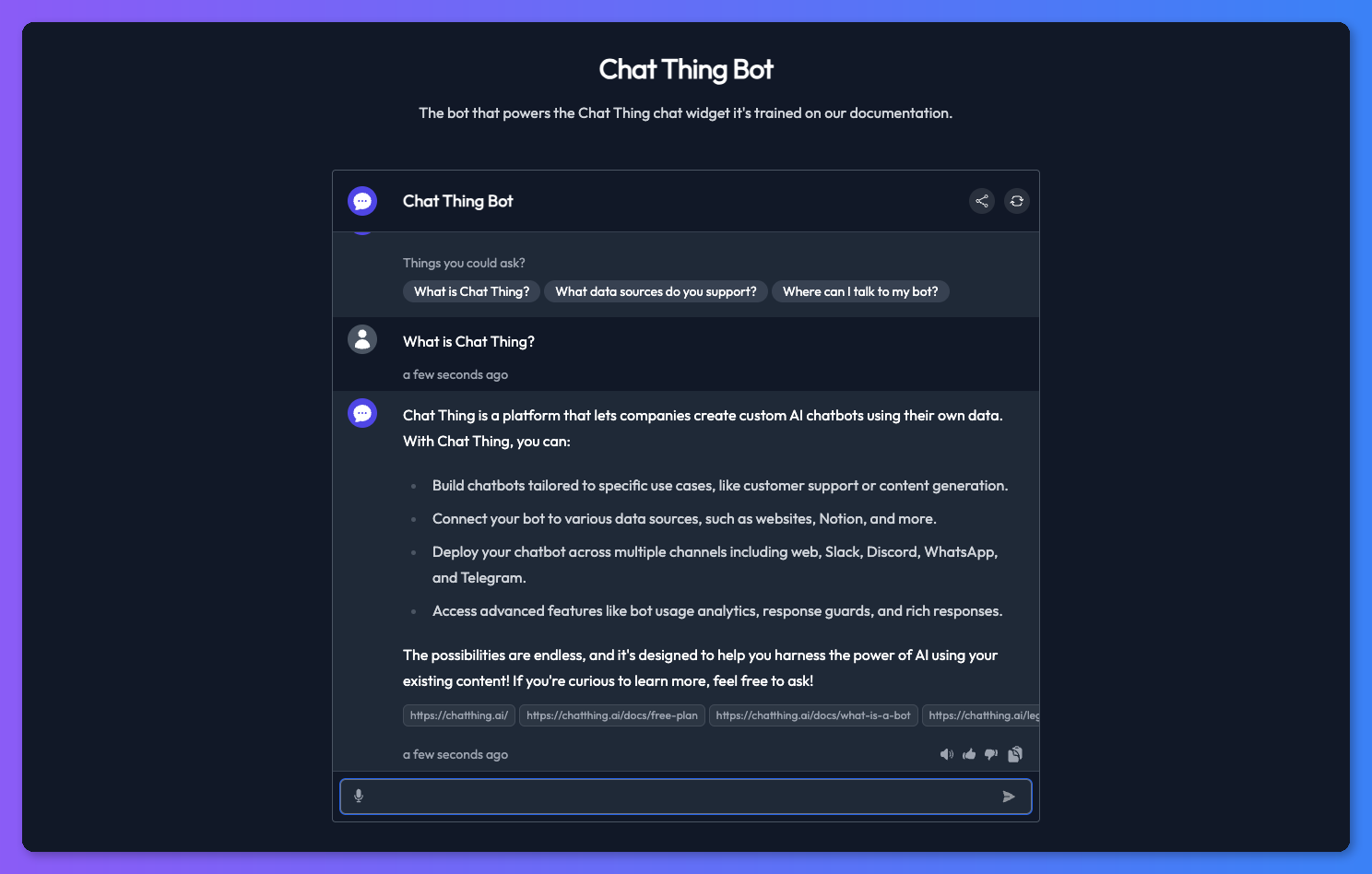
- Audio input - adds a microphone button to the message box. Visitors record their question and it's turned into text, ready to send.
- Audio output - adds a speaker button to each answer, which reads it aloud. Choose a Voice and press play to hear a sample before saving.
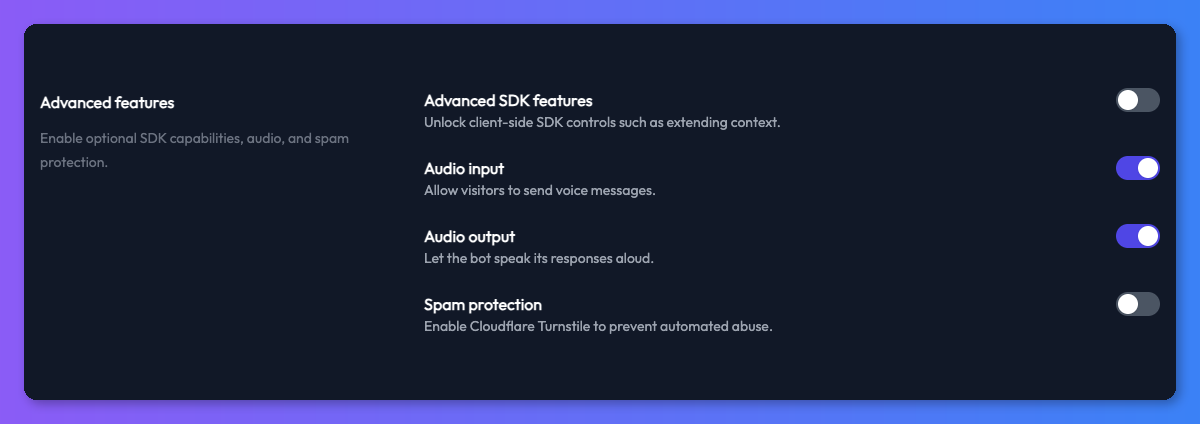
Both are on by default. Turn them off if you don't want them.
Position, size and other layout options
The widget button sits in the bottom-right corner by default. To move it to the bottom left, add a text label next to it, open the chat automatically, let visitors resize the window or restyle it completely, use the widget's code options. See Customise the widget with code.
Check it works
- Click Update settings.
- Click Open bot or Test on your bot's dashboard and check the chat looks the way you want.
- If you changed the theme, icons, language or first message preview, click Embed, copy the widget code again and replace the old code on your website. Those settings are written into the embed code, so your site keeps the old look until you update it.
Troubleshooting
My colours changed in the chat but not on the widget button
The widget button's colour and icon come from the embed code on your site. Copy the code from Embed again and replace the old code.
I can't upload an icon
Icons must be smaller than 25 KB. Resize or compress the image and try again.
Related
- Remove the "Powered by Chat Thing" branding
Hide the "Powered by Chat Thing" footer from your chat widget, embedded chat, bot page and shared chats. Available on Standard, Pro and Enterprise.
- Customise the chat widget with code
Every chatThingConfig option for the Chat Thing widget - position, colours, launcher label, auto-open, per-language greetings and full CSS overrides.
- Set the widget language and the language your bot answers in
Translate the chat widget's buttons and labels into one of 10 languages, control which language your bot answers in, and run the bot on a multilingual website.
Last updated