Take over a live chat from your bot
Human takeover lets someone on your team step into a live website chat, reply to the customer themselves while the bot stays quiet, and hand the chat back when they're done.
Plan and channel
Human takeover is available on the Standard plan and above, for conversations on the website widget (including the bot's own page and iframes). It isn't available on Slack, Discord, WhatsApp, Telegram, email or the API.
How it works
- Escalation (optional). With the Talk to a human power-up, the bot can hand off when a customer asks for a person. It collects their email, emails your team, and marks the conversation Escalated.
- Takeover. A team member opens the conversation in Conversations and selects Takeover. The conversation becomes Active and the customer sees that your team member has joined.
- Live chat. Your team member replies directly. The bot doesn't reply while the conversation is taken over.
- Hand back. Your team member selects Hand back to bot. The conversation becomes Resolved, the customer sees that they've left, and the bot answers any new messages again.
You can take over any website conversation, not only escalated ones.
Before you start
- Your team is on the Standard plan or above.
- Who can do this: owners, admins and responders. Viewers can't take over chats.
Steps
Turn on human takeover
- Open your bot and go to General settings.
- Turn on Allow human takeover of conversations.
- Save your settings.
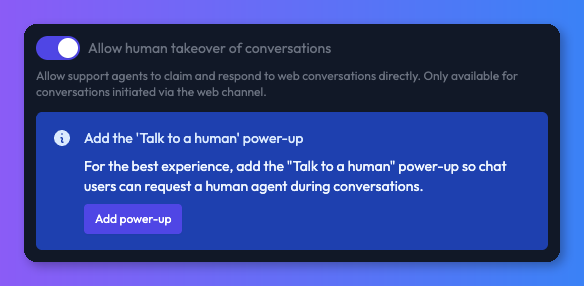
If the bot doesn't have the Talk to a human power-up, you'll see a prompt to add it. Select Add power-up to add it without leaving settings. We recommend it, so customers can ask for a person and your team gets an email when they do. See Hand off a chat to a human.
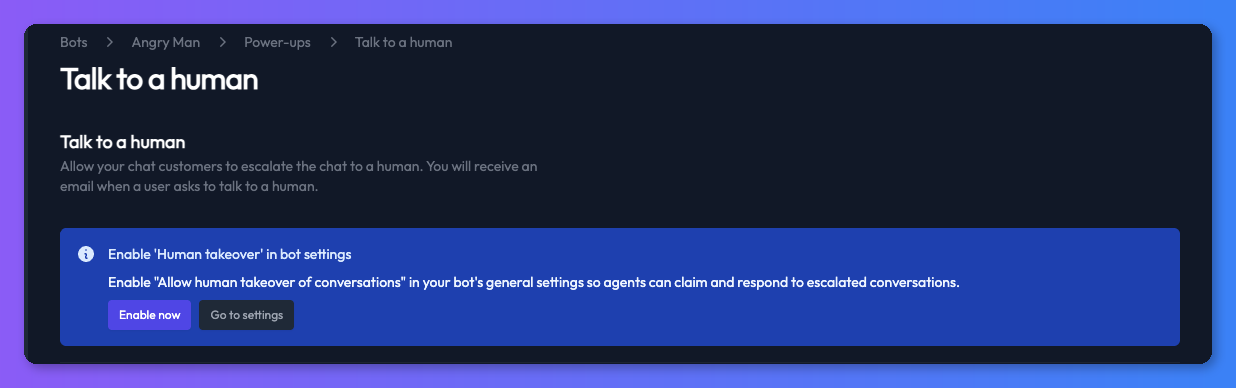
You can also turn takeover on from the power-up: if it's off, the Talk to a human settings page shows Enable now and Go to settings.
Take over a conversation
- Go to Conversations. To find chats waiting for a person, open Filters and set State to Escalated.
- Select the conversation.
- Select Takeover (or Takeover conversation in the ⋮ menu).
- Type your reply and select Send.
Only one person can take over a conversation at a time. If someone got there first, you'll see who has it. The conversation shows Assigned to with their name.
Hand the conversation back
When you're done, select Hand back to bot. The conversation is marked Resolved and the bot replies to any new messages.
To close an escalated conversation without taking it over, open its ⋮ menu and select Mark as resolved.
What the customer sees
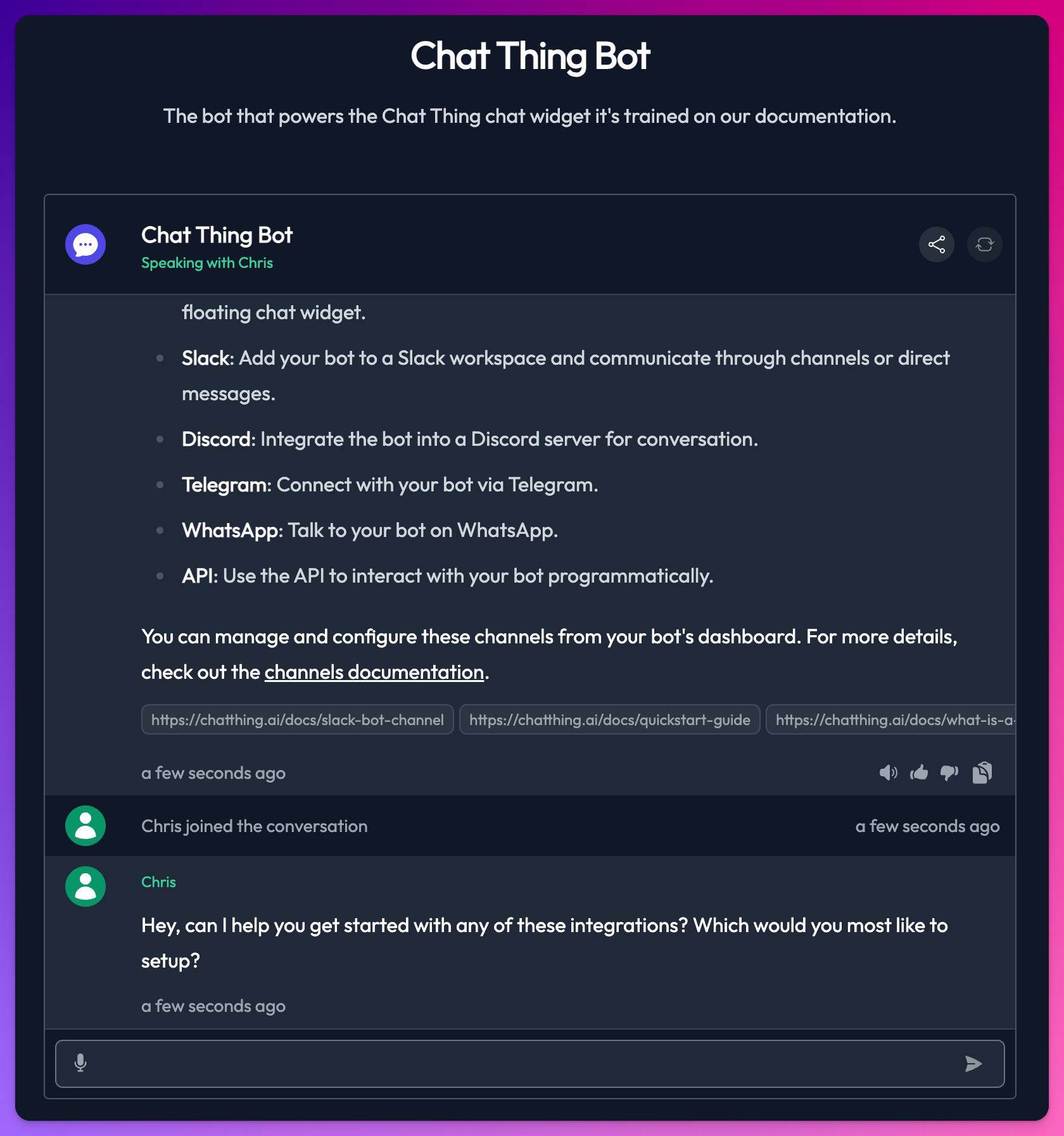
When you take over, the customer sees a message that you've joined the conversation, and the widget header shows Speaking with and your name. Your messages appear in the chat straight away. When you hand back, they see that you've left.
Check it works
- Open your bot's website chat in another browser window and send a message.
- In Conversations, select the refresh icon, open the new conversation and select Takeover.
- Send a reply and check it appears in the chat window, with Speaking with and your name in the header.
- Select Hand back to bot, send another message from the chat window, and check the bot replies.
Get notified and connect other tools
- Email: the Talk to a human power-up emails your team when a customer asks for a person. There are no in-app or browser notifications.
- Webhooks: send conversation events to your own systems, for example a helpdesk or Slack. The events are Conversation started, Conversation escalated, Conversation claimed (someone took over) and Conversation released (handed back). See Webhooks.
Troubleshooting
I can't turn on human takeover
The toggle is locked below the Standard plan. Upgrade your plan.
The Takeover button doesn't work for a conversation
- Takeover only works for website conversations. Other channels show Takeover unavailable for that channel.
- Check your role. Only Owners, Admins and Responders can take over.
- Someone else may already have taken it over.
New escalated conversations don't appear
The list doesn't refresh on its own. Select the refresh icon. Once you've opened a conversation, new messages and state changes appear live.
Related
- Hand off a chat to a human
Let your bot email your team with the visitor's email and the conversation when someone asks for a person, and mark the chat as escalated.
- Review customer conversations
Find, filter and read every conversation your bots have with customers, see AI summaries and user details, and share or download transcripts.
- Webhooks
Send Chat Thing events such as new conversations, escalations and syncs to your own systems, Slack or Discord, and trigger data source syncs from a URL.
- Manage your team and roles
Create a team, invite members, choose the right role (Owner, Admin, Responder or Viewer), remove people, and move bots between teams.
Last updated