Upload files
Upload documents such as manuals, policies, price lists or product guides so your bot can answer questions from them.
Who can do this: team owners and admins.
Supported files
| Format | Notes |
|---|---|
PDF (.pdf) | Text only. Scanned pages or text inside images can't be read. |
Word (.docx) | |
CSV (.csv) | Each row becomes its own entry. |
Markdown (.md), text (.txt) | |
HTML (.html), web archive (.mht) | |
JSON (.json) | |
EPUB (.epub) | |
Zip (.zip) | Unpacked, and each supported file inside is added separately. EPUB files inside a zip are skipped. |
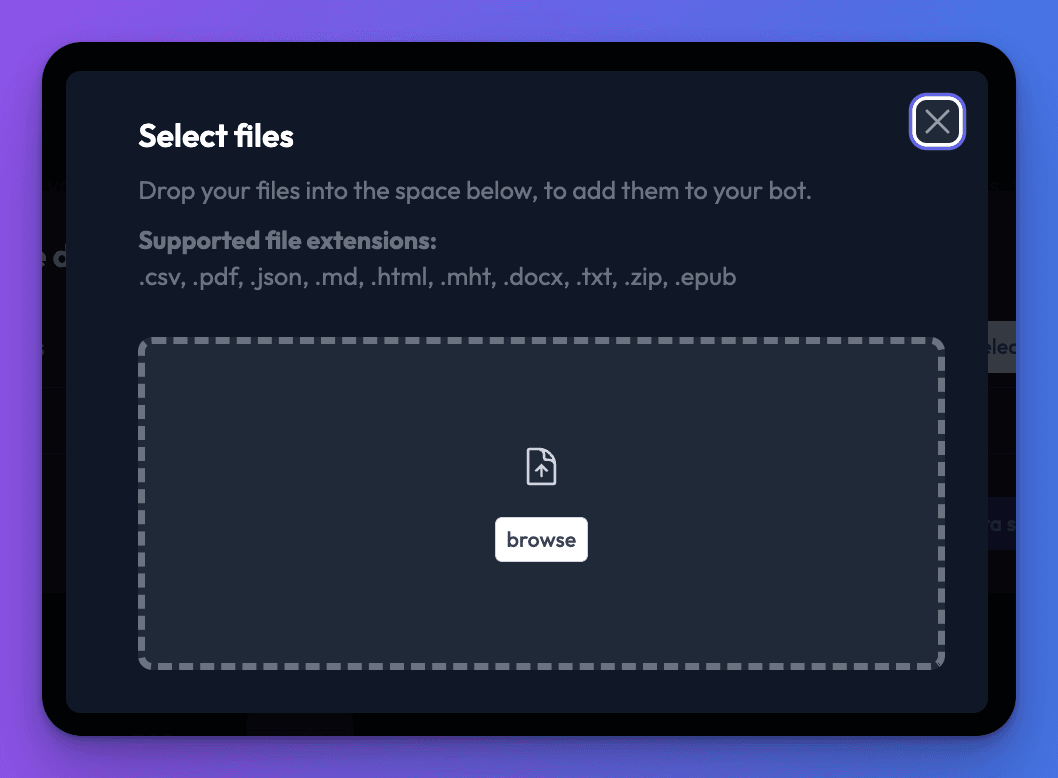
The upload dialog shows the maximum size for each file.
Steps
- Open your bot, go to the Data sources tab and click New data source.
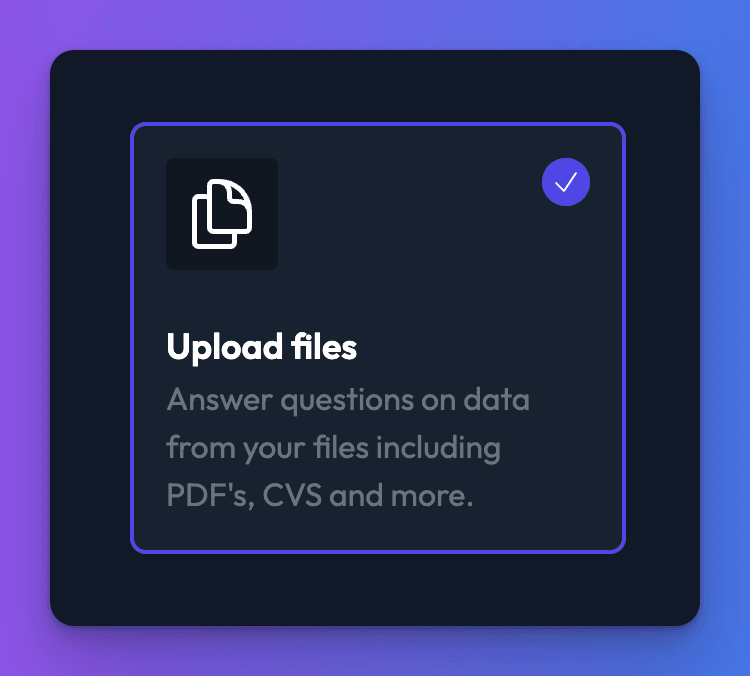
- Choose Upload files and click Create data source.
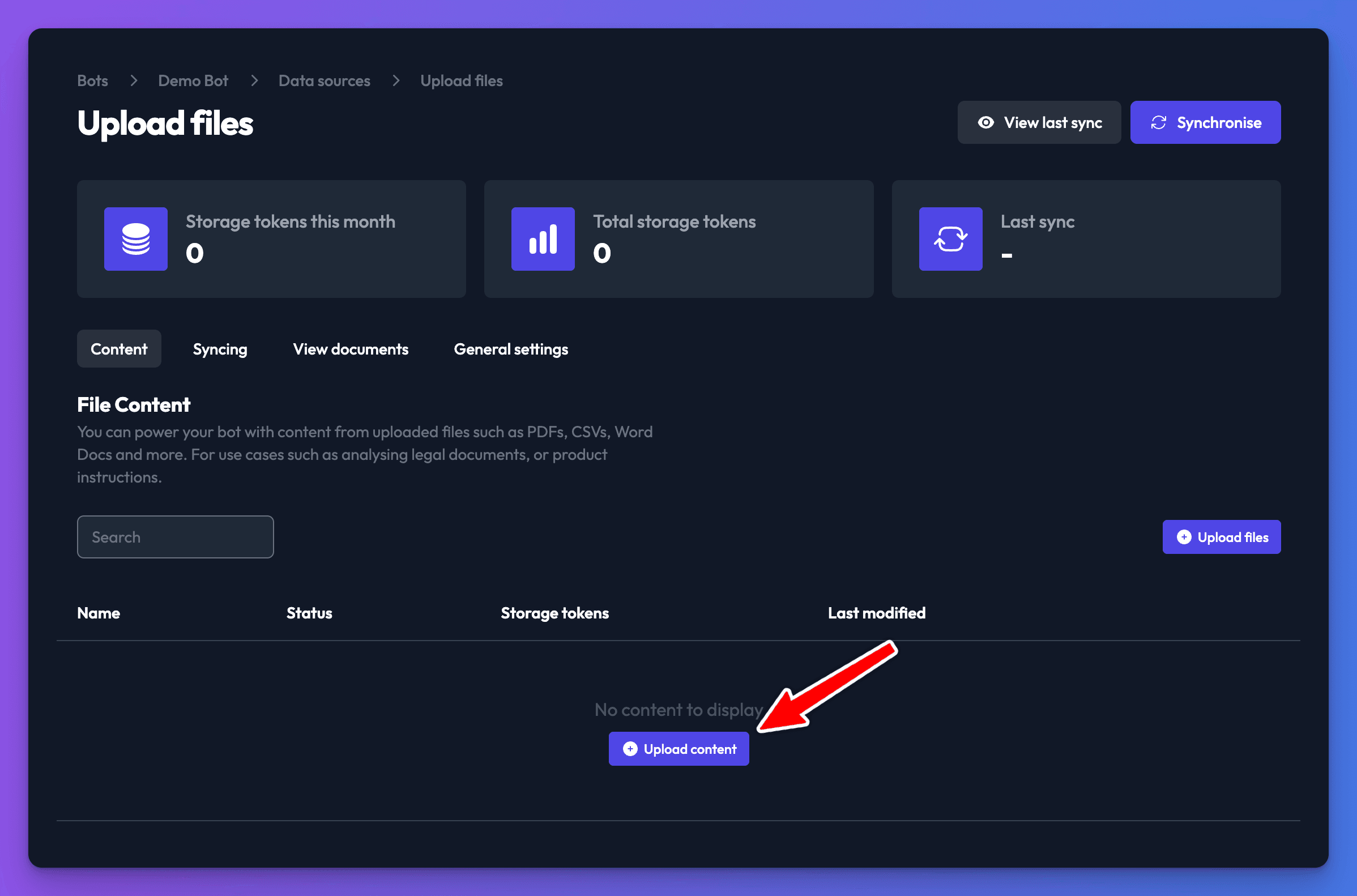
- On the Content tab, click Upload files.
- Drag your files into the Select files dialog, or click to choose them.
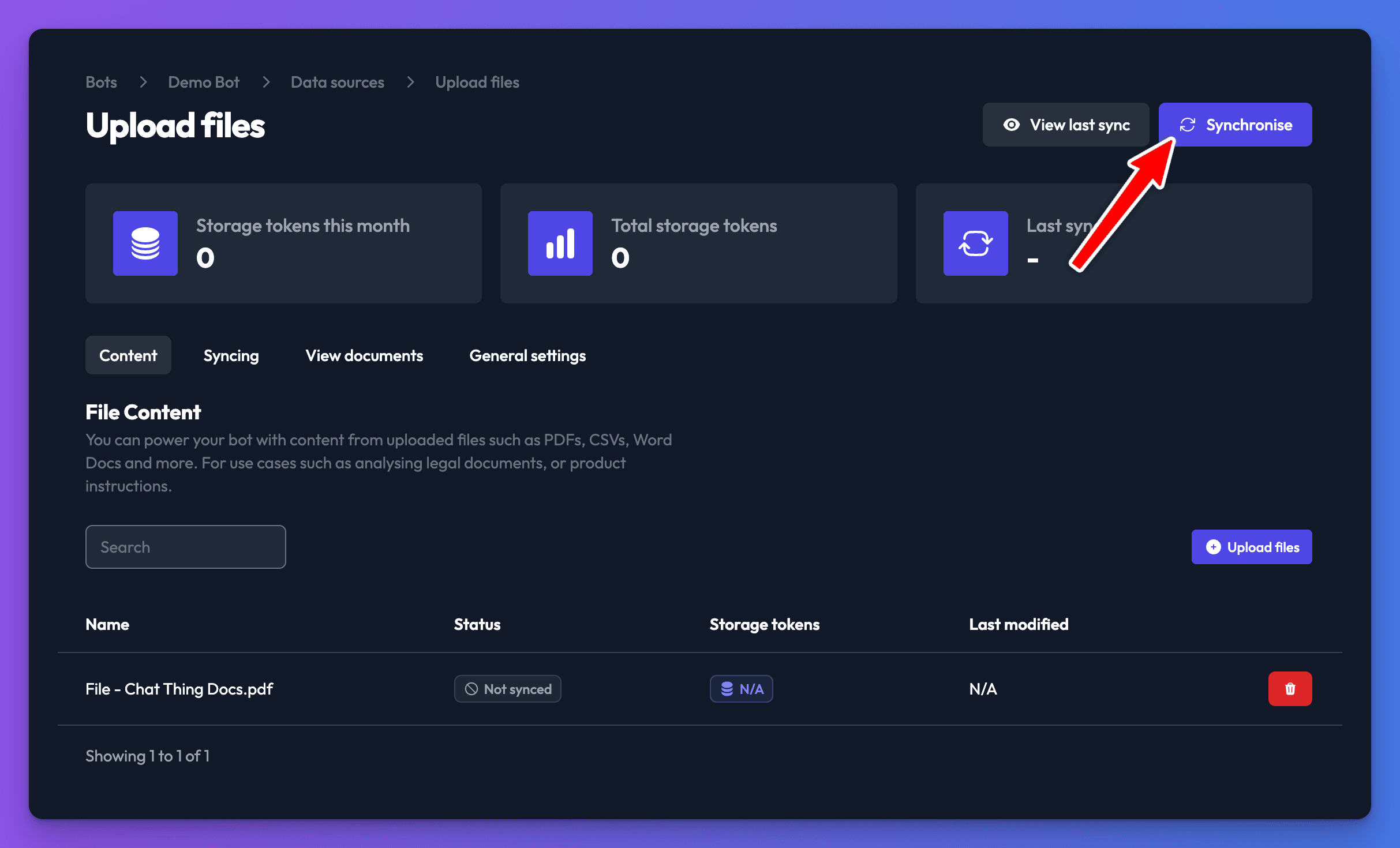
- Check your files are listed. Upload more if you need to.
- Click Synchronise.
Update a file
To replace a file with a newer version, delete the old file's row on the Content tab, upload the new version and click Synchronise.
Check it works
- After the sync, each file's Status shows Finished and its Storage tokens are filled in.
- Ask your bot a question that one of the files answers.
How your files are stored
Uploaded files are kept in private storage that only Chat Thing's systems can access. We read them when the data source syncs, to extract their text for your bot. When you delete the file data source or the bot, the files are deleted. See security and data for more on how data is handled.
Troubleshooting
A PDF synced but the bot can't answer from it
The PDF is probably a scan: an image of text rather than text. Check by trying to select text in a PDF viewer. Convert it with OCR software first, or add the content as manual content.
My file type isn't accepted
Save it in one of the supported formats first. For example, export spreadsheets as CSV, or save a Google Doc or Pages file as Word (.docx) or PDF.
Related
- Add, sync and delete data sources
Add a data source to your bot, sync it, re-sync after changes and delete it, plus how many data sources each plan allows and per-type limits.
- Security and data handling
Where Chat Thing stores your data, which AI providers process it, whether it's used for training, how access and deletion work, GDPR, DPA and SOC 2.
Last updated