How power-ups work
A power-up gives your bot something it can do during a conversation: email your team, book a meeting, call an API, search the web or show results as cards. Other products call these "tools", "functions" or "actions".
Some examples:
- Lead capture: collect a visitor's name, email and company, then email them to you or save them to a Notion database.
- Order tracking: ask for an order number and look up its status through your API.
- Contact requests: when a visitor asks to get in touch, send you an email with their details, so there's no separate contact form.
- Research: search the web, read the top result and summarise it.
See the power-ups hub for the full list, grouped by job.
Plan and model requirements
Power-ups are available on all paid plans. On the Free plan the Power-ups tab shows "Power-ups are only available on paid plans". Your bot's model must also support power-ups. The models page shows which ones do.
How your bot decides to use a power-up
Each time someone sends a message, Chat Thing sends your bot the list of power-ups that are turned on, along with each power-up's Description. The bot reads the conversation, your prompt and those descriptions, and decides whether a power-up would help.
If it uses one, the bot fills in the details the power-up needs (an email address, a search query, an order number), usually by asking the visitor first. The result is added to the conversation and the bot writes its reply from it. The bot can use several power-ups in a row before it replies, for example searching Google, reading the top result, then emailing you a summary.
This means you control power-ups with plain language:
- The description says when and how to use it. It's the most important setting. Keep it short and specific. Changing it can completely change how the bot behaves. For example, a Browse web page power-up described as "Read any web page the user shares" will read any link. Described as "Read https://example.com/opening-hours to answer questions about opening times", it only reads that page, and only for that kind of question.
- Your prompt sets the rules. Use your bot's prompt for rules that span power-ups: when to use them, in what order, and when not to. For example: "Before answering any questions, ask for the user's name and email address and send them to us with the subject 'New conversation started'."
Add a power-up
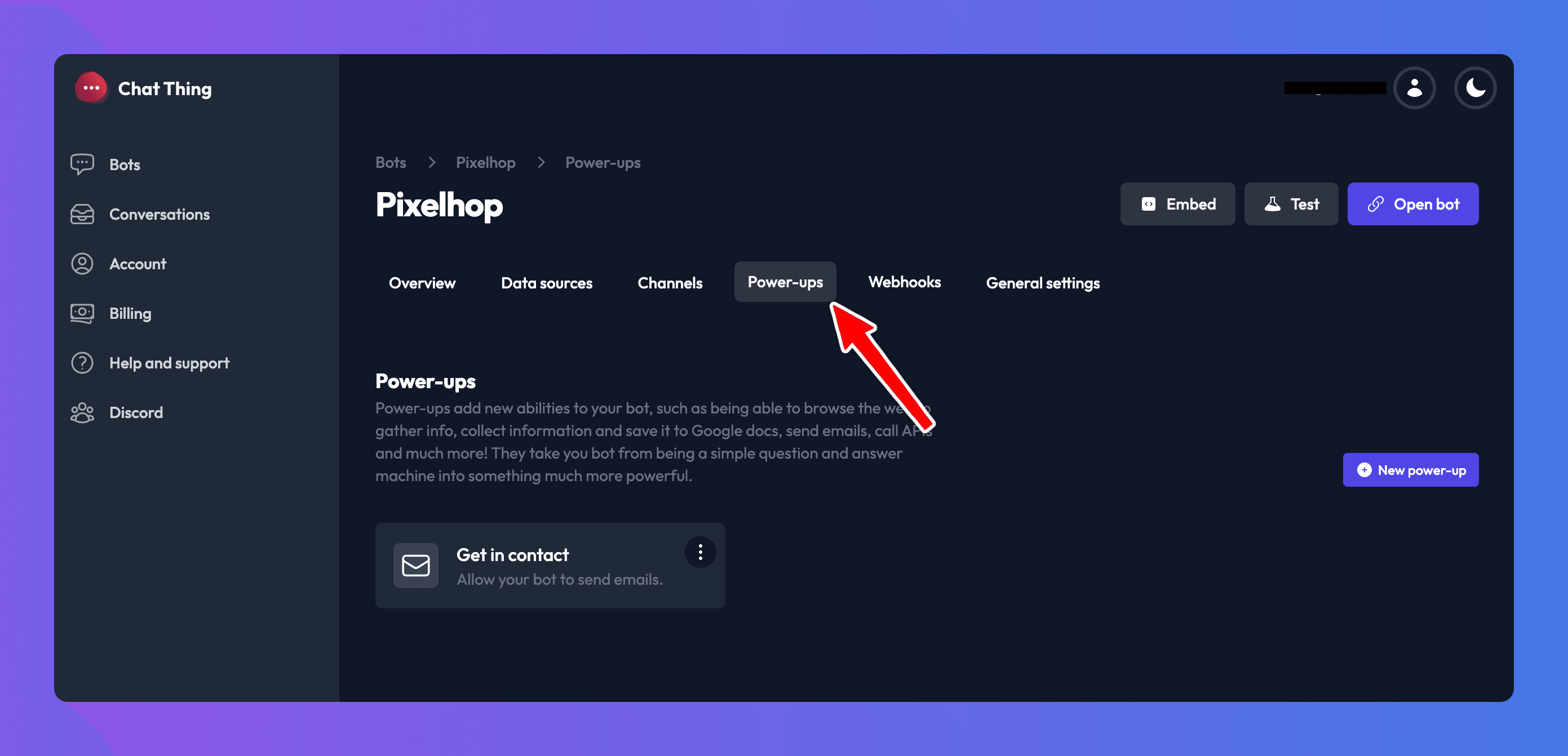
- Open your bot and go to the Power-ups tab.
- Click New power-up.
- Choose a power-up. Use Search to filter the list.
- Click Create power-up. The power-up's settings page opens.
- Enter a Power-up name. Visitors see this name in the chat while the bot uses the power-up, so make it readable, for example "Check order status".
- Edit the Description so the bot knows when to use it.
- Fill in the settings for that power-up. Each power-up's page in these docs explains them.
- Click Save.
New power-ups are turned on as soon as you create them. You can also add and configure power-ups from an AI assistant using the Chat Thing MCP server.
Edit, turn off or delete a power-up
Your power-ups are listed as cards on the Power-ups tab.
- Turn off or on: use the toggle on the card. A turned-off power-up keeps its settings but the bot can't use it.
- Change settings: open the menu in the top-right corner of the card and click Settings.
- Delete: open the same menu, click Delete and confirm. This can't be undone.
What people see in the chat
In the web widget a small label appears above the bot's reply while it works: "Using Check order status…". When the bot finishes it changes to "Used Check order status". If the bot used several power-ups, the label lists the first two and adds "+1 more", "+2 more" and so on. Any display the power-up returns, like cards or a booking picker, appears below the label.
If you're signed in as an owner or admin of the bot's team, you can click the label to see each power-up call. Click View details on a call to see the Power-up call (the details the bot sent) and the Power-up result (what came back, including any error). This is the quickest way to find out why a power-up didn't behave as expected. Visitors never see these details.
On other channels such as Slack, WhatsApp, Telegram and email, there's no label. The visitor only sees the bot's final reply. Cards, charts and other displays are web-only, so on these channels the bot replies in text instead.
Tips
- Test in the dashboard. Chat with your bot while signed in so you can open View details on each call.
- Keep power-up results small. Everything a power-up returns takes up room in the bot's context. Large results make answers slower and less reliable. The Call your API and Browse a web page pages explain how to trim them.
- Raise the message history for multi-step work. Each power-up result counts as a message. If your bot chains several power-ups, increase Max message history under Model settings (advanced) in your bot's settings so it remembers earlier results. See the settings reference.
- Try a more capable model for workflows that need reasoning across several power-up results. See Models.
- Give each bot only the access it needs. A public bot can be used by anyone. Connect it to the smallest set of data and permissions that does the job. For example, use a dedicated Notion database or a restricted API key rather than full access.
Troubleshooting
My bot never uses the power-up
Check that the power-up's toggle is on and that your bot's model supports power-ups. Then make the Description more specific about when to use it, or add a rule to your bot's prompt, such as "When the user asks about an order, always use Check order status".
My bot uses the power-up with the wrong details
Open View details on the call to see what the bot sent. Describe the details more clearly in the power-up's settings (for example, argument or field descriptions), or tell the bot in the prompt what to ask the visitor for first.
My bot says it has done something but nothing happened
Open View details and check the Power-up result for an error. For power-ups that connect to another service (Notion, Slack, email, your API), check that the connection or credentials are still valid.
Next steps
- Hand off a chat to a human, the power-up most support bots need first.
- Call your API to connect a system that doesn't have its own power-up.
- Write your bot's instructions to control when power-ups are used.
Related
- Write your bot's instructions
Write the prompt that sets your bot's role, topics, tone, answer length, language, power-up use and handoff, with before-and-after examples.
- Choose your bot's AI model
See which AI models your bot can use, what each supports, how model choice affects message token use, and how to change it.
- What your AI assistant can do in Chat Thing
Every tool the Chat Thing MCP server gives your AI assistant, from creating bots and adding knowledge to webhooks, tests and conversations.
Last updated