Bots
Otto, your AI assistant
Otto is Chat Thing's built-in AI assistant. Instead of hunting through settings forms, you can just tell Otto what you want and it makes the change for you - then explains what it did.
Otto shows up in two places:
- When you create a bot - Otto can set the whole thing up with you, in a conversation.
- Inside an existing bot - the Ask Otto button on every bot page opens Otto in a side panel, where it can explain, change and test that bot.
It's the same assistant in both places. What it can do differs slightly, and this page covers both.
Who can use Otto
Otto is available to team owners and admins. Members with a viewer role won't see the Ask Otto button, because Otto's changes need write access to the bot.
Setting up a new bot with Otto
When you create a new bot, Chat Thing can hand you straight to Otto rather than a blank form. Tell it what you want the bot to do - or just give it your website - and it will:
- Research your site to understand your business, products and tone of voice
- Create the bot with a system message and welcome message that match your brand
- Find your pages and add them as knowledge, so the bot can answer from your real content
- Match the widget to your branding - theme and brand colours, and a custom avatar if you'd like one
- Suggest power-ups that fit, like escalating to a human or calling your store's API
A panel alongside the chat fills in as Otto works, so you can watch the bot take shape and see exactly what's been set up.
You're never locked in. If you'd rather fill everything in yourself, choose set it up myself to switch to the standard bot form, and nothing you've done so far is lost.
Managing a bot with Otto
Once your bot exists, open any of its pages and click Ask Otto.
Otto opens in a panel beside the dashboard - the page stays visible and usable, so you can watch changes land as they happen.
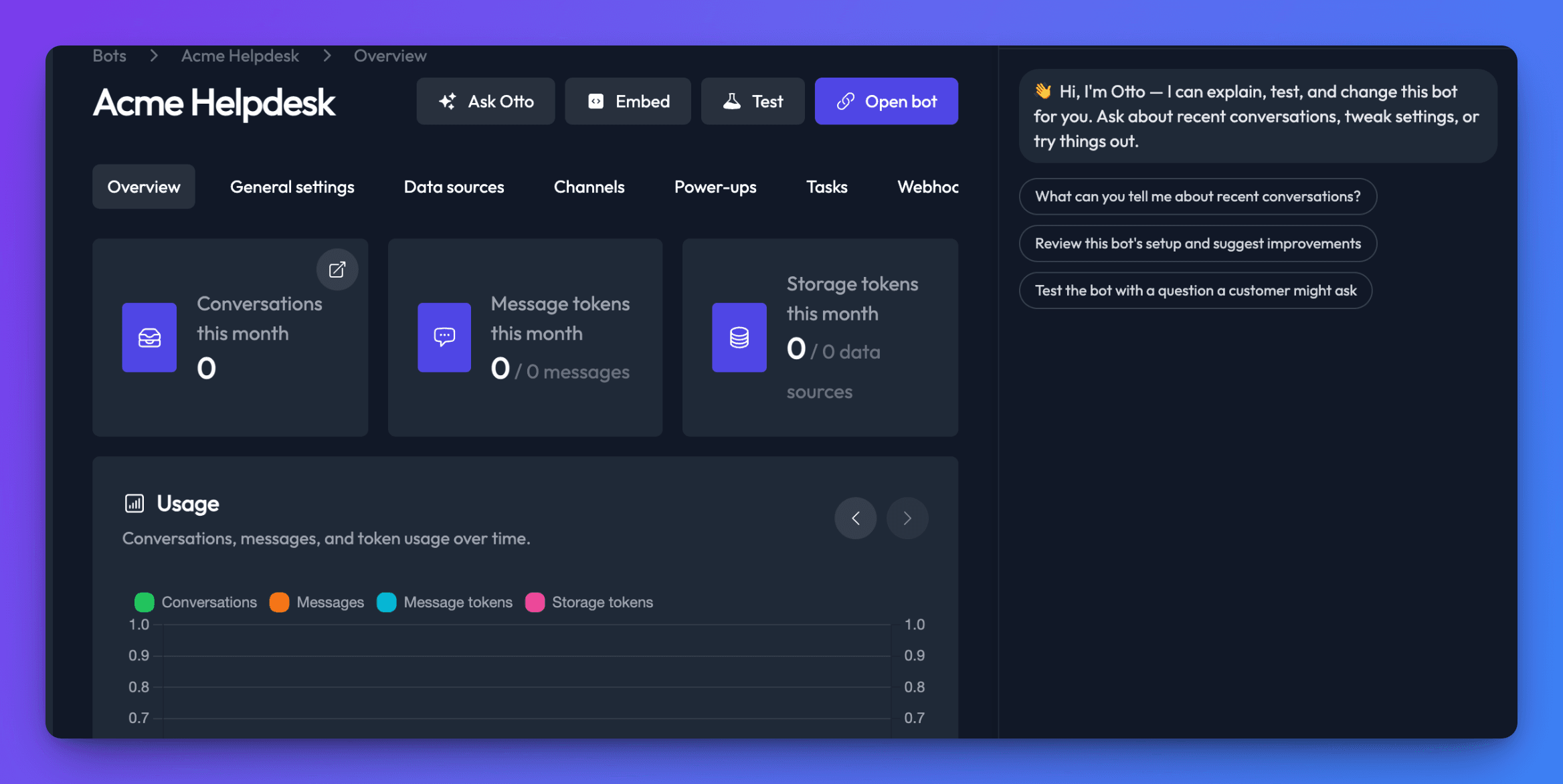
Things people ask Otto to do:
- "Add our changelog page as a data source"
- "Make the tone more formal"
- "Why did the bot answer that question so badly?"
- "Review this bot's setup and suggest improvements"
- "Set up escalation to a human when someone asks for refunds"
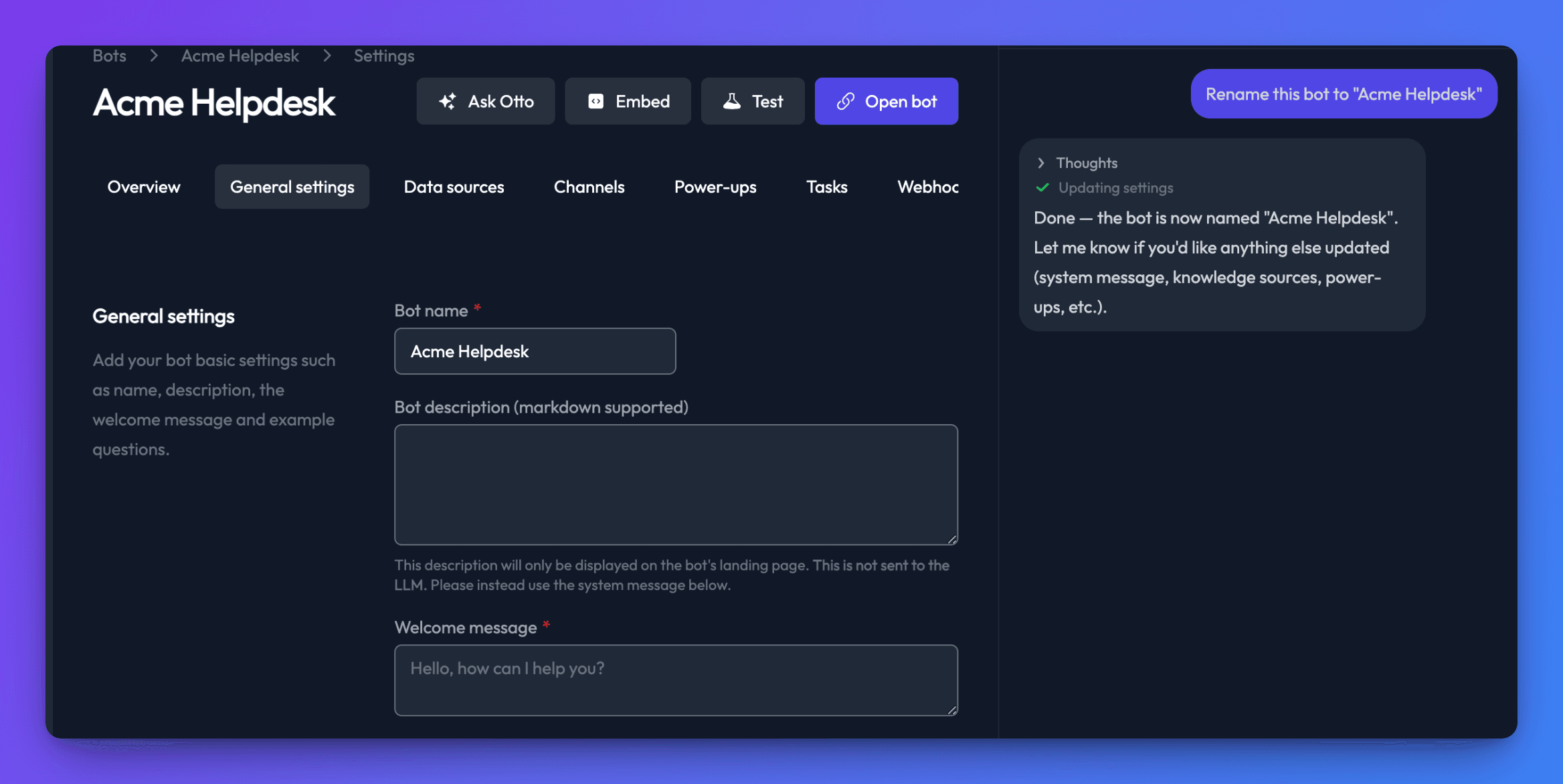
When Otto changes something, the dashboard behind it updates straight away - rename the bot and you'll see the new name appear in the header and in the settings form while you're still talking to Otto.
Editing a form at the same time?
If you have unsaved changes in a form that Otto has just edited, Chat Thing won't quietly overwrite your work. You'll see a notice offering to reload the form with Otto's changes, so you can decide which version to keep.
Diagnosing a bad answer
When a customer gets a poor answer, you don't have to describe the problem from memory. Open the conversation in Conversations and click Ask Otto about this chat.
Otto reads the actual exchange - what the customer asked, what the bot replied, and which sources it drew on - then works out the cause. Usually it's one of a few things: knowledge that's missing or still syncing, retrieval settings that are too strict, the system message, or the model. Otto explains what it found in plain language, proposes a fix, and applies it once you agree.
How Otto tests your bot
Otto can talk to your bot to check a fix worked, and tell you which sources the answer used. These test conversations are kept separate from your real ones - they don't appear in your Conversations list, and they don't fire webhooks.
Power-ups don't run in Otto's test chats
Test conversations deliberately don't execute power-ups, so Otto can never send a real escalation email, post to Slack, or call your API while testing.
This means a power-up fix can't be confirmed by Otto's testing. Otto will configure it and tell you what it changed, but you should verify the side effect yourself in a real conversation.
What Otto won't do
Some things deliberately live in the dashboard rather than in a chat:
- Connecting channels - Slack, Discord, WhatsApp, Telegram and email are set up in the bot's Channels section.
- Anything involving credentials - Otto will never ask you to paste an API key, token or password into the chat. Enter those in the dashboard, where they're stored securely.
- File uploads and Notion or Google source pickers - add these from the Data sources tab.
- Billing and team settings.
Otto working inside a bot is also scoped to that bot. It can't create new bots, and it can't change a different bot in your team - even if a customer message in a conversation it's reading appears to ask it to.
Never paste secrets into the chat
Your conversations with Otto are saved so you can come back to them. Treat the chat like any other saved document and keep API keys, passwords and customer personal data out of it.
Your chat history
Otto keeps your previous conversations for each bot, so you can pick up where you left off. Open the history icon at the top of the panel to see them.
If the bot was originally set up with Otto, that first setup conversation appears in the list too. It opens read-only - you can read back through how the bot was built, and start a fresh chat from there to make new changes.