API overview
The Chat Thing REST API lets your own app or backend chat with a bot and manage its manual knowledge. It's part of the API channel, which each bot turns on separately.
Plan requirement
The API channel is available on the Standard, Pro and Enterprise plans. See Plans.
What the API covers
| API | Use it to | Reference |
|---|---|---|
| Chat API | Start conversations, send messages, stream replies, list conversations and read messages | Chat API |
| Data sources API | Create, update, sync and delete a bot's manual data sources and their entries | Data sources API |
| Sync trigger webhook | Re-sync a data source by calling a URL | Webhooks |
To build and configure bots from code or an AI agent (create bots, add websites, set up power-ups), use the MCP server instead. It covers far more than the REST API.
Base URL
All REST endpoints live under:
https://app.chatthing.ai/api/public/channels/{channelId}/{version}
{channelId}is your bot's API channel ID (see below).{version}is2.0or1.0(see Versions).
Older integrations that call https://chatthing.ai/api/public/... still work: those requests are forwarded to app.chatthing.ai. Use app.chatthing.ai for anything new.
Authentication
Every request needs your bot's API channel Channel ID in the URL and its Secret key in the X-API-Secret-Key header.
The secret key belongs to one bot's API channel. It only works for that bot, and each bot you want to call needs its own API channel and key. There's no account-wide REST API key.
Get your Channel ID and secret key
Who can do this: team owners and admins.
- Open your bot and go to the Channels tab.
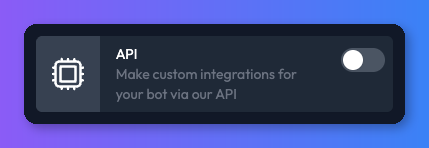
- Turn on the API channel. Its settings page opens.
- Copy the Channel ID.
- Under Secret key, click Generate new secret (or Generate secret), and copy the key straight away. You won't see it again once you've saved.
- Click Save.
To rotate the key, generate a new one and save. The old key stops working as soon as you save.
Send the headers
Content-Type: application/json
X-API-Secret-Key: {secretKey}
Keep the secret key on your server
The API allows requests from any website, but anyone who sees your secret key can chat with your bot, read its conversations and change its manual knowledge. Call the API from your server, never from code that runs in a visitor's browser. To put a bot on a website, use the chat widget instead.
Versions
The version is part of the URL. Both 2.0 and 1.0 are served, and every endpoint works on both.
| Version | Status | Difference |
|---|---|---|
2.0 | Current. Use it for all new integrations | Streaming replies use Server-Sent Events (SSE) |
1.0 | Supported. Streaming on 1.0 is deprecated | Streaming replies use the older newline-delimited JSON format |
Request bodies, authentication and all non-streaming responses are identical on both versions. Only the format of stream: true responses changes. See Stream replies.
1.0 streaming is deprecated
Streaming on version 1.0 is deprecated and will be removed in a future release. It still works today. If you stream replies, move to 2.0. If you don't stream, you only need to change 1.0 to 2.0 in your URLs.
Status codes
| Code | Meaning |
|---|---|
200 | Success |
400 | The request body is missing a required field or has the wrong type |
403 | The secret key doesn't match this channel |
404 | The channel ID or version is wrong, the API channel is turned off, or the conversation or data source doesn't exist for this bot |
429 | A usage limit was reached, or a data source is already syncing (see below) |
500 | Something went wrong on our side. Try again, and contact us if it keeps happening |
Error responses are JSON with a statusCode and a statusMessage describing the problem. Data source endpoints also return "success": false in the body when they fail.
Usage limits
The API uses the same limits as every other channel. When one is reached, the request fails with 429 Too Many Requests.
For Send a message, the 429 response includes a Retry-After header (seconds until the limit resets) and a structured body:
{
  "statusCode": 429,
  "statusMessage": "bot-daily-token-limit-reached",
  "data": {
    "error": {
      "code": "bot_daily_token_limit_reached",
      "message": "This bot has hit its daily token limit. Resets at the start of the next day.",
      "scope": "bot",
      "details": {
        "limit": 600000,
        "used": 603646,
        "resetAt": "2026-05-27T00:00:00.000Z"
      }
    }
  }
}
codeis stable and safe to branch on.messageis readable English and may change.scopeisbotorteam. Use it to tell bot limits from team limits rather than parsingcode.details.resetAtis a UTC ISO 8601 timestamp.
code | scope | What happened |
|---|---|---|
bot_daily_token_limit_reached | bot | The bot reached its daily token limit. See Usage limits |
team_message_token_limit_reached | team | Your team used all its message tokens for this billing period. See Message tokens |
team_embedding_token_limit_reached | team | Your team used all its storage tokens for this billing period. See Storage tokens |
bot_message_char_limit_reached | bot | The message is longer than the bot's maximum message length. details.limit is the limit. Shorten the message; there's no Retry-After header because waiting won't help |
Start a conversation also returns 429 when a token limit is reached, but with a plain statusMessage and no structured data.
For the data sources API, 429 means the data source is already syncing, you've reached your plan's data source limit, or you're out of storage tokens. The statusMessage says which.
Next steps
- Chat API: start conversations, send messages and stream replies.
- Data sources API: keep a bot's knowledge in sync from your own system.
- Webhooks: get notified when things happen.
Related
- Chat API
Start conversations, send messages, stream replies, pass user data and read conversation history with the Chat Thing REST API.
- Data sources API
Create, update, sync and delete a bot's manual data sources and their entries with the Chat Thing REST API, to keep its knowledge in step with your system.
Last updated